Change Order Approvals Pipeline Template
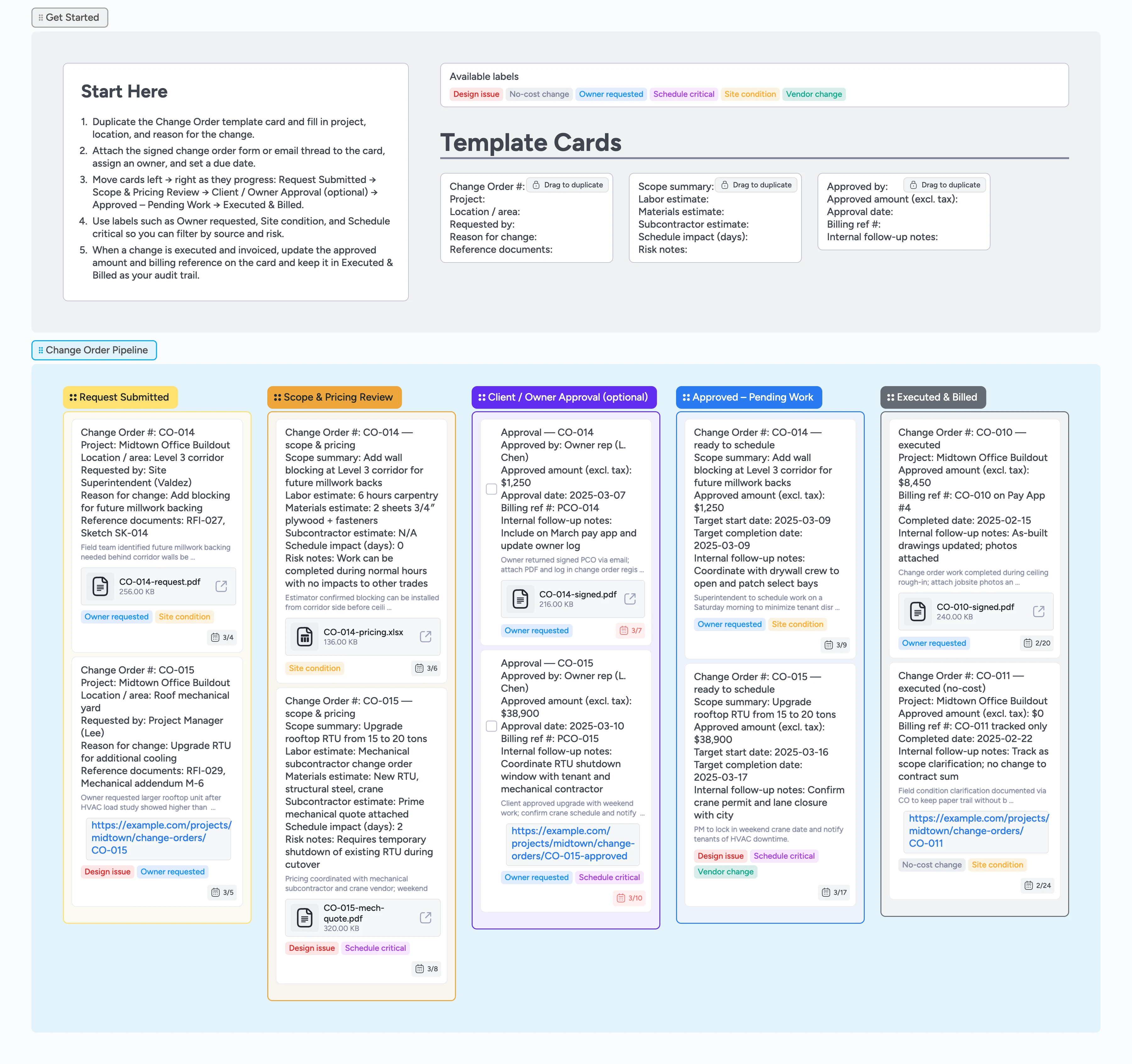
Track every change order from request to billing
Instead of juggling RFIs, email approvals, and Procore or spreadsheet logs, use one Instaboard pipeline to shepherd every construction change order from request through execution. Field teams duplicate a Change Order template card, fill in project, area, and reason, and attach signed forms or email threads right on the card. Estimators and project managers move cards through Scope & Pricing Review and Client / Owner Approval, apply labels like Owner requested or Site condition, and set due dates so nothing stalls. As work gets scheduled and billed in Approved – Pending Work and Executed & Billed, each card keeps a complete trail of decisions, files, and schedule impacts.
- Standardize every change order request with duplicate-ready micro-templates for scope, pricing, and approvals
- See real-time status as cards move from Request Submitted through Scope & Pricing Review, Client / Owner Approval, and Executed & Billed
- Keep signed CO forms, pricing breakdowns, RFIs, and photos attached to the same card
- Highlight risky or urgent items with labels like Owner requested, Site condition, Schedule critical, or No-cost change
- Shorten approval cycles by assigning owners, setting due dates, and resolving questions directly on the board
Capture each request in Request Submitted
On the board, start in the Get Started section by reading the Start Here card, then duplicate the Change Order template card beside it. Fill in the project, location, requester, and reason for the change, attach the PDF or email thread that describes the change, assign yourself or the responsible PM, set a due date, and drag the card into the Request Submitted list.
Pro tip: Keep one card per change order so every discussion, file, and approval stays in a single place.
Build scope and pricing in Scope & Pricing Review
When a change is ready to estimate, move its card into the Scope & Pricing Review list so the team can see it is under review. Duplicate the scope and pricing micro-template card, link it to the main change order, and capture the labor, materials, subcontractor, and schedule impact details directly in the card’s fields and description on the board. Attach any subcontractor quotes or internal takeoff files as attachments on the card instead of burying them in email. Apply labels like Design issue, Site condition, or Vendor change so approvals later can be filtered by what drove the change, and assign the estimator or PM who owns the pricing work.
Pro tip: Use due dates on pricing cards to keep estimates moving before they delay field work.
Route for client approval and track signatures
Once pricing and scope are ready, drag the card into the Client / Owner Approval (optional) list and update the approval summary fields on the approval micro-template card with amounts and billing references. Attach the signed change order PDF or a link to your contract system so anyone can open it from the board. Use labels like Schedule critical or No-cost change to flag which items can move quickly versus those that change contract value or dates. Assign the owner representative or account lead to the card so it is clear who is chasing signatures and when approval is expected.
Pro tip: Leave approval cards on the board even after signing so auditors and executives can trace how each change was approved.
Schedule work and close out executed changes
After a change is approved, move its card into Approved – Pending Work and update the fields for target start and completion dates so the superintendent can plan around other trades. As work is completed in the field, drag the card into Executed & Billed, attach jobsite photos or as-built markups, and confirm the final approved amount and billing reference on the card. Convert close-out follow-ups into task cards with checkboxes when you need to remind accounting to include the change on the next pay application. Keep completed cards in Executed & Billed instead of archiving them so you always have a searchable history of changes for claims or lessons learned.
Pro tip: Use filters on labels like Schedule critical, Owner requested, or Site condition to review patterns in your changes at the end of a project.
What’s inside
Start-Here guidance
A Start Here card in the Get Started area explains how to duplicate the Change Order template card, attach supporting documents, and drag the new card into Request Submitted so every change starts on the board, not in email.
Change Order Pipeline lists
Five color-coded lists let you drag each change from Request Submitted through Scope & Pricing Review, Client / Owner Approval, Approved – Pending Work, and Executed & Billed so cost and schedule impacts are always visible.
Change order micro-templates
Dup-locked cards for the change request, scope and pricing breakdown, and approval summary keep key fields like project, location, amounts, and billing references consistent across jobs.
Real-world demo cards
Example change orders for blocking, rooftop units, and no-cost clarifications show how to use assignees, due dates, labels, and file attachments in each stage.
Labels for drivers and risk
Prebuilt labels such as Owner requested, Design issue, Site condition, Vendor change, Schedule critical, and No-cost change make it easy to filter by source, urgency, or commercial impact.
Why this works
- Keeps every change order request, approval, and supporting document in one place instead of across email, RFIs, and separate logs
- Uses dup-locked change order micro-templates so scope, pricing, and approvals follow the same structure on every project
- Makes bottlenecks obvious by showing which changes are waiting on pricing, client approval, or field execution at a glance
- Surfaces risk by letting you filter cards by labels like Owner requested, Site condition, or Schedule critical before issues snowball
- Provides a durable audit trail of executed and no-cost changes that is easy to review at project closeout or during claims
FAQ
Who is this change order template for?
This board is designed for general contractors, construction managers, and owners' reps who manage recurring change orders and want a single, transparent approval path instead of scattered logs.
Can we adapt the stages to our contract language?
Yes—you can rename lists, add or remove columns, and tweak the micro-templates so the fields match your standard change order, RFI, or pay application wording.
Does this work with tools like Procore or spreadsheets?
Most teams use Instaboard as the single status dashboard—each card carries links and attachments back to Procore, your ERP, or your spreadsheet so you check the board for approvals and only jump into those systems when you need contract-level detail.
How should we handle small field-only changes?
Log even small no-cost or field-only changes as cards, tag them No-cost change or Site condition, and move them quickly through the pipeline so you still keep a clean audit trail.