Online Course Production Pipeline Template
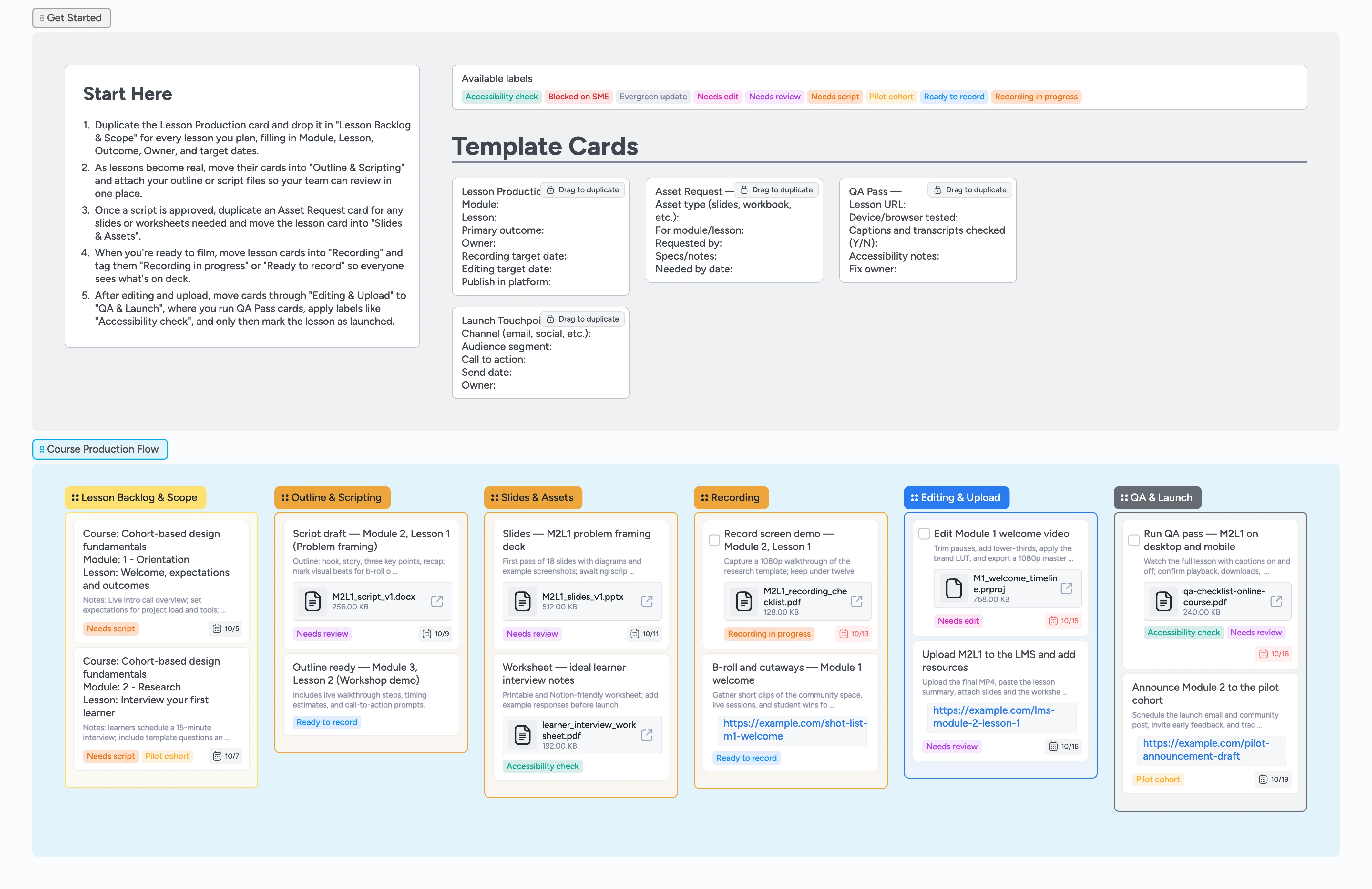
Produce online courses with a repeatable pipeline
Most course teams juggle outlines in docs, slide decks in folders, and scattered to-dos in project tools. This template turns your course into a lesson-by-lesson production pipeline so every card moves from backlog to launched in one view. Start by duplicating the Lesson Production micro-template, then slide the same card through scripting, assets, recording, editing, and QA while owners, due dates, and attachments stay attached. Labels and demo cards model how to track scripts, recordings, and accessibility checks so your next cohort or evergreen course ships without chaos.
- See every lesson moving from idea to launched in one place
- Capture scripts, slides, worksheets, and links directly on lesson cards
- Assign owners and due dates so production never stalls
- Flag recording, editing, and accessibility work with meaningful labels
- Reuse micro-templates so every lesson follows the same checklist
Start in Get Started and create your first lesson card
In the Get Started section, duplicate the Lesson Production card and drag it into Lesson Backlog & Scope, then fill in the course, module, lesson title, outcome, owner, and target dates so the work has a clear home right away. This gives you one card per lesson that will travel through the rest of the pipeline.
Outline and script lessons in one place
When you are ready to write, move a lesson card into Outline & Scripting and attach your outline or script file directly to the card. Use the description to bullet key beats and calls to action so your editor or producer can follow along. Apply labels like Needs script or Needs review to show where writing is blocked. Assign the instructor or writer and set a due date so you can see upcoming deadlines at a glance. As scripts are approved, flip labels to Ready to record and drag cards right.
Design slides and supporting assets before you hit record
Shift lesson cards into Slides & Assets once scripts are in a good place. Duplicate the Asset Request micro-template to capture each slide deck, worksheet, or downloadable you need for that lesson, then assign an owner and target date. Attach slide files or design links so reviewers can open the right version from the board. Use Accessibility check for worksheets that still need alt text or formatting tweaks. When slides and assets are locked, update labels and move the lesson card to Recording so the team knows what is ready for camera.
Run recording and editing as a visible flow
Move lesson cards into Recording to queue them for filming, tagging Ready to record or Recording in progress so the day’s shoot list is obvious. Attach checklists, shot lists, or recording notes to the card so the instructor and producer see the same plan. Once footage is captured, drag the card into Editing & Upload and assign an editor with a clear due date. Attach project files and exported cuts, then use Needs edit and Needs review labels to mark which lessons are in active edit versus awaiting feedback. As final files are uploaded to your LMS, keep links on the card so nothing lives only in someone’s bookmarks.
QA, launch, and learn from each lesson
When a lesson is uploaded, move its card into QA & Launch and duplicate the QA Pass micro-template to record devices tested, caption checks, and any issues you find. Attach your QA checklist or accessibility report so future cohorts benefit from the same standard. Use Pilot cohort and Evergreen update labels to distinguish early releases from long-term content. Duplicate Launch Touchpoint cards to plan email, community, or social announcements, assigning owners and dates so launches do not slip. As lessons pass QA and go live, you keep a complete production history on the board instead of scattered across tools.
What’s inside
Lesson production pipeline
Six stages from Lesson Backlog & Scope through QA & Launch so each lesson card follows the same path from idea to published.
Duplicate-locked micro-templates
Lesson Production, Asset Request, QA Pass, and Launch Touchpoint cards you can duplicate instead of rewriting checklists every time.
Status labels that matter
Labels like Needs script, Ready to record, Recording in progress, Needs edit, Accessibility check, and Pilot cohort so you can filter what needs attention.
Realistic demo lessons
Sample cards with assignees, due dates, attachments, and notes that model how to track scripts, files, and QA reports.
Clear Start-Here guidance
A Start Here card and bullets that tell you exactly which micro-template to duplicate first and where to drop your initial lesson cards.
Why this works
- Keeps every lesson's assets, owners, and deadlines visible from backlog to launch
- Prevents lessons from stalling between scripting, recording, editing, and upload
- Makes QA and accessibility checks a first-class stage instead of an afterthought
- Gives small course teams a single place to coordinate work across roles
FAQ
Is this better for cohort-based or evergreen courses?
It works for both: use the same pipeline for each course, tagging cards Pilot cohort for early runs and Evergreen update when you plan a future refresh.
Where should I store scripts, slides, and worksheets?
Keep files in your usual drive or design tool, then attach them or link them on the matching lesson card so editors, instructors, and assistants all open the same version.
Can I track multiple courses on one board?
Yes, include the course name in the Lesson Production fields and use labels or tags per course so you can filter just one launch while still reusing the same pipeline.
What if my LMS already has a task list?
Use this board as the production hub: track scripts, recordings, QA, and launches here, then attach the final LMS lesson URL on each card so you can jump straight into the platform.