DB Schema Change Window Pipeline Template
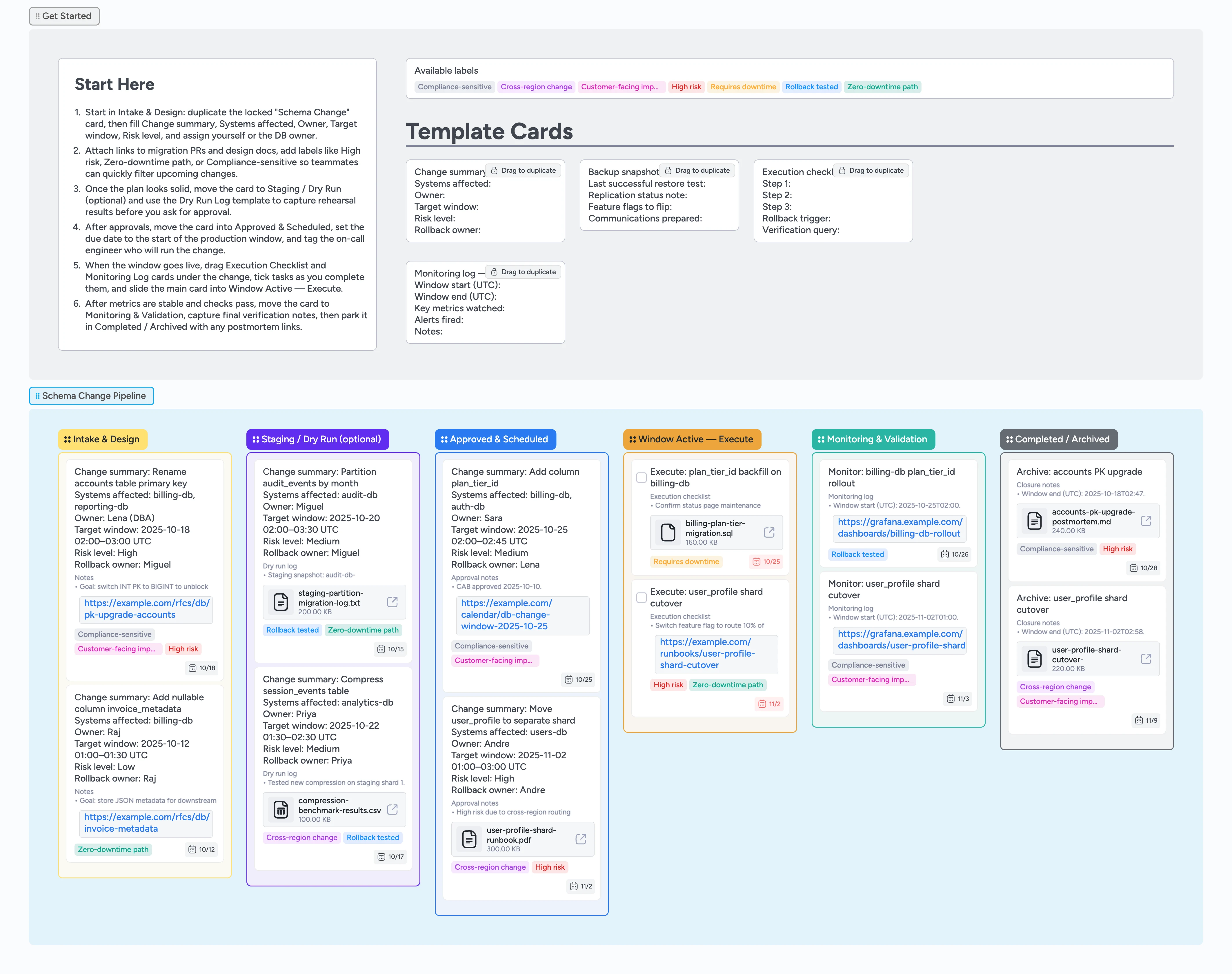
Run schema change windows without late‑night chaos
Schema changes do not have to mean stressful, ad‑hoc deploys. This Instaboard template gives your team a shared pipeline for planning, approving, and executing database changes inside clear maintenance windows. Capture design notes, backups, and dry runs up front, then run the window from a single card with execution and monitoring checklists attached that move left‑to‑right with the work. Labels surface high‑risk and customer‑facing work, while realistic demo cards show what good looks like so your team can adopt this structure, not just the advice, in a single release cycle.
- Standardize every schema change window with duplicate‑locked templates in a single pipeline
- Capture risk, backups, and approvals on one change card
- Use labels to surface high‑risk or customer‑facing changes
- Attach runbooks, snapshots, and dashboards directly to cards
- Move work left‑to‑right from intake to safely archived
Start in Intake & Design — duplicate the Schema Change card
On the board, start in the Get Started section and locate the locked Schema Change card. Drag to duplicate it, then drop the copy into the Intake & Design list. Fill Change summary, Systems affected, Owner, Target window, Risk level, and Rollback owner so the work item is complete. Assign yourself or the primary DB owner and set a due date to match the planned window start. If the change is customer‑facing or compliance‑sensitive, apply the corresponding labels so it shows up immediately in filters and reviews.
Capture backups, risk, and dry run results
Before you ask for approval, duplicate the Backup checklist template card and attach it beneath the change. Fill Backup snapshot ID, Last successful restore test, Replication status note, and Communications prepared so risk is visible. Because this information lives on a card under the main change, the backup plan stays attached as you move the change through the pipeline. If you run a rehearsal in staging, use a Dry Run style card to log runtimes and validation queries. Once backups and tests look good, move the change card into Staging / Dry Run (optional) or directly toward Approved & Scheduled depending on your process.
Secure approvals and schedule the window
When the plan is ready, move the change card into Approved & Scheduled so everyone can see it is waiting on the next window. Use the description to capture CAB decisions or tech‑lead signoff, and attach any formal runbooks or design docs as files or links. Set the due date to the window start, and tag the on‑call engineer and SRE responsible for the rollout. Apply labels like Requires downtime or Zero‑downtime path so downstream teams know what to expect. Because approvals, runbooks, and labels live on the same card, the on‑call engineer has everything in one place when the window goes live.
Run the window with execution checklists
As the window opens, move the main card into Window Active — Execute. Duplicate the Execution checklist micro‑template and drag it under the change card so you can tick through steps in order. Assign sub‑tasks if you have separate owners for data migrations, application deploys, and validation. Attach the migration script and any emergency rollback script as files so they are one click away during the window. Update the card as you complete steps and keep labels current if risk or scope changes mid‑window.
Monitor, validate, and archive with context
Once the main steps are done, move the change card into Monitoring & Validation and duplicate the Monitoring log template. Record window start and end times, key metrics watched, alerts fired, and final validation notes directly on the card. Link to dashboards and post‑deployment checks so future readers can see exactly how the change behaved without digging through wikis or chat history. When you are confident the change is stable, slide the card into Completed / Archived. The Monitoring log and any attached postmortem or lessons‑learned docs stay with the card, turning each window into a durable reference.
What’s inside
Six‑stage schema change pipeline
Intake & Design, Staging / Dry Run (optional), Approved & Scheduled, Window Active — Execute, Monitoring & Validation, Completed / Archived — a clear left‑to‑right flow for each change window.
Schema change micro‑templates
Duplicate‑locked cards for Schema Change, Backup checklist, Execution checklist, and Monitoring log so engineers fill consistent fields instead of rewriting steps each time.
Risk‑aware labels
Labels like High risk, Requires downtime, Zero‑downtime path, Cross‑region change, Customer‑facing impact, and Compliance‑sensitive help you filter and review changes quickly.
Realistic demo change windows
Sample cards show partitioning, shard moves, and column additions with owners, due dates, tags, and file attachments so teams see how to use the board on day one.
Backups and monitoring baked in
Dedicated fields on Instaboard cards for backup snapshot IDs, restore tests, and monitoring notes encourage teams to treat backups and dashboards as first‑class parts of every window.
Why this works
- Reduces schema change risk with a repeatable window checklist
- Makes backups, monitoring, and rollback plans first‑class citizens
- Keeps owners, timing, and approvals visible to every stakeholder
- Surfaces high‑risk and customer‑facing work with simple labels
- Turns past changes into reference examples for future windows
FAQ
Can we change the stages or terminology?
Yes. You can rename lists, add or remove optional stages, and adjust labels to match your team’s vocabulary while keeping the same left‑to‑right flow.
Does this work for zero‑downtime migrations?
It does. Use the Staging / Dry Run lane and the Zero‑downtime path label to highlight changes that rely on dual‑write, backfill, or blue‑green patterns instead of hard downtime, and attach scripts or dashboards to the card so the full strategy stays visible as it moves.
Where should we track approvals and CAB decisions?
Use the description field on the main change card to summarize approvals and attach any formal documents. Labels like High risk and Compliance‑sensitive make CAB items easy to find later.
How do we track multiple environments or regions?
Create separate cards per environment when needed, or note regions and environments in the Schema Change fields and labels such as Cross‑region change so the pipeline still reads clearly.