Budget Approval Cycle Template
Stop chasing approvals across inboxes
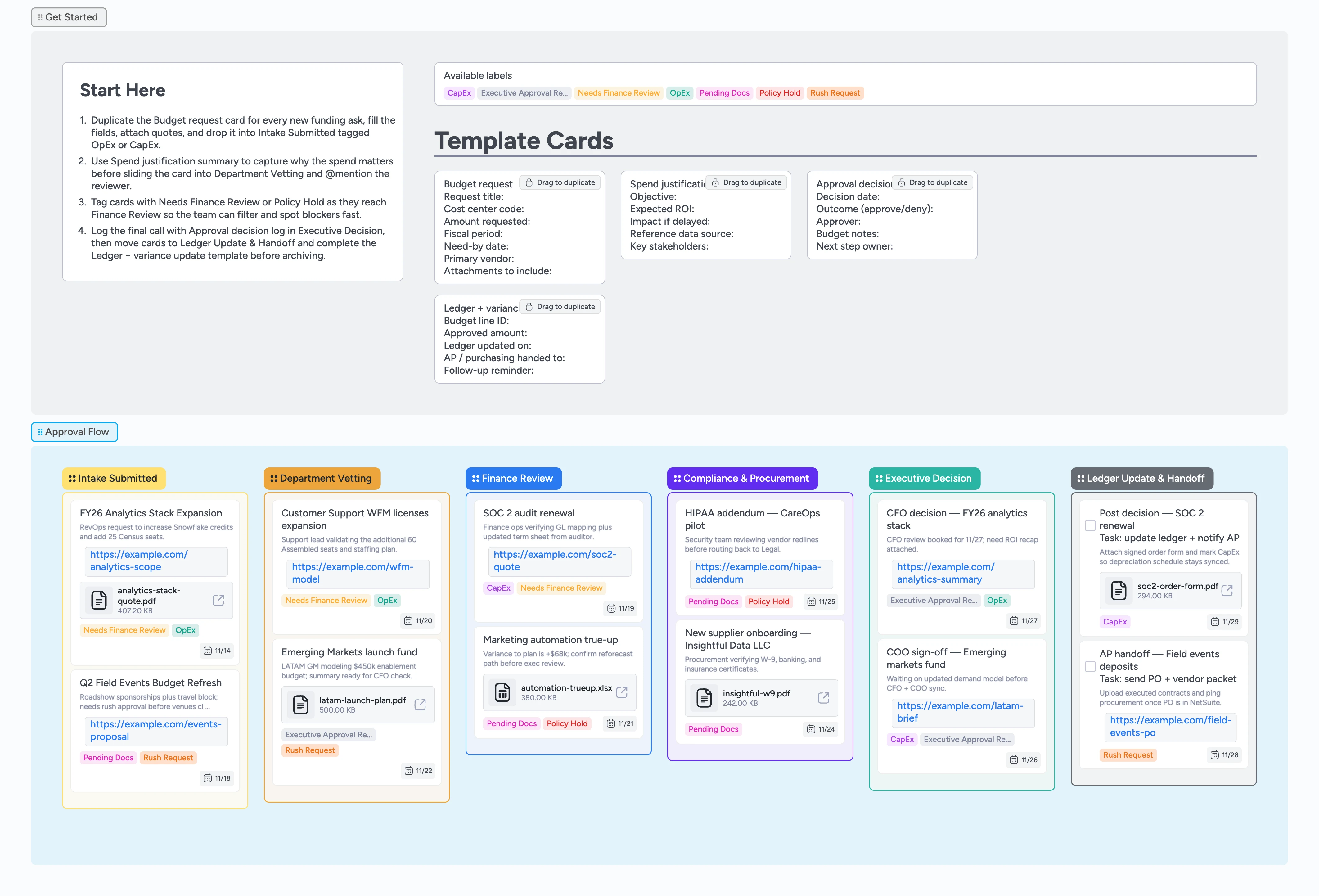
Give every cost center the same playbook: duplicate the budget request micro-card, attach quotes, apply the right labels, and drag the work through Intake Submitted, Department Vetting, Finance Review, Compliance, Executive Decision, and Ledger Update & Handoff without digging through email threads or stale spreadsheets for approvals.
- Standardize every budget ask with duplicate-ready micro-templates
- Surface blockers instantly with live filters that refresh the second someone drags or relabels a card
- Keep approvals, threaded comments, and attachments pinned to the same Instaboard card as it moves across lists
- Hand off to AP with task cards that already include due dates and attachments
Capture the request in Intake Submitted
In Get Started, duplicate the Budget request card, fill in the cost center, amount, fiscal period, and need-by date, then add the quote or contract as an attachment. Tag the card OpEx or CapEx plus Rush Request if it needs action inside five business days, assign yourself, and drop it into Intake Submitted.
Pro tip: Pin every supporting quote or SOW to the card’s attachment tray so Finance never digs through forwarded emails.
Route through Department Vetting
Move the card into Department Vetting and tell the budget owner so they can review the Spend justification summary and confirm headcount or program details. Update the description field on the same card with clarifications, keep the Needs Finance Review label on until the department lead signs off, and add Pending Docs if quotes or contracts are missing.
Pro tip: Duplicate the Spend justification summary card, fill it out, and link or attach it to the main request so Finance sees the ROI proof in one click.
Hand off to Finance and compliance
Drag approved cards into Finance Review, assign the finance partner, and add ROI models or GL mapping files as clickable attachments on the card. Apply Policy Hold whenever legal, security, or procurement needs to step in, then move the card into the Compliance & Procurement list so stakeholders can attach redlines, W-9s, or insurance files without duplicating work.
Pro tip: Use comments directly in card comments to keep Finance, Legal, and Procurement aligned instead of spinning up new threads.
Log the decision and close the loop
When CFO or COO sign-off is ready, create an Approval decision log sub-card, record the outcome, and drag the request into Executive Decision. As soon as it’s approved, move it into Ledger Update & Handoff, duplicate the Ledger + variance update card, tick off the task checklist, and attach the signed order so AP can pay vendors without hunting through email.
What’s inside
Start-Here lane
A primer card sits on the board so requestors can follow the steps—duplicate the Budget request template, fill in cost center data, tag OpEx vs CapEx—without leaving the canvas.
Approval Flow lists
Six color-coded columns cover Intake through Ledger Update with an optional Compliance & Procurement lane for regulated spend.
Micro-templates
Source cards (drag one out and the original stays while you get an editable copy) for Budget request, Spend justification summary, Approval decision log, and Ledger + variance update keep submissions tidy.
Demo data + labels
Sample cards are live and editable, so teams can duplicate them, keep the due dates, tags, and attachments, and tweak the content instead of starting from scratch.
Ledger-ready tasks
Task cards in the final list show finance ops what to upload, which signed orders to send procurement, and how to close the loop with AP.
Why this works
- Expose bottlenecks and stalled owners by filtering labels or assignees—in seconds of someone dragging or relabeling a card the view refreshes for everyone
- Lock data quality with source request and decision templates that can't be overwritten accidentally
- Keep audit trails intact because each card carries its attachments, decision logs, and comment history no matter which list it's in
- Shorten handoffs by duplicating the Ledger task card with due dates and required files the moment an approval lands
FAQ
Does this support both CapEx and OpEx?
Yes—tag each card with OpEx or CapEx so Finance can filter instantly, and keep depreciation-ready attachments on CapEx requests.
What if we don’t need compliance on a request?
Skip the Compliance & Procurement column; simply leave the card in Finance Review or move straight into Executive Decision once policy checks are complete.
How do we track revisions after a denial?
Keep the same card, add a new Approval decision log entry, reassign the owner, and retag it with Needs Finance Review so everyone sees it’s back in the queue—with the full history staying on one thread instead of a new email chain.
Can external approvers use this board?
Yes. Anyone with the board link can view it without an account, so a decision-maker can follow a request without signing up. To approve, which means adding the decision log entry or moving the card, they sign in once for free with Google, Apple or email. New boards start view-only, so set the board’s link to edit first. Invite-only boards with per-person permissions are a Pro feature.