Capex Approval Cycle Template
Make every capex approval predictable and visible
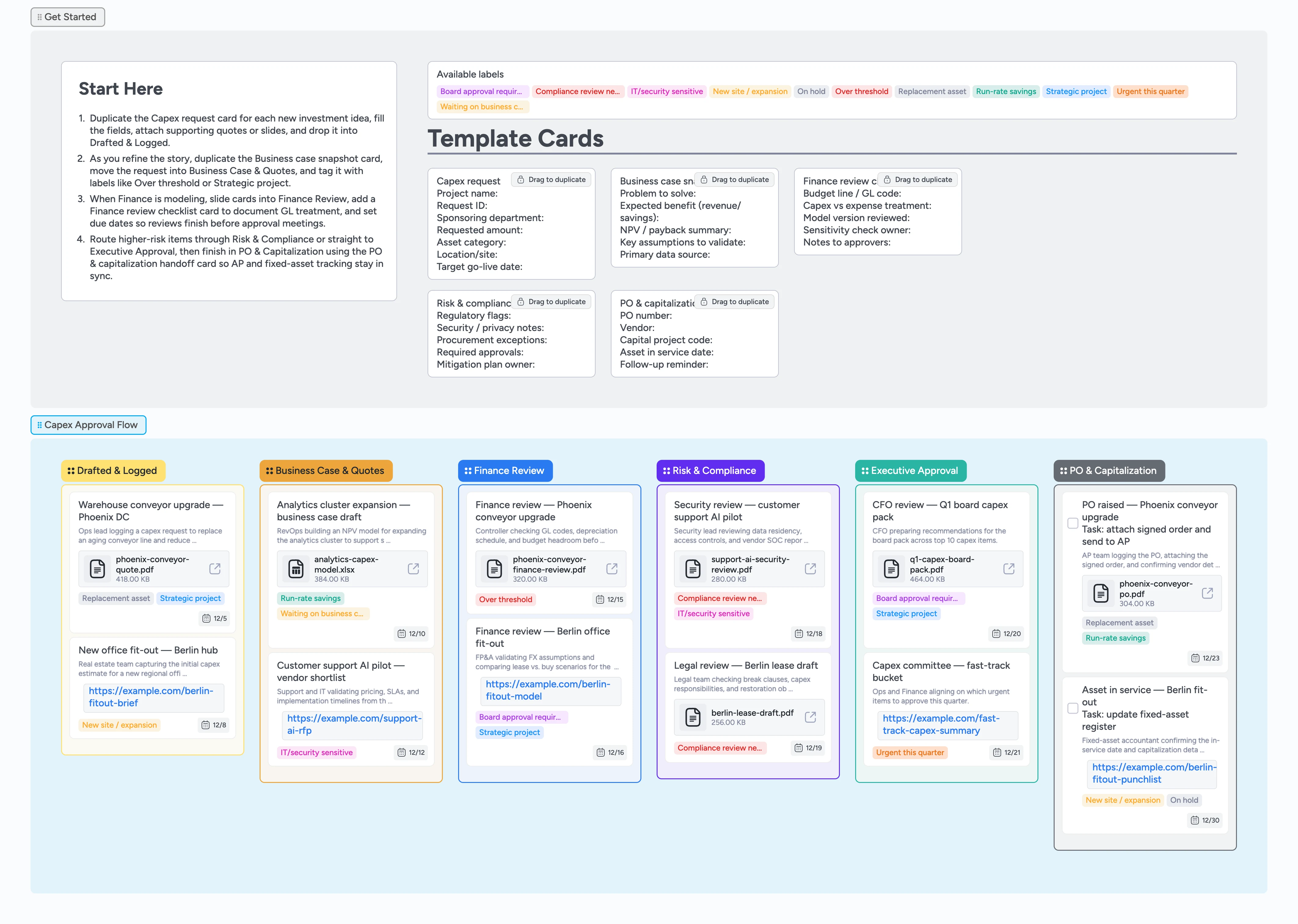
Instead of hunting through decks, spreadsheets, and long email chains, give your team one capex pipeline where every request starts from the same micro-templates and moves through clearly named stages. Requestors duplicate the Capex request and Business case snapshot cards, attach quotes and models, and apply labels like Over threshold or Strategic project so finance can filter instantly. As cards move from Drafted & Logged through Business Case & Quotes, Finance Review, Risk & Compliance, Executive Approval, and PO & Capitalization, the full history of decisions and files stays pinned to the same Instaboard card.
- Standardize every capex request with duplicate-ready micro-templates for intake, business case, review, and handoff
- See real-time status as cards move from Drafted & Logged through Finance Review and PO & Capitalization
- Keep models, board packs, and contracts attached to the same card instead of scattered across inboxes
- Highlight high-impact or risky items with labels like Over threshold, Strategic project, or Compliance review needed
- Shorten cycle times by assigning owners, setting due dates, and resolving comments directly on the board
Log each capex request in Drafted & Logged
On the board, start in the Get Started section by reading the Start Here card, then duplicate the Capex request micro-template card sitting beside it. Fill in the project name, sponsoring department, requested amount, asset category, and target go-live date, and attach any quotes or slides directly to the card. Apply labels like Strategic project, New site / expansion, or Replacement asset so the portfolio is easy to filter. Assign yourself or the request owner, then drag the card into the Drafted & Logged list to put it in the pipeline.
Pro tip: Keep one card per capex item so approvals, comments, and documents never split across multiple threads.
Build the business case in Business Case & Quotes
When a request is ready for deeper analysis, move its card into the Business Case & Quotes list so everyone can see it is being worked. Duplicate the Business case snapshot micro-template, link it to the main request, and capture the problem statement, expected benefits, and key assumptions in the fields on that card or its description. Attach ROI models or spreadsheets as files on the card instead of dropping them into separate email threads. Use labels like Run-rate savings, Waiting on business case, or IT/security sensitive to call out what needs attention next.
Pro tip: Set a due date on the card so finance and department leads have a clear target for submitting the final business case.
Run finance modeling and risk checks
Once the business case is in good shape, drag the card into Finance Review and assign the finance partner who will own the analysis. Duplicate the Finance review checklist micro-template and use its fields to document GL codes, treatment as capex vs expense, and any sensitivity checks you run. For higher-risk or regulated requests, add the Compliance review needed label and move the card into the Risk & Compliance list so security and legal can attach their memos. Keep all questions and clarifications in card comments so the full history is visible when approvals happen.
Pro tip: Use labels like Over threshold or Board approval required to flag which requests must go to a committee or board meeting.
Route for approval and close the loop in PO & Capitalization
When finance and risk reviews are complete, move the card into Executive Approval and assign the approver or committee coordinator. Attach the final deck or board pack as a file so decision-makers can open it straight from the card. After approval, drag the card into PO & Capitalization, duplicate the PO & capitalization handoff micro-template, and fill out the PO number, vendor, project code, and asset in service date on that card. Convert these handoff cards into tasks with due dates and assignees so AP and the fixed-asset accountant know exactly when to update systems and can mark items complete on the board.
Pro tip: Leave the original request card in the PO & Capitalization list instead of archiving it so auditors can trace the full history from idea to in-service asset.
What’s inside
Start-Here guidance
A Start Here card in the Get Started area explains how to duplicate the Capex request card, attach quotes, and drag the new card into Drafted & Logged so every requestor starts with the same fields and files.
Capex Approval Flow lists
Six color-coded columns walk each request from Drafted & Logged through Business Case & Quotes, Finance Review, Risk & Compliance, Executive Approval, and PO & Capitalization.
Finance and risk micro-templates
Dup-locked Capex request, Business case snapshot, Finance review checklist, Risk & compliance memo, and PO & capitalization handoff cards keep details consistent across teams.
Demo cards with real-world scenarios
Example requests like warehouse upgrades, office fit-outs, analytics clusters, and AI pilots show how to use assignees, due dates, labels, and attachments in each stage.
Labels for thresholds and strategy
Prebuilt labels such as Over threshold, Board approval required, Strategic project, and Run-rate savings make it easy to filter where approvals or reviews are stuck.
Why this works
- Keeps every capex request, model, and approval in one place instead of scattered across email and spreadsheets
- Uses dup-locked micro-templates so intake, business cases, and handoffs follow the same structure every time
- Makes bottlenecks obvious by letting you filter cards by stage, label, or owner in seconds
- Connects strategic and operational views by showing which projects are over threshold, board-bound, or ready for capitalization at a glance
FAQ
Who is this capex template for?
This board is designed for finance, operations, and department leads who manage recurring capex requests and want a standard approval path instead of one-off spreadsheets.
Can we change the stages or labels?
Yes—rename lists to match your internal process, edit or add labels, and tweak the micro-templates so they capture exactly what your finance and risk teams need.
Does this work with our existing approval system?
Most teams use this template as the shared workspace alongside their ERP or procurement tool—cards carry links to purchase orders or tickets so everyone can see status in one place.
How do we handle very small capex requests?
Use the same pipeline but add labels for low-dollar thresholds, and move cards straight from Drafted & Logged to Finance Review or Executive Approval when they can be fast-tracked.