Grant Application Tracker Pipeline Template
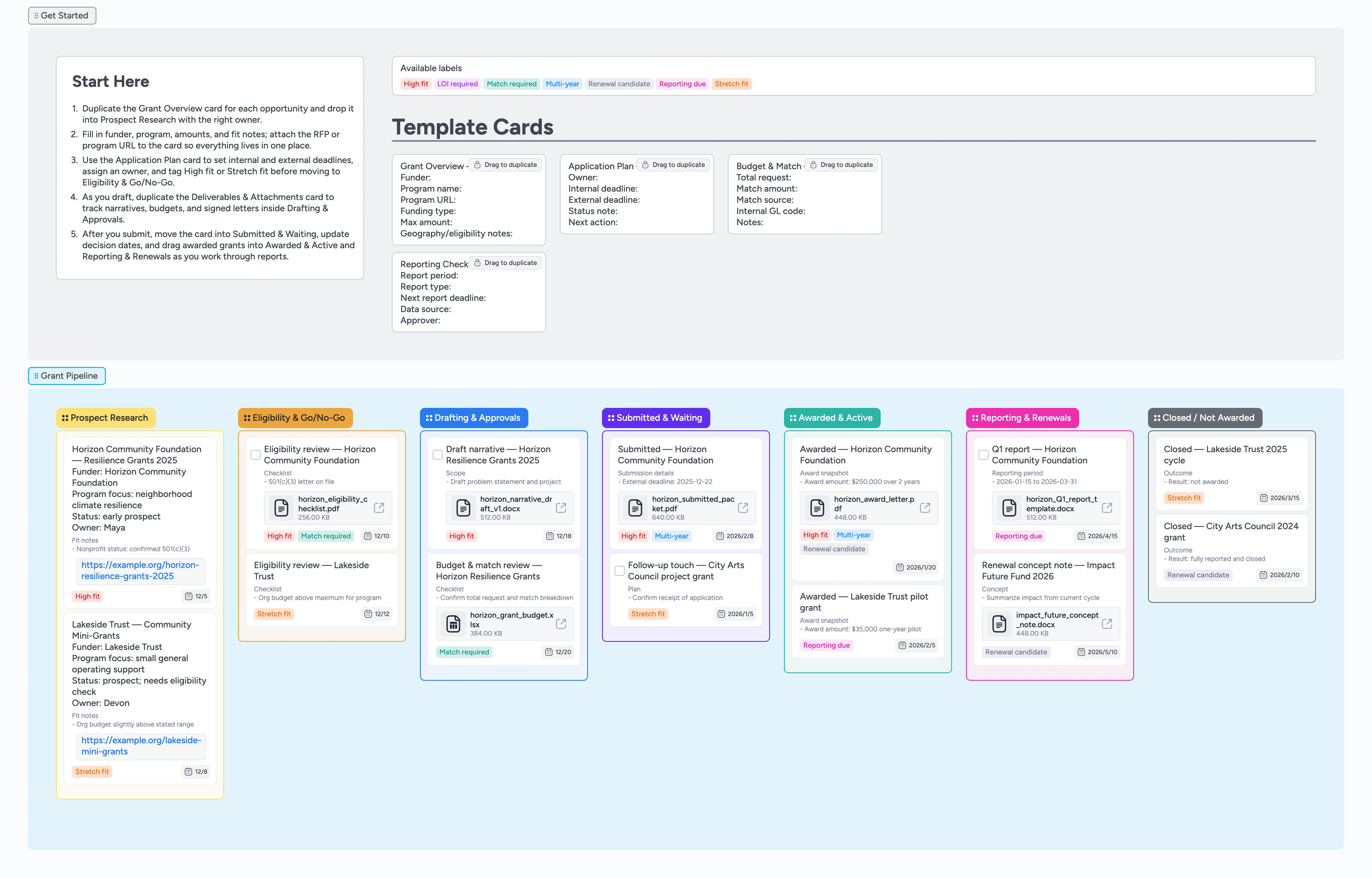
See every grant from idea to report
If you are juggling grants in spreadsheets, email threads, and half-finished docs, it is easy to miss an eligibility rule or reporting deadline. This Instaboard template turns grant work into a clear left-to-right pipeline that shows prospects, in-progress applications, submitted proposals, awards, and reporting in one place. Duplicate the Grant Overview and Application Plan cards from Get Started, drag them into the right stage, and keep owners, internal deadlines, and links to RFPs riding on each card. As you move grants from Prospect Research through Awarded and Reporting, your team always knows what is due next and who owns it.
- Centralize grant research, applications, and reporting
- Assign owners and internal deadlines to every opportunity
- Attach RFPs, budgets, and award letters directly to cards
- Use labels to flag high-fit, stretch, and renewal candidates
Start your grant list in Prospect Research
Open the Start-Here card in the Get Started section, then duplicate the Grant Overview card for each potential opportunity. Fill in funder, program name, program URL, funding type, maximum amount, and a short fit note right inside the card. Attach the RFP PDF or program web page so nobody needs to hunt in email or shared drives. Assign an owner, set an initial research due date, and drop each card into the Prospect Research list. As soon as you decide to explore further, apply labels like High fit or Stretch fit so you can filter later.
Pro tip: Keep the Prospect Research list as your master index of everything on your radar, even if you choose not to apply this cycle.
Decide eligibility and plan deadlines
When a prospect looks promising, drag its card into Eligibility & Go/No-Go and duplicate the Application Plan template directly underneath. Use the Application Plan fields to record the internal owner, internal deadline, external deadline, and a short status note, then set a due date on the card so it shows up in your calendar views. If a match is required or an LOI comes first, apply Match required or LOI required labels so those constraints remain visible. Turn the eligibility review into a task with a checkbox so it is clear when the decision is final, and move clear no-gos to Closed / Not Awarded with a one-line reason.
Pro tip: Use labels and clear status notes now so future-you understands why a funder was a no-go or went on hold.
Draft, approve, and submit your applications
Move approved opportunities into Drafting & Approvals and duplicate the Deliverables & Attachments pattern using the Budget & Match and Reporting Checklist cards. Attach draft narratives, budgets, and match explanations as files so reviewers can open them straight from the card during working sessions. Assign program, finance, and leadership owners on specific cards and set due dates for each approval step. Once everything is ready, slide the card into Submitted & Waiting, update the submission details in the description, and add the decision date as a new due date. Keep any follow-up emails linked from the card so you track both the application and relationship in one place.
Pro tip: Add one card per grant, not per document, and keep all draft and final files attached to that card to avoid version sprawl.
Manage awards, reporting, and renewals
When a grant is awarded, drag the card into Awarded & Active and update award amount, internal GL code, and key dates in the description. Duplicate the Reporting Checklist template to outline the reporting cadence and attach any funder templates, portals, or dashboards you need to use. Apply Multi-year and Renewal candidate labels to promising relationships so you can filter them during planning season. Use the Reporting & Renewals list to track each upcoming report as a task card with a clear owner and due date, then move fully closed grants into Closed / Not Awarded once reporting is complete. Over time, this gives you a full history of wins, losses, and renewals to inform your next strategy review.
What’s inside
Start-Here guidance
Five bullets in the Get Started section point you to the Grant Overview and Application Plan micro-templates, explain how to tag cards, and show where to move them first.
Grant micro-templates
Reusable cards for Grant Overview, Application Plan, Budget & Match, and Reporting Checklist keep every opportunity summarized the same way across the pipeline.
Seven-stage pipeline
Prospect Research through Closed / Not Awarded mirrors a real grant lifecycle so you can drag cards left to right as they move from idea to decision and reporting.
Label and priority system
Labels like High fit, Stretch fit, LOI required, Match required, Reporting due, Multi-year, and Renewal candidate make it easy to filter by risk, workload, or renewal potential.
Demo-rich sample cards
Example cards show due dates, assignees, tags, links, and fake file attachments so your team can copy the pattern without guessing what good looks like.
Why this works
- Keeps the full grant lifecycle visible from prospecting through reporting
- Ties every application to a single card with owner, deadlines, and files
- Uses labels to spotlight high-fit, constrained, and renewal-ready opportunities
- Aligns grant work with clear left-to-right stages your team already understands
- Replaces scattered spreadsheets with a living pipeline you can review together
FAQ
Can I change the stage names or add more lists?
Yes. Rename any list or add new ones for your own workflow, like a separate LOI stage or internal review lane, and the Grant Overview and Application Plan micro-templates still live in Get Started.
How do I track multiple programs or departments using this board?
Use labels or a short prefix in the card title to tag the program or department, then filter by that label during reviews so different teams can share the same pipeline without losing focus.
Where should I store budgets, narratives, and award letters?
Attach files directly to the grant card in Drafting & Approvals, Submitted & Waiting, or Awarded & Active so reviewers and finance can always grab the latest version in one click.
Can external partners or consultants collaborate in this pipeline?
Invite them to the board with the right permissions and point them to the Drafting & Approvals and Reporting & Renewals stages so they can update cards, attach files, or leave notes without touching your internal tracking sheet.