Enterprise Procurement Review Template
Make Every Enterprise Procurement Review Trackable
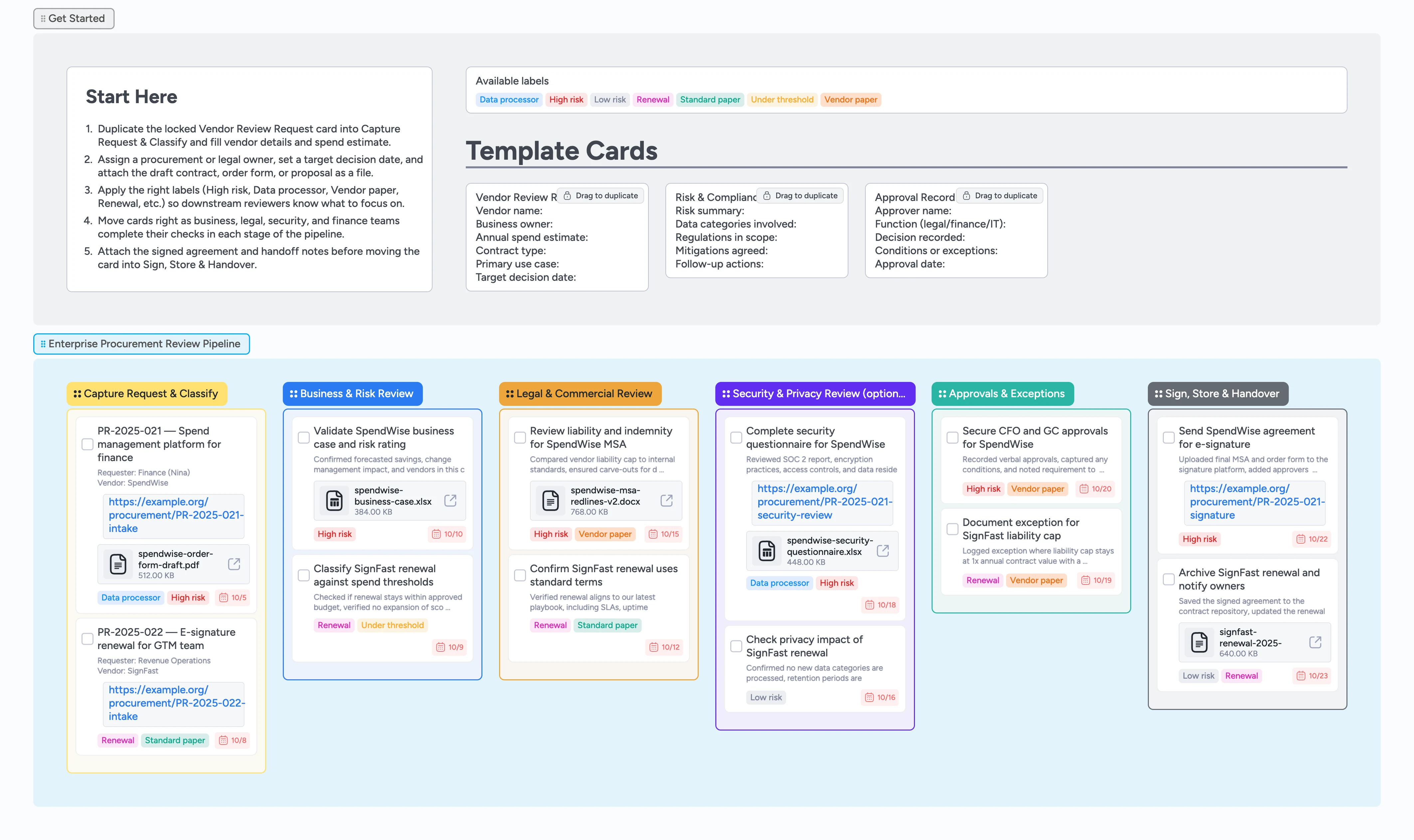
Enterprise procurement reviews often sprawl across intake forms, email threads, shared drives, and redlined contracts, making it hard to see who owes what before a vendor can go live. This Instaboard template turns that chaos into a single pipeline, from request intake through legal, security, and finance approvals to final handoff. Start by duplicating the locked Vendor Review Request card into Capture Request & Classify, fill the vendor and spend details, and assign an owner so nothing waits in a hidden inbox. Labels like High risk, Data processor, and Vendor paper help you spot reviews that need extra scrutiny, while demo cards show how to attach contracts, questionnaires, and approval files directly on the board.
- Centralize enterprise vendor reviews in one visual pipeline
- Keep owners, deadlines, and risk labels visible for every request
- Attach contracts, questionnaires, and approvals so evidence stays audit-ready
- Spot bottlenecks quickly by watching cards move left to right across stages
Capture the request and set risk context
Start in the Capture Request & Classify column. Duplicate the locked "Vendor Review Request" micro-template card, drop your copy into the list, and fill in the vendor name, business owner, annual spend estimate, contract type, primary use case, and target decision date. Attach the draft contract, order form, proposal, or intake form as files on the card so every reviewer sees the same starting point. Assign a procurement or legal owner, set a due date that reflects launch timing or policy requirements, and apply labels like High risk, Data processor, or Renewal to signal how much scrutiny the request needs. Leave the card in this stage until intake fields, attachments, owner, and labels are complete.
Pro tip: If the request is small or non-sensitive, apply the Under threshold label so you can filter and handle lightweight reviews in a batch.
Document the business case and initial risks
When intake looks solid, move the card into Business & Risk Review. Use the Risk & Compliance Notes micro-template to capture a short risk summary, the main data categories involved, and any regulations or internal policies that apply. Add a few bullet points to the card description outlining the business value, alternative options considered, and the impact of delay so approvers do not need to hunt for context. Attach any ROI models or vendor decks you use to justify the spend, and keep tags like High risk or Low risk current as you refine your assessment. Once the business owner and procurement agree on the risk rating and scope, drag the card into Legal & Commercial Review.
Pro tip: Indent small follow-up tasks as sub-cards under the main request card to keep related work grouped without cluttering the pipeline.
Run legal and, if needed, security reviews
In Legal & Commercial Review, have counsel work directly from the same card instead of a separate tracker. They can reference the attached contract, log key issues in the card description, and use checklists or sub-cards to track topics like liability caps, indemnities, SLAs, and IP ownership. When the vendor will process personal or sensitive data, move the card into Security & Privacy Review (optional) and log questionnaire findings, SOC reports, or DPIA notes using attachments and the Risk & Compliance Notes micro-template. Apply labels like Data processor or High risk to highlight where security and privacy need a deeper dive. Once blocking issues are resolved, return the card to Legal & Commercial Review or advance it straight to Approvals & Exceptions.
Pro tip: Keep each major clause or risk grouped under one card with subtasks so it is easy to review the full history later.
Secure approvals and document exceptions
Drag the card into Approvals & Exceptions when legal and security reviews are ready for sign-off. Duplicate the Approval Record micro-template to list each approver, their function, decision, and any conditions or exceptions they require. Assign the card to the current approver and update the due date to reflect their deadline so procurement can follow up proactively. Use tags like Vendor paper when you accept counterparty terms or Renewal when you are simply extending an existing deal. As approvals come in, update the card description with key notes so future reviewers do not need to dig through emails to understand what was agreed.
Pro tip: Use card comments to capture meeting notes or Slack decisions so the approval trail stays tied to the specific request.
Sign, archive, and hand over ownership
Once final approvals are logged, move the card into Sign, Store & Handover. Attach the signed agreement PDF or e-signature link directly to the card and add the archive path or contract repository location using the description fields. Update the due date to the next renewal or review checkpoint so the card can surface on timelines later. Assign the card to the operational owner who will manage the vendor day to day, and note any handoff tasks, such as informing security, finance, or IT to update their systems. Leave the card in this stage as your audit trail, with labels like Renewal or High risk making it easy to filter and report on critical agreements across the pipeline.
What’s inside
Start-here intake lane
Capture vendor name, business owner, spend estimate, and contract type using the duplicate-locked Vendor Review Request micro-template before you assign an owner and label risk.
Business and risk review stage
Use Business & Risk Review to document the business case, alternatives considered, and key risks, attaching spreadsheets or notes so legal and finance see context up front.
Legal and commercial review lane
Legal & Commercial Review keeps liability caps, SLAs, data protection clauses, and commercial terms visible, with demo cards modeling how to track redlines and open issues.
Security and privacy assessment lane
The optional Security & Privacy Review column offers a place to log security questionnaires, SOC reports, data categories, and mitigations when the vendor processes sensitive data.
Approvals and contract handoff stage
Approvals & Exceptions and Sign, Store & Handover track executive sign-off, exceptions, signed PDFs, and repository locations so renewals and audits start from one source of truth.
Why this works
- Unifies intake, legal, security, and finance workflows in one shared pipeline
- Keeps every contract decision tied to a single, auditable card history
- Surfaces high-risk or data-processing vendors instantly with labels and stages
- Reduces launch delays by making owners, approvals, and next steps obvious at each stage
- Helps renewals and audits start faster by keeping signed files and archive paths in one place
FAQ
Who should own the intake and classification stage?
Typically procurement or a central operations team owns Capture Request & Classify, creating the card from the Vendor Review Request template, attaching initial documents, and tagging the right risk level before pulling in legal or security.
How do we handle vendors that skip security review?
When a vendor does not touch sensitive data or falls under a low-risk threshold, you can keep the card in Business & Risk Review and move it straight to Legal & Commercial Review, leaving Security & Privacy Review empty while still documenting why the extra step was not needed.
Can this template support renewals as well as new deals?
Yes—apply the Renewal label on intake, reference the prior agreement in the card description, and use the same stages to confirm scope changes, pricing updates, and updated approvals without rebuilding your process from scratch.
Where should we log exceptions to our standard contract terms?
Use the Approval Record micro-template and the card description in Approvals & Exceptions to capture each exception, why it was accepted, and who approved it so future negotiations start from an accurate playbook.