Ad Ops Trafficking Pipeline Template
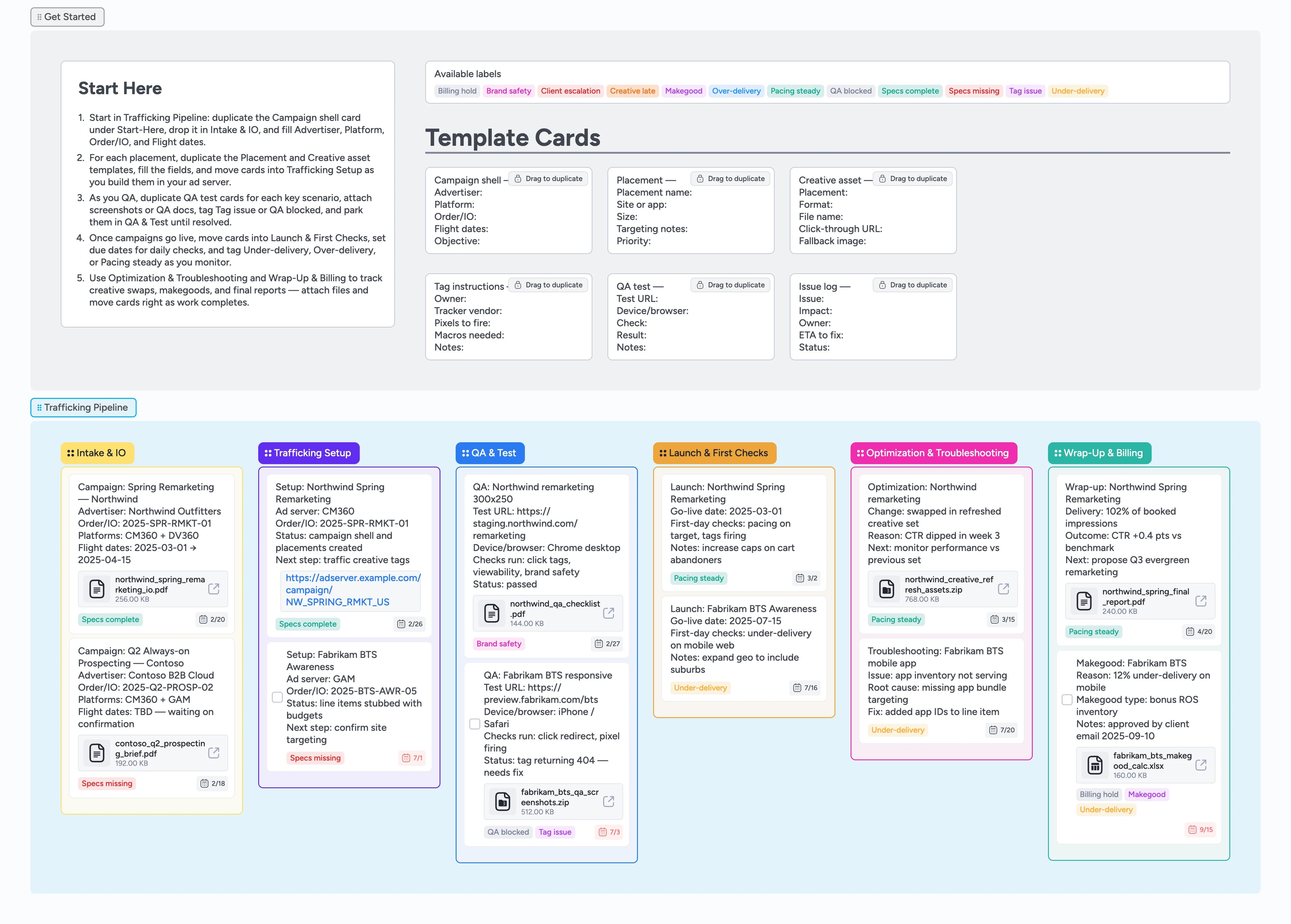
See every trafficking step in one view
Ad ops teams juggle briefs, IOs, tag sheets, QA screenshots, and pacing checks across email, spreadsheets, and ad servers. This template turns that chaos into a visual Instaboard pipeline you can scan in seconds. In a few clicks you duplicate a Campaign shell card, drop it into Intake & IO, assign an owner and due date, and start dragging it right as work moves. Reusable micro-templates capture placements, creative assets, tag instructions, QA tests, and issue logs while labels highlight Specs missing, Tag issue, Under-delivery, and more. Every attachment, owner, and due date stays anchored to the campaign card instead of scattered across tools.
- Attach IOs, tag sheets, QA notes, and reports directly to campaign cards in one pipeline
- Spot blocked campaigns quickly by filtering Tag issue and QA blocked labels
- Standardize trafficking checklists with reusable micro-template cards
- Use labels and final-stage lists so pacing, makegoods, and billing decisions stay tied to specific campaign cards
Kick off in Intake & IO
Start in the Getting Started section and duplicate the Campaign shell — card. Drag your new card into the Intake & IO list, then fill Advertiser, Platform, Order/IO, Flight dates, and objective. Assign the trafficker responsible for the build and set a due date that matches the launch window. Attach the signed IO or brief PDF so the card always carries the source of truth. As requests come in, repeat this pattern so every campaign has one clear home row in the pipeline.
Turn briefs into trafficking-ready placements
Once the IO is confirmed and you know how many placements you need, move to the Trafficking Setup list and duplicate the Placement — and Creative asset — cards for each one. Capture site or app, sizes, targeting notes, and priority so the ad server structure matches the brief. As you build campaigns in CM360, GAM, or other platforms, drop links or screenshots into attachments on the same cards instead of keeping a separate trafficking sheet. Tag Specs complete when everything needed for trafficking is locked; leave Specs missing if you are still chasing answers. Because each placement card sits under the same Campaign shell card, filters and labels give you a single view of everything running for that campaign.
Run structured QA before launch
Inside the QA & Test list, duplicate QA test — cards for each key scenario like desktop, mobile web, and app. Fill the Test URL, device or browser, checks you ran, and the result so anyone can retrace your steps. Attach screenshots or QA docs directly to the card instead of burying them in email threads so anyone can click once and see the full history. When something breaks, apply Tag issue and QA blocked labels so blocked work stands out in filters and stand-ups. As issues clear, update the notes, remove QA blocked if appropriate, and slide passing cards into Launch & First Checks.
Monitor launch and daily pacing
Use Launch & First Checks once campaigns go live. Note go-live dates, first-day checks, and any immediate tweaks in the card body so that context travels with the card into Optimization & Troubleshooting and Wrap-Up & Billing, and set a due date for your next review. Tag Under-delivery or Over-delivery when pacing drifts so you can see at a glance which campaigns need attention. Apply the Pacing steady label to healthy campaigns so they do not crowd your triage view. Move cards into Optimization & Troubleshooting as you start making meaningful changes rather than one-off corrections.
Capture optimizations, makegoods, and billing
In Optimization & Troubleshooting, keep a running Issue log — card for each adjustment or problem you work through, including impact, owner, and ETA to fix. Attach new creative files, spreadsheets, or screenshots so history stays tied to the campaign. When you reach the end of the flight, move cards into Wrap-Up & Billing and duplicate the Issue log — card to create a concise recap per campaign. Summarize delivery, key learnings, and any makegood decisions, tagging Makegood or Billing hold where relevant. Finance, account teams, and leadership can then read the same story without rebuilding it in separate decks.
What’s inside
Six trafficking stages
Intake & IO, Trafficking Setup, QA & Test, Launch & First Checks, Optimization & Troubleshooting, and Wrap-Up & Billing cover the full lifecycle from request through reconciliation.
Pre-built micro-templates you duplicate per campaign
Campaign shell, Placement, Creative asset, Tag instructions, QA test, and Issue log cards duplicate into structured checklists instead of blank notes.
Labels that flag risk and status
Specs missing, Specs complete, Tag issue, QA blocked, Under-delivery, Over-delivery, Pacing steady, Brand safety, Makegood, and Billing hold labels make it easy to filter what needs attention.
Demo cards with real-world metadata
Example campaigns show how to record advertisers, platforms, due dates, label combinations, and file attachments so your team can mirror a robust trafficking flow.
Why this works
- Maps every trafficking step from IO intake to billing on one canvas
- Makes blockers and pacing risks obvious with clear labels and stages
- Keeps QA, screenshots, and reports attached to the campaigns they describe
- Reduces handoff friction between sales, account teams, and ad ops
- Scales from a handful of campaigns to a busy ad ops queue without redesigning the workflow
FAQ
Can this board handle multiple advertisers at once?
Yes. Create one Campaign shell card per campaign or order in Intake & IO, then keep every placement, QA check, and reporting note attached as the card moves across stages.
How do we represent different ad servers and channels?
Use the Platform field in Campaign shell and Placement cards plus tags like Brand safety or Under-delivery to call out risk areas. You can also color-code cards or add short prefixes in titles for CM360, GAM, DV360, or social platforms.
Where should tag sheets, screenshots, and reports live?
Attach vendor tag sheets to Tag instructions cards, QA screenshots to QA test cards, and final decks or exports to Wrap-Up & Billing cards so nothing is lost in email threads or scattered folders.
Can non-ad-ops teammates use this template?
Yes. Account managers or growth marketers can duplicate the same micro-template cards, assign themselves, and set due dates while ad ops focuses on trafficking details and QA.