Facilities Maintenance Pipeline Template
Turn facility requests into a clear pipeline
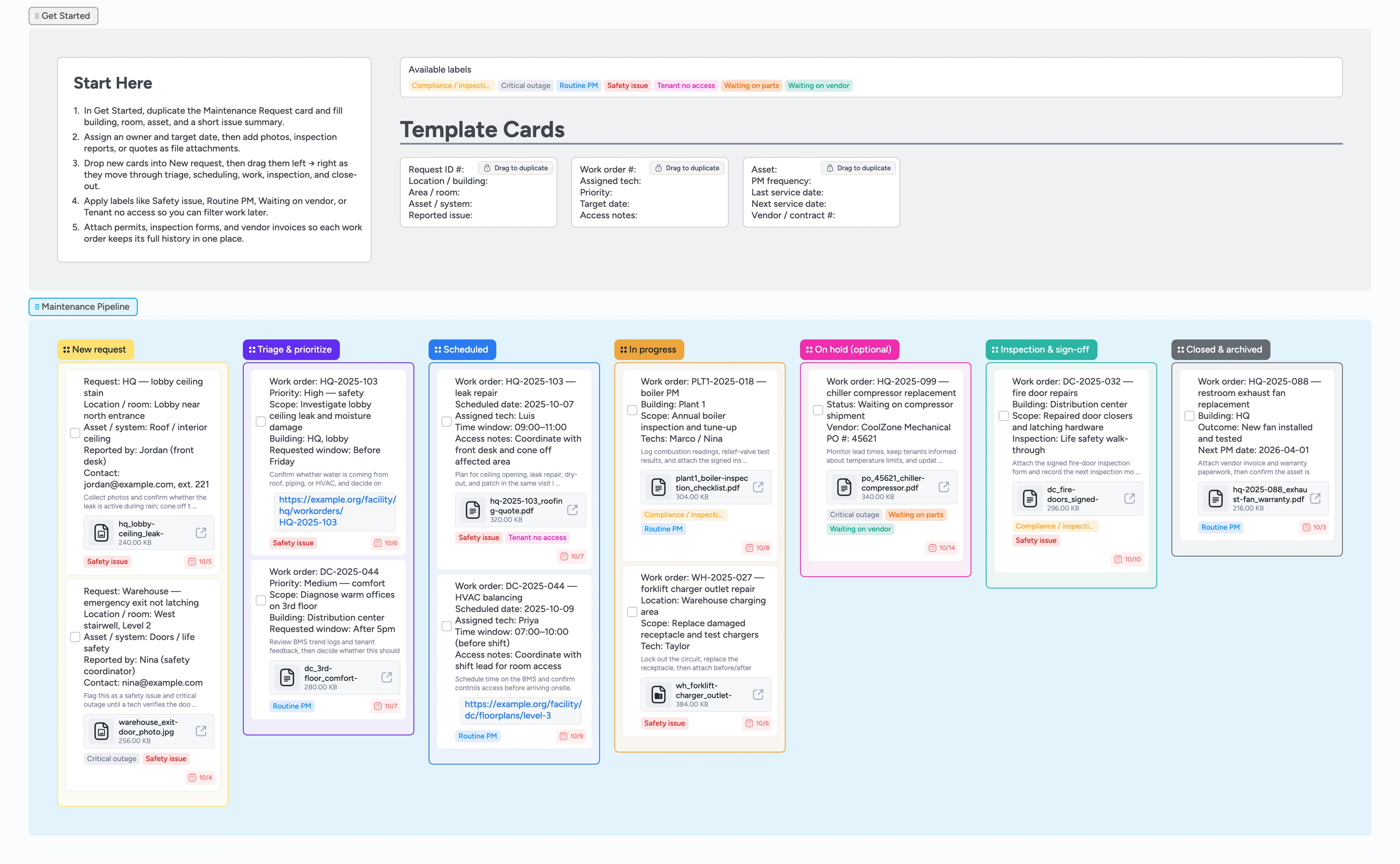
This template helps facilities and operations leads manage maintenance work in one place instead of scattered tickets, emails, and spreadsheets. Track new tenant requests, triage decisions, scheduled jobs, in-progress work, inspections, and close-out in a simple left-to-right pipeline. Duplicate the Maintenance Request card for each issue, assign an owner, set due dates, and attach photos, inspection forms, and vendor quotes. Move cards through New request, Triage & prioritize, Scheduled, In progress, On hold, Inspection & sign-off, and Closed & archived so everyone sees what is urgent, what is blocked, and what is already complete.
- See every maintenance request in one pipeline
- Spot safety issues and critical outages quickly
- Attach photos, permits, and invoices to each work order
- Coordinate technicians, vendors, and tenants in real time
- Plan preventive maintenance with labels and due dates
Create your first maintenance request
In the Get Started section, find the Maintenance templates area and duplicate the Maintenance Request card to create your first work order. Fill in the Request ID, building, room, asset or system, and a short issue summary so anyone can understand the problem at a glance. Assign an owner on the card, set a target due date, and add photos or inspection screenshots as file attachments instead of keeping them in email. When the card looks right, drag only the filled copy into the New request list and leave the original template parked in Get Started for the next job.
Pro tip: If you manage multiple sites, add the site name or code to the Request ID so you can filter by location later.
Triage requests and set priorities
As new issues come in from tenants, staff, or inspections, drop each filled card into New request. Use labels like Safety issue, Critical outage, or Routine PM so the most urgent work stands out immediately. In a quick triage pass, review each card and add a short note to the description with what needs to happen next. Assign or update the owner and due date so each technician knows what is on their plate today. Use board filters to slice by label, assignee, or due date when you plan the day or week.
Pro tip: Keep the New request list short by moving cards forward as soon as they are triaged, even if the work is scheduled later.
Schedule work and manage access
When you are ready to plan work, move cards into Triage & prioritize and then into Scheduled once a date and technician are confirmed. Use the Work order details template card to capture Scheduled date, Assigned tech, and Access notes so nothing gets missed. For jobs that require tenant coordination or off-hours access, apply the Tenant no access label and add a clear note about the time window. Keep Scheduled ordered by due date so it’s easy to see what is coming up next for the team.
Pro tip: During your weekly planning ritual, sort the Scheduled list by due date and confirm each card has a clear owner and access plan.
Run the work and handle holds
As technicians start a job, drag the card into In progress and have them update the description with key findings and completed tasks. Attach checklists, measurement sheets, or vendor quotes as files so the work history stays with the card. When a job is blocked by lead times or vendor availability, move the card into On hold (optional) and apply Waiting on vendor or Waiting on parts labels. Update the due date when the new ETA is known so blocked work does not disappear from your plan.
Pro tip: Encourage techs to drop quick notes and photos in cards during the day so you are not rebuilding history after the fact.
Inspect, sign off, and archive history
Once work is finished, move the card into Inspection & sign-off and add any punch-list items that still need attention. Attach signed permits, inspection forms, or test results as files on the card and apply the Compliance / inspection label when relevant. When everything is complete, drag the card into Closed & archived and confirm next PM dates or warranty details are recorded in the title or description. Periodically review the Closed & archived list filtered by label or building to spot recurring issues and update your PM program.
Pro tip: Use a recurring calendar reminder to review the Closed & archived list so you can spot patterns and improve your maintenance plan over time.
What’s inside
Seven clear stages
New request, Triage & prioritize, Scheduled, In progress, On hold (optional), Inspection & sign-off, and Closed & archived so work flows left to right.
Maintenance request micro-templates
Reusable cards for Request ID, Location, Asset or system, Priority, Target date, and PM details so you can duplicate, fill, and move without rewriting fields.
Labels for risk, PM, and access
Labels for Safety issue, Critical outage, Routine PM, Compliance / inspection, Waiting on vendor, Waiting on parts, and Tenant no access to keep risk and constraints obvious.
Demo cards with realistic work orders
Sample leak repairs, HVAC comfort calls, boiler PMs, and life safety fixes with assignees, due dates, labels, and attachments that show how to capture real work.
Start Here guidance
A concise Start Here card that explains exactly how to duplicate the Maintenance Request template and create your first work order on the board.
Why this works
- Keeps every request, work order, and inspection in one shared view
- Makes safety and compliance work impossible to miss
- Connects triage, scheduling, execution, and sign-off in a single pipeline
- Gives facility leads a simple weekly ritual for planning and follow-ups
- Turns scattered tickets and emails into a trackable maintenance history
FAQ
Does this replace my existing CMMS or ticketing tool?
Not necessarily. Many teams keep their CMMS or helpdesk for system-of-record data and use this Instaboard template as the visual command center for requests, priorities, and coordination.
Can I track preventive maintenance as well as reactive requests?
Yes. Use the PM-focused micro-templates and the Routine PM and Compliance / inspection labels to log recurring inspections, annual checks, and vendor contracts alongside day-to-day fixes.
Is this template suitable for multiple buildings or sites?
Yes. Add the building or site code to the Request ID or title and use labels and filters so you can quickly see work by location, risk, or owner.