Fleet Maintenance Workorders Pipeline Template
Turn fleet work orders into one view
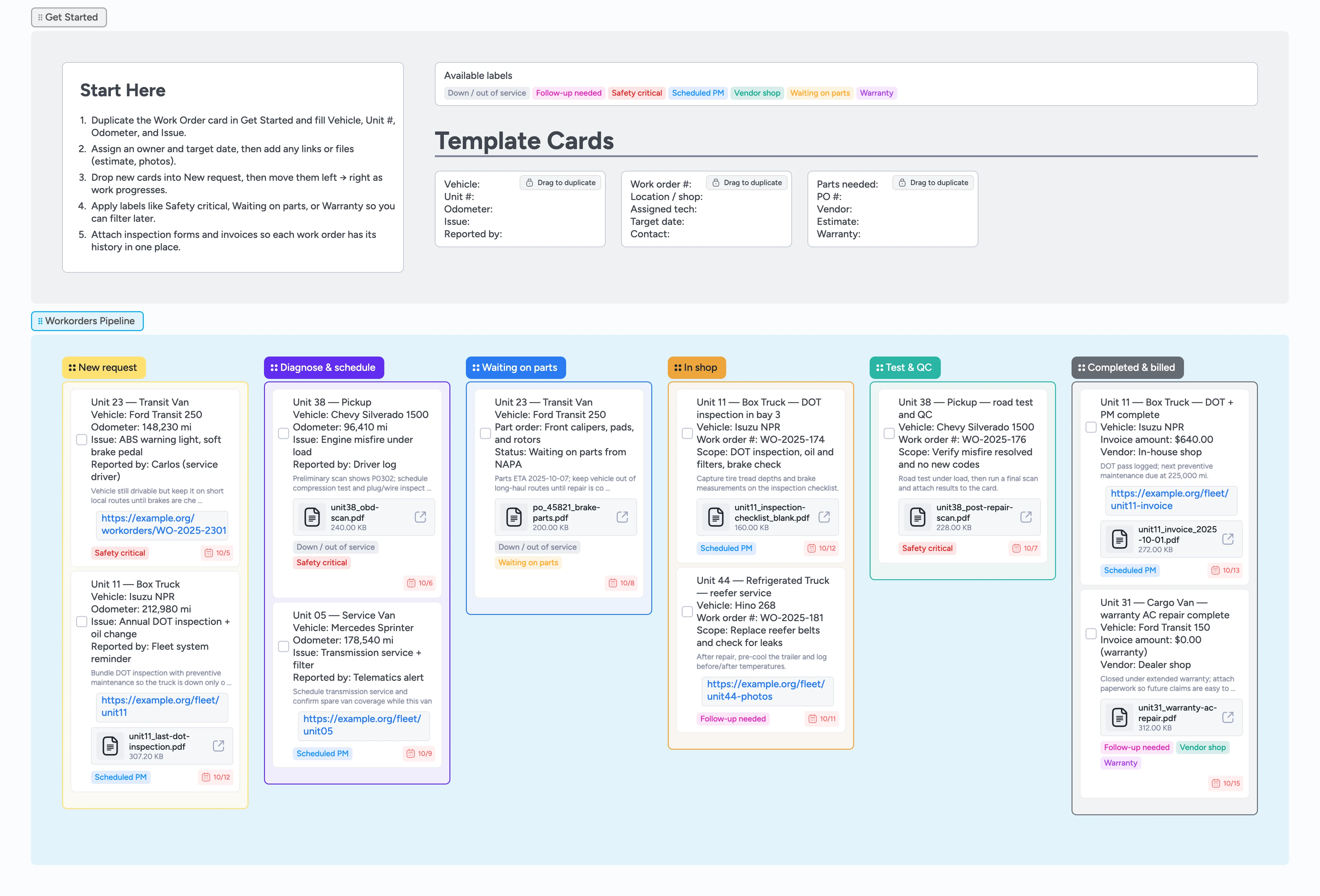
This template helps fleet managers and maintenance leads keep every vehicle’s work orders in one place instead of scattered spreadsheets, emails, and shop tickets. Track driver requests, diagnostics, parts orders, shop work, and billing in a simple left‑to‑right pipeline. Duplicate a work order card for each unit, assign an owner, add due dates and attachments, and move cards through New request, Diagnose & schedule, Waiting on parts, In shop, Test & QC, and Completed & billed so the whole team sees what is in the bay, what is grounded, and what is coming up next.
- See every vehicle’s status in one pipeline
- Catch safety‑critical jobs before they slip
- Keep diagnostics, parts, and invoices attached to each work order
- Coordinate drivers, techs, and vendors in real time
- Plan shop capacity with due dates and labels
Start with a work order card
In the Get Started section, find the Work order templates area and duplicate the Vehicle, Unit #, and Parts cards for your next job. Fill Vehicle, Unit #, Odometer, Issue, and Reported by so anyone can understand the request in seconds. Add the Work order #, Location / shop, and Assigned tech using the matching template card, then set a target date on the card. Attach inspection photos, scan reports, or PDF forms so everything lives on the work order. When it looks right, drag only the filled copy into New request and keep the original template cards parked in Get Started.
Triage new requests and set priorities
Drop new work orders into the New request list as they come in from drivers, telematics alerts, or scheduled PM. Apply labels like Safety critical, Scheduled PM, or Down / out of service so you can scan quickly for risk and grounded units. Assign an owner and set the due date on each card so today’s work rises to the top when you sort or filter by date. Use the board’s filters to slice by label or assignee when you plan the day’s work.
Move diagnosed jobs into the schedule
When you know what is wrong, move the card to Diagnose & schedule. Add a short note in the description with key findings and next actions so everyone sees the same update, then attach OBD scans or vendor estimates as files or links directly on the card. Block shop time by updating the due date to the planned repair window and confirm which bay or vendor will do the work. Keep cards in Diagnose & schedule only long enough to make a decision, then move them to Waiting on parts or In shop so the pipeline stays honest.
Track parts, in‑shop work, and QC
Use the Waiting on parts list any time a repair is blocked by parts and add the Waiting on parts label plus a link or file for the purchase order. As soon as the vehicle hits a bay, move the card to In shop and update the scope line in the title or description so techs know exactly what is in this job. Capture checklists, measurements, and photos as attachments while work is happening instead of after the fact. Once repairs are done, move cards into Test & QC and log road tests or final scans before you call the vehicle ready.
Close out jobs and keep history clean
When a job is done and billed, drag the card into Completed & billed. Attach invoices, DOT inspection forms, or warranty paperwork so you never have to dig through email again. Add labels like Warranty, Vendor shop, or Follow-up needed to flag jobs that may come back or require a re‑check. Each week, filter the Completed & billed list by label or date to review work, schedule follow-up inspections, and spot patterns across your fleet.
What’s inside
Six clear stages
New request, Diagnose & schedule, Waiting on parts, In shop, Test & QC, Completed & billed.
Work order micro‑templates
Reusable cards for Vehicle, Unit #, Odometer, Issue, Work order #, and Parts so you can duplicate, fill, and move without rewriting fields.
Priority and status labels
Labels for Safety critical, Down / out of service, Scheduled PM, Waiting on parts, Warranty, Vendor shop, and Follow-up needed to keep risk and status obvious.
Demo cards with real data
Sample units, due dates, and attachments that show how to capture inspections, scan reports, purchase orders, and invoices.
Start Here guidance
A short Start Here card that explains exactly how to add your first work order on the board.
Why this works
- Keeps every work order, attachment, and status in one shared view
- Makes safety‑critical and grounded vehicles impossible to miss
- Connects diagnostics, parts ordering, repairs, and billing in a single flow
- Gives fleet leads a simple ritual for planning capacity and follow‑ups
FAQ
Does this replace my fleet maintenance software?
Not necessarily. Many teams use this template alongside a CMMS or telematics system, using Instaboard as the visual command center for work orders, priorities, and team coordination.
Is this template only for large fleets?
No. It works well for small operations with just a few vehicles and scales as you add more units, drivers, and technicians.
Can drivers submit requests directly into the board?
Yes. You can share the board or keep dispatch as the gatekeeper who duplicates a work order card for each new issue reported by drivers, inspections, or alerts.