Apple Freeform, iPhone, iPad and Mac
How to export an Apple Freeform board (PDF, image or another app)
Freeform keeps your boards in iCloud, and getting one out isn't obvious: there's no Save as Image button, no bulk export and no web version. Here is every way Apple offers on iPhone, iPad and Mac, what each one actually gives you, how to back up all your boards, and what happens when you open the file in another app.
Updated
The short answer
- PDF: iPhone or iPad: open the board, tap Share, then Export as PDF. Mac: File > Export Board as PDF.
- Image: there's no image export. On a Mac, open the PDF in Preview and use File > Export; on iPhone or iPad, take a screenshot or copy items and paste them as a PNG.
- Send a Copy gives someone an iCloud link to their own copy, for 30 days. It only opens in Freeform, so it's not a backup.
- All boards at once: Apple has no bulk export. Export each board as a PDF into one folder.
Your three options, and what each one gives you
| What you get | Opens in | Good for | |
|---|---|---|---|
| Send a Copy | An iCloud link to a copy of the board as it is now; works for 30 days | Freeform only, on Apple devices | Giving someone an editable copy |
| Export as PDF | A PDF: the whole board on one page, or one page per saved scene | Any PDF app | Keeping, printing, sharing with anyone |
| Screenshot or copy-paste | A PNG of what's on screen, or of the items you copied | Any image app | A quick image of one part |
Swipe the table sideways to see every column.
From Apple's Freeform guides for iPhone, iPad and Mac, checked October 27, 2026.
Export as PDF on iPhone or iPad
- Open the board in Freeform.
- Tap the Share button. On iPhone, you may have to scroll down to see Export as PDF.
- Tap Export as PDF. If the board has saved scenes, choose Board for the whole board on one page, or Scenes for one scene per page.
- Choose where it goes: Save to Files, Mail, Messages or another app.
You can also do it without opening the board: in All Boards, touch and hold the board, tap Share, then Export as PDF.
Export as PDF on a Mac
- Open Freeform and select the board in the sidebar.
- Choose File > Export Board as PDF, then click Export.
- If the board has scenes, File > Export Scenes as PDF gives you one page per scene instead.
Big board? Export by scene, or print on several pages
Exporting a large board as one page shrinks everything to fit, which is why text often looks small or blurry. Scenes fix that. A scene is a saved view of part of your board, and exporting or printing by scene gives each one its own page.
- Zoom so one part of the board fills the screen.
- Open the Scene Navigator (bottom left of the board) and choose Add Scene. Repeat for each part.
- Export as PDF and choose Scenes, or Print and choose Scenes.
Scenes made on another device
Exported and printed scenes take the size of the device you're using. To keep the framing from the device where the scene was saved, choose Freeform Options > Capturing Device in the print or export dialog.
Save a Freeform board as an image (PNG or JPEG)
Freeform has no Export as Image option. Apple suggests these instead:
- Mac: export the board as a PDF, open it in Preview, choose File > Export, then pick PNG or JPEG.
- iPhone or iPad: take a screenshot of the board and share it from Photos.
- Just some items: select them, copy, and paste into Mail or Files; they arrive as a PNG.
For a sharp image of a big board, export by scene first so each part fills its own page, then turn each page into an image.
Back up all your Freeform boards
Your boards live in iCloud and sync across your devices, but Apple offers no export-everything button and no file you can keep offline. If you want a copy outside Freeform, do it board by board:
- Make a folder in Files or Finder, for example "Freeform backup".
- For each board, Export as PDF (by scene if it's big) and save it into that folder.
- Name each file after the board and the date.
- Repeat when a board changes a lot.
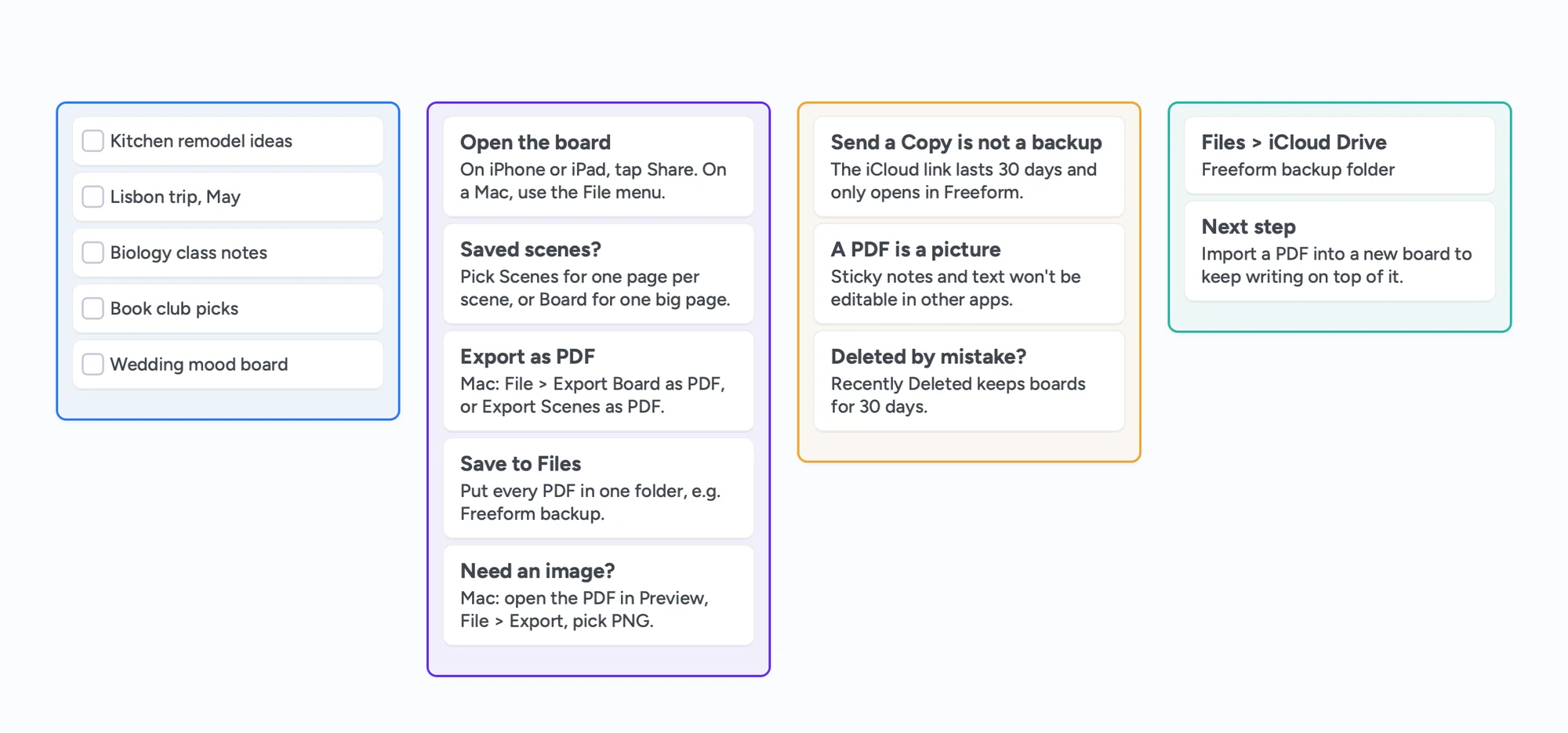
The ready board above is a checklist for exactly this: list your boards, tick each one off as you export it, and note where the files went.
Deleted a board by mistake?
Deleted boards go to Recently Deleted and stay there for 30 days, so you can recover them before they're gone for good.
Moving a board to another app
No app can import a Freeform board as editable sticky notes, text and shapes. Every route goes through the PDF, which is a picture of the board. What you can do with it:
| App | What happens to your Freeform PDF |
|---|---|
| Goodnotes or Notability | Imports as pages you can write on |
| OneNote | Inserts the pages as printouts on a page |
| Miro | Uploads the PDF onto a board as a file or images |
| Instaboard | Import the PDF as a new board of pages you can write and draw on, with room around them to keep building |
In every app, the board arrives as a picture. Text and sticky notes can't be edited or moved one by one.
If you need someone without an Apple device to see your board, send the PDF. A Send a Copy link only opens in Freeform.
If you bring it into Instaboard
- It's a picture. You write and draw on top of the pages; the old notes don't become cards.
- Each imported PDF becomes one board, and the free plan has 5 boards.
- Instaboard works in any browser as well as on iPhone, iPad and Android, so people on Windows can open and edit the board after a free sign-in.
Start from the ready board
It opens in your browser in a few seconds, with nothing to install. Sign in for free when you want to save it and share it.
Questions
How do I save a Freeform board as an image?
There's no direct option. On a Mac, export the board as a PDF, open it in Preview and choose File > Export to save it as PNG or JPEG. On iPhone or iPad, take a screenshot, or select items, copy them and paste them into another app as a PNG.
Can I export all my Freeform boards at once?
No. Apple doesn't offer a bulk export. Export each board as a PDF into one folder.
Why does my exported Freeform PDF look blurry?
Exporting a big board as one page shrinks it to fit. Save scenes for each part of the board and export by Scenes, so each part gets its own page.
Does iCloud back up my Freeform boards?
Your boards are stored in iCloud and sync across your devices. That keeps them in sync, but it isn't a separate copy; exporting PDFs gives you files you control.
Can someone without an iPhone or Mac open my Freeform board?
Not in Freeform: shared boards and Send a Copy links need an Apple device and Apple Account. Send them a PDF instead.
Can I import a Freeform board into Goodnotes or another app?
Only as a PDF. Goodnotes, Notability, OneNote and Instaboard can all open the PDF and let you write on it, but the sticky notes and text won't be editable.
Sources
- Apple: Send a copy or PDF of a Freeform board on iPhone
- Apple: Send a copy or PDF of a Freeform board on iPad
- Apple: Export a Freeform board as a PDF on Mac
- Apple: Send a copy of a Freeform board on Mac
- Apple: Navigate and present scenes in Freeform on iPad
- Apple: Navigate and present scenes in Freeform on Mac
- Apple: Print a Freeform board on iPhone
- Apple: Delete and recover Freeform boards on iPhone
- Apple Community: Freeform can't save to Photos
Related
A Freeform alternative that works on Windows, Android and the web
Freeform only runs on Apple devices, and everyone needs an Apple Account even to view a shared board. A free alternative that works on Windows, Android and any browser, with a call on the board.
How to export your Microsoft Whiteboard boards, even hundreds at once
The Whiteboard apps retired on October 16, 2026. How to export your boards as images, ZIP or HTML, export every board at once with PowerShell, why PDF and print fail on the web, and what personal accounts can still do.