For teachers of students 13 and older
Whiteboard for Google Classroom: share one board with your class
Classroom's attach options are Drive files, YouTube, new Docs, Slides and Drawings, uploads and links, and Jamboard is gone. A whiteboard in Classroom is therefore a board made somewhere else, with its link pasted into Classroom or onto a Google Sites page. Here is how to do that with an Instaboard board: set the link so students can write, post it in either place, and know what students see when they click. It suits classes of students 13 and older. It does not connect to Classroom: Classroom won't track who did what, and nothing is graded.
Updated
The short answer
- Make one board and choose "Anyone with the link can edit" in Share before you post the link. A new board starts as view-only for people with the link.
- In Classroom: Classwork, Create, Assignment (or an announcement on the Stream), Attach, Link, and paste the board's link.
- On Google Sites: Insert, Button, paste the link. Insert, Embed is also there; Google says some websites won't let you embed their content, and we have not tested it inside Sites, so if it refuses use the button.
- Students sign in free to write. Without signing in they can look but not add. Instaboard's terms say users are not minors, so this page is for students 13 and older.
- Link or code? Use the link for a post that stays up for days. A 4-digit join code is for a live lesson: it expires after 2 hours of inactivity.
Step 1: set up one board the class can write on
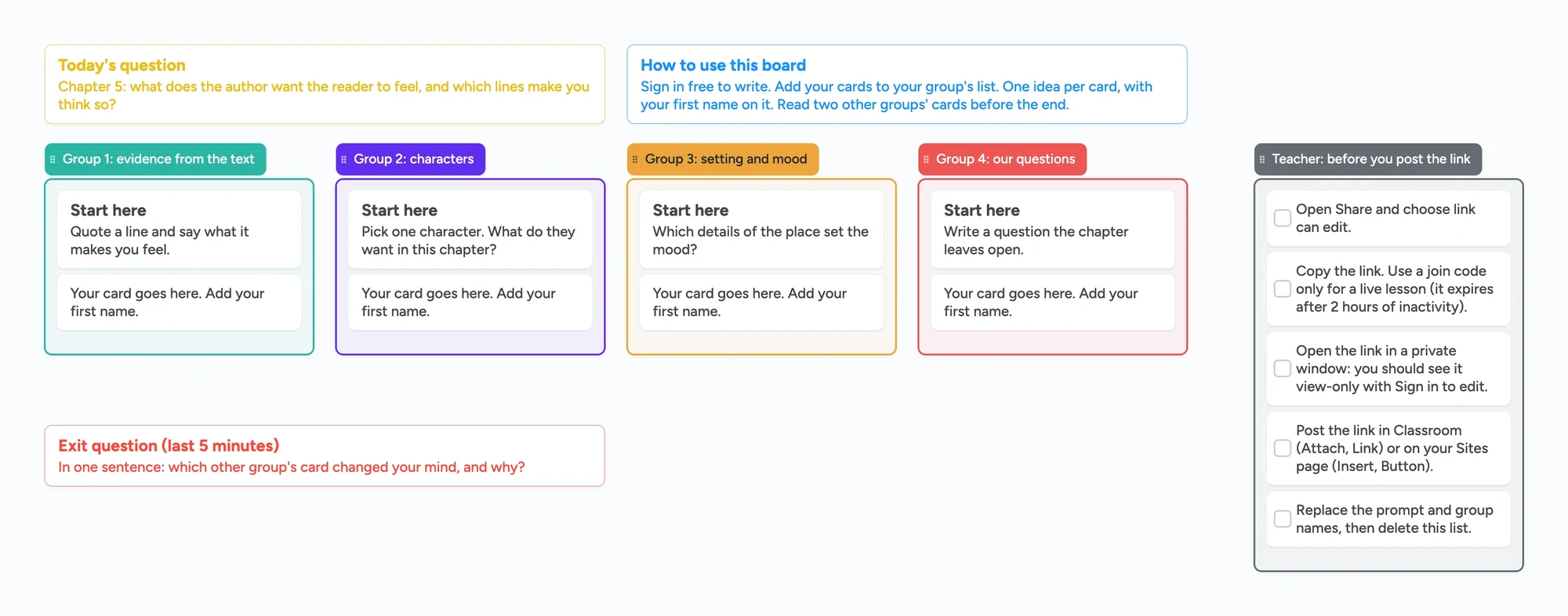
- Open the ready board above, or start a blank one. Change the question and the group names to yours.
- Open Share and choose "Anyone with the link can edit". This matters: a new board starts as "Anyone with the link can view", so a student who opens the link could look but not write.
- Copy the link. It starts with instaboard.app/b/.
- Test it the way a student sees it. Open the link in a private or incognito window. You should see the board with a "Sign in to edit" bar. That is the view a student gets before they sign in.
Each student who signs in can add cards, stickies and pen strokes to the same board. The free plan has no limit on collaborators. A board has no roster and records no per-student work, so ask students to put their first name on each card.
Step 2: post it in Google Classroom
These are Google's own steps for attaching a link, from Classroom Help ("Create an assignment" and "Post announcements to your students", read November 5, 2026):
- Go to classroom.google.com, sign in and open your class.
- Click Classwork, then Create, then Assignment. For a plain notice, use Announce something to your class on the Stream page instead.
- Enter a title and instructions. Say what to do on the board and which list to use.
- Under Attach, click Link and paste the board's link. (On an announcement it is Add, then Link.)
- To make the work ungraded, set Points to Ungraded. Choose the class or just the students or groups who should get it, then post.
Classroom doesn't know about the board
Classroom just shows a link. Its view, edit and make-a-copy options are for Google Drive files such as Docs and Slides, so they don't apply to an Instaboard link. Everyone who opens the link works on the same board. There is no turn-in, no per-student copy and no grade passed back to Classroom.
If you want each group on its own board, make one board per group and post them to separate groups using Classroom's student-group option (it is in the same assignment screen), or put all groups on one board with one list each, as the ready board does.
Step 3: or put it on a Google Sites page
From Google Sites Help ("Add or edit text & images" and "Add Google files, videos, website content, & more", read November 5, 2026). Start with the button, because it is the method Google documents for a link:
- Open your site in Google Sites and go to the page.
- On the right, click Insert, then Button.
- Type a name such as "Open our class board", paste the board's link, and click Insert.
- Click Publish at the top right.
Sites also lets you show another website's page inside yours: Insert, then Embed, enter the URL, then Insert and Publish. Google adds: "Some websites won't let you add their content to your site." We haven't tested an Instaboard board inside a published Google Site. Our pages don't send headers that block framing, and a board opens inside a frame on an ordinary page, but try it with your own site, and if Sites refuses, use the button. A board is also cramped to write on inside a small frame, so the button, which opens it full screen, is likely the better choice.
Running it live: use the code
For a lesson where everyone is in the room or on a call, a join code is quicker than a link. In Share, tap Get a join code. It makes a 4-digit code, and the dialog also shows a QR code you can put on a projector. Students enter it on the Instaboard home screen under "Join a board with a code". The app says the code expires after 2 hours of inactivity, so don't post a code in Classroom for homework; post the link. You can remove a code or make a new one at any time.
Instaboard also has built-in video calls, so a lesson can run on the board without opening another tool. Free calls run up to 60 minutes per call, with a warning 10 minutes before the end, and everyone needs a free sign-in to join a call.
What students see
- Before signing in: the board, view-only, with a "Sign in to edit" bar. They can read what others have written.
- To write: sign in free with Google, Apple or email. Then they can add cards, draw and move things.
- Their own free boards: once signed in, a board a student opens from your link takes one of their 5 free board slots. A student who is already at 5 can still open the link; the app says the board won't be added to their boards.
- School rules: some schools restrict which sites students can sign in to. Check with your school before relying on it, and don't ask students under 13 to use it.
When something else is the better choice
- You need turn-in, grading and a record per student. Use a Google Docs or Slides attachment and choose "Make a copy for each student" in Classroom. That is built for it; an Instaboard link is not.
- Students must write without signing in, or are under 13. Use a tool built for that. Instaboard needs a free sign-in to write and is written for ages 13 and up.
- You want classroom-management widgets such as timers and noise meters on a projector. Classroomscreen is built around those.
- Your whole class lives inside Google Docs. A shared Slides deck with one slide per group may be simpler.
For a list of replacements for the old Jamboard, see Jamboard alternatives for teachers.
What Instaboard doesn't do for classes
- No class mode, no roster and no grading. There are no assignments, no attendance and no per-student view.
- No Classroom sign-in or sync. Students sign in to Instaboard separately; Classroom does not see the board.
- Writing needs a free sign-in. Viewing doesn't.
- No recording of calls.
- The free plan is 5 boards and 150 items per account (cards, lists, images, text boxes; pen strokes, sections and arrows don't count), with 3 images and 1 file per board. Pro is $5 a month billed yearly ($59.99), or $7.99 monthly; your students don't need it to write on a board you share.
- Import PDF is not the way to bring in handouts right now. Paste a picture or type the prompt onto a card.
Start from the ready board
It opens in your browser in a few seconds, with nothing to install. Sign in for free when you want to save it and share it.
Questions
Does Google Classroom have a whiteboard?
The Classroom help pages we read list attachments (Drive files, YouTube, new Docs, Slides and Drawings, uploads and links) and describe no whiteboard. Teachers attach a link to a board from another tool as a Link on an assignment or announcement, or add a button on a Google Sites page.
How do I add a whiteboard link to a Google Classroom assignment?
In your class, click Classwork, Create, Assignment, then under Attach click Link and paste the board's link, then post. For an announcement on the Stream page, click Add, then Link. In Instaboard, first set Share to "Anyone with the link can edit" so students can write.
Can students write on the board without an account?
No. Anyone with the link can view it, but writing needs a free sign-in with Google, Apple or email.
Can I embed an Instaboard board in Google Sites?
Google Sites has Insert, Embed for a web address, and says some sites won't allow it. Instaboard's board pages don't send headers that block framing, but we haven't tested it inside a published Site. Use Insert, Button with the link if the embed doesn't work.
Should I use the link or the join code?
The link for anything students open later, such as a Classroom post or a Sites page. The 4-digit join code for a live lesson: the app says the code expires after 2 hours of inactivity.
Is it safe for under-13s?
This page is for students 13 and older. Instaboard's terms say users are not minors and its privacy policy says it does not knowingly collect personal information from children under 13, so do not use it with younger students.
Is Instaboard free?
Yes. The free plan includes 5 boards, 150 cards and items across your account (pen strokes, arrows and sections don't count), 3 images and 1 file per board, unlimited collaborators and video calls up to an hour. Pro is $5 a month billed yearly ($59.99 a year), or $7.99 monthly, and the people you invite join free.
Sources
- Google Classroom Help: Create an assignment (read in full, Nov 5, 2026)
- Google Classroom Help: Post announcements to your students (read in full, Nov 5, 2026)
- Google Classroom Help: How attachments are shared in Classroom (read in full, Nov 5, 2026)
- Google Sites Help: Add Google files, videos, website content & more (read in full, Nov 5, 2026)
- Google Sites Help: Add or edit text & images (read in full, Nov 5, 2026)
Related
Jamboard alternatives for teachers, and how to get your old Jams back
Free Jamboard alternatives for teachers: share one board with your class by link, plus how to find your old Jams as PDFs in Google Drive (type:Jam).
A whiteboard for Zoom and Teams breakout rooms: one board, one section per group
How to use one whiteboard in Zoom or Teams breakout rooms: one board, one section per group, and how to get the link into every room. What Zoom and Microsoft say.
Does Google Meet have a whiteboard? Not since Jamboard ended
Google Meet has no built-in whiteboard since Jamboard ended. How to open an add-on, what to check if it's missing, and a board your student can write on.
Build an immune system concept map: innate vs adaptive, step by step
Build an immune system concept map: innate and adaptive clusters, then one infection traced to memory. An editable board, sourced from OpenStax. No AI.