For online tutors
A Zoom Whiteboard alternative where your student writes too
Zoom Whiteboard is already in your call, which is why tutors try it first. Then the limits show up: 3 editable boards on the free plan, a student who can see the board but can't write on it, PDF upload only from the desktop app, and a free call that ends at 40 minutes. Here is what Zoom does well, where it gets in a tutor's way, and a setup where one link gives you the call and a board your student writes on.
Updated
The short answer
- Zoom Basic (free) meetings with you and one student end after 40 minutes. Zoom's free Whiteboard allows 3 editable boards, and sharing a board is built around Zoom accounts and what your account admin has switched on.
- To upload a PDF worksheet to a Zoom whiteboard you need the desktop app (Windows, macOS or Linux), with a 20 MB limit per PDF.
- On Instaboard your student opens a link and signs in once for free to write. The call is built in and free up to an hour, and you can keep using Zoom next to the board if you prefer.
What a lesson on the board looks like
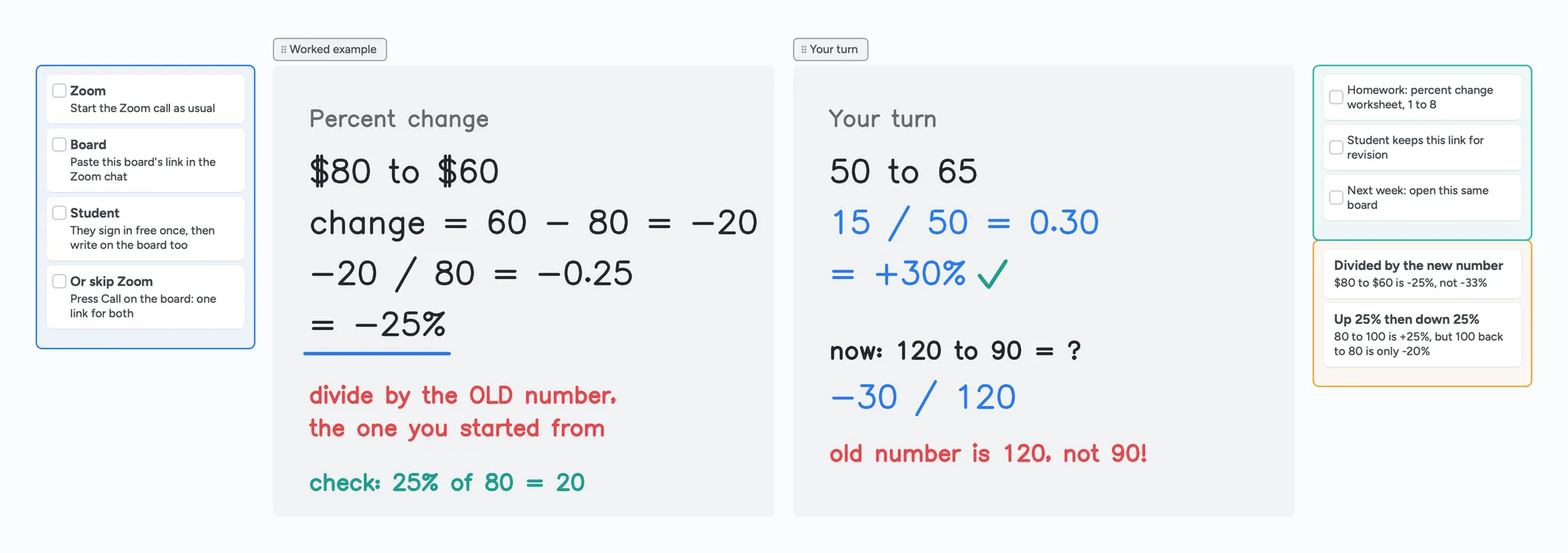
The call sits on top of the board: you write and point with the laser, your student writes their answer on the same page in their own colour, and you both see it live.
Where tutors hit Zoom Whiteboard's limits
None of this makes Zoom Whiteboard bad. It is a capable whiteboard for teams that already live in Zoom. These are the places where a one-to-one tutor, usually on a free or personal plan, runs into trouble. Everything below is from Zoom's own support and product pages, checked November 2, 2026.
- 3 editable boards. Zoom's Whiteboard Basic plan, included with free Zoom accounts, lets you edit 3 whiteboards at a time. Whiteboard Plus lifts the limit.
- Free calls end at 40 minutes. Zoom says almost all meetings hosted by a Basic (free) user are limited to 40 minutes when the host and at least one participant are in the call. Paid licenses run up to 30 hours.
- Your student's account. Zoom's getting-started page says whiteboards can't be sent to people who don't have a Zoom account. Zoom's sharing page adds a "view" link for anyone with the link, with editing and commenting set per person. Zoom's marketing pages describe public sharing more broadly, so what a student can do depends on the plan and on what the account admin switched on.
- An admin switch you may not have. Whiteboard, uploads and external sharing are all turned on by an account admin. If you teach on your own account that is you, but on a school or agency license the options can be greyed out.
- PDF worksheets are desktop only. The upload tool is in the Zoom desktop app for Windows, macOS and Linux, with PDFs up to 20 MB and images up to 25 MB. A PDF that doesn't embed its fonts renders in a default font, which can shift the spacing.
Students who can see but not write
Posts on Zoom's community forum and Reddit (2023 and 2024) describe participants without a Zoom account who could look at a board but not edit it, and the fix was an admin setting. If your student only needs to see your writing, Zoom works. If they need to write, test it with them before the lesson.
When the Zoom whiteboard is missing or won't load
If the Whiteboard button isn't in your meeting, or it won't open, Zoom's own troubleshooting article (KB0057790, "Troubleshooting disabled or missing Zoom Whiteboard button", fetched November 2, 2026) lists these causes, in this order:
- The feature is switched off for your account. An organization admin can disable Whiteboard. Zoom says to ask your admin to turn it on.
- You don't have permission. On a managed account, your role may not include Whiteboard. Zoom says to ask your account administrator for the permission.
- The host turned it off for this meeting. Even when Whiteboard is enabled, the host can prevent participants from using whiteboards in a meeting, so check the meeting settings.
- Your Zoom app is out of date. Zoom says an old version can cause problems with the Whiteboard button. Update it, or download the latest version and reinstall.
- Cached files and cookies. Zoom suggests clearing your browser's cache and cookies, then installing or updating the Zoom app again.
Work through them in that order: the first three are settings (yours, your admin's or the host's) and the last two are a few minutes of fixing on your own device. If you teach on a school or agency license, the first two are not yours to change.
Quick fix for tonight's lesson
If you can't sort it out before the lesson starts, keep Zoom for the call and open a board beside it. Paste the board link in the Zoom chat; your student opens it in a browser tab and signs in once, free, and you both write on it. The board doesn't depend on Zoom's Whiteboard setting, so the admin and host switches above don't apply to it. If a school or agency limits which sites or tools you may use, follow its rules.
The step-by-step version is in using the board next to Zoom below. If you'd rather not depend on Zoom's whiteboard at all, our tutoring whiteboard guide and the iPad on Zoom guide cover other setups.
Zoom Whiteboard and Instaboard side by side
| Zoom Whiteboard (free) | Instaboard (free) | |
|---|---|---|
| Boards | 3 editable at a time; Whiteboard Plus has unlimited | 5 boards; pen strokes don't count toward the 150-item limit |
| Student writes on the board | Depends on sharing permissions and admin settings; boards can't be sent to people without a Zoom account | Yes, after a free sign-in with Google, Apple or email; anyone can view without one |
| Video call | Zoom meeting; free meetings with a participant end at 40 minutes | Built into the board, free up to 1 hour, no limit on Pro |
| PDF worksheets | Desktop app only, up to 20 MB per PDF | Import a PDF; each page becomes a page you write on |
| Pen | Pen and shape tools, mobile and desktop apps | Pressure pen, highlighter, hold to straighten, stylus side-button erase, laser pointer, stylus mode on iPad |
| Apps | Zoom desktop, mobile and web app | Browser, plus iPad, iPhone and Android apps |
| Paid price | Whiteboard Plus about $8 to $16 a month per seat, shown as a range on Zoom's page | Pro $5 a month billed yearly ($59.99), or $7.99 monthly |
Swipe the table sideways to see every column.
Zoom facts from support.zoom.com articles KB0058482, KB0059671, KB0058153 and KB0067966 and zoom.com's whiteboard product and pricing pages, checked November 2, 2026. Check Zoom's pricing page for your plan and currency.
Where Zoom Whiteboard is the better choice
- You already pay for Zoom. On a paid license, calls run up to 30 hours and the whiteboard comes with the account you already have.
- Everyone you teach is on Zoom already. A school or agency where every student and tutor has a Zoom account avoids the sign-in question entirely.
- Admin controls. An account admin can decide who may collaborate on whiteboards and with whom, inside the company and with outside domains. Instaboard has no admin console.
- The whiteboard opens inside the meeting. One click from the Zoom toolbar, with no second link to send.
- Unlimited boards. Whiteboard Plus removes the editable-board limit. Instaboard's free plan stops at 5 boards.
- Export and import. Zoom lists image and PDF export, plus importers for Miro, MURAL and Visio boards. Instaboard imports PDFs only.
If that is your week, stay on Zoom. Many tutors use both: Zoom for the call, Instaboard for the board.
When Instaboard fits better
- Your student has to write. Maths and anything with working out. They sign in once, free, then write next to you on the same page in their own colour.
- You teach on a free plan and don't want a 40-minute cutoff. Calls on the board are free up to an hour, and on a Pro board there is no limit. You can also keep your own Zoom or Meet call open and use the board beside it.
- You write on an iPad. Instaboard has an iPad app with a pressure-sensitive Apple Pencil, and stylus mode lets the pencil draw while a finger scrolls. Many tutors join the call on a laptop and write on the iPad.
- You hand out worksheets as PDFs. Import one and it becomes pages you and your student both write on. Each imported PDF uses one of your 5 free boards.
- You want one board per student, kept between lessons. Open the same link next week. Free covers 5 boards.
The ready board above is laid out for exactly this: a before-the-call checklist, a worked example in ink, the student's turn in blue, a homework list and the mistakes to redo. For a full walkthrough, see our tutoring whiteboard guide and how to use an iPad as the whiteboard on Zoom.
Using the board next to Zoom
- Start your Zoom call as usual.
- Open the lesson board and copy its link (a 4-digit join code and a QR code also work).
- Paste the link in the Zoom chat. Your student opens it in a browser tab or the app and signs in once, free.
- Teach on the board. Write in ink, point with the laser, and have your student answer in their own colour.
- Or skip Zoom for the call. Press Call on the board and you both talk on the same link, free for up to an hour.
Test with your student first
Open the board link on your student's own device before the first lesson, so any sign-in surprise happens before the lesson.
What Instaboard doesn't do
- Students sign in to write. Anyone with the link can view, but writing needs a free account with Google, Apple or email.
- Free calls end at 60 minutes. Pro has no limit, or keep using Zoom or Google Meet next to the board.
- No lesson recording, scheduling or payments.
- No import from Zoom Whiteboard or other boards. Only PDFs come over, as pages you write on.
- The eraser removes whole strokes. Undo is the quickest way to fix the last thing you wrote.
- Equation cards, not a LaTeX editor.
Start from the ready board
It opens in your browser in a few seconds, with nothing to install. Sign in for free when you want to save it and share it.
Questions
Is Zoom Whiteboard free?
Zoom's Whiteboard Basic plan is included with free Zoom accounts and lets you edit 3 whiteboards at a time. Whiteboard Plus is a paid add-on with unlimited boards.
Can my student write on a Zoom whiteboard without a Zoom account?
Zoom's support pages say whiteboards can't be sent to people without a Zoom account, and a shared link can be set to view-only. Zoom's marketing pages describe broader public sharing. In practice it depends on your plan and on what your account admin has enabled, so test with your student before the lesson.
How long can a free Zoom call last?
Zoom says almost all meetings hosted by a Basic (free) user end after 40 minutes when the host and at least one participant are in the call. Paid licenses can run up to 30 hours.
Can I upload a PDF worksheet to a Zoom whiteboard?
Yes, from the Zoom desktop app on Windows, macOS or Linux, if an account admin has enabled uploads. A single PDF can be up to 20 MB.
Do my students have to pay for Instaboard?
No. Students join your boards free. To write on a board they sign in once with Google, Apple or email; without signing in they can only view.
Is Instaboard free?
Yes. The free plan includes 5 boards, 150 cards and items across your account (pen strokes, arrows and sections don't count), 3 images and 1 file per board, unlimited collaborators and video calls up to an hour. Pro is $5 a month billed yearly ($59.99 a year), or $7.99 monthly, and the people you invite join free.
Sources
- Zoom: Troubleshooting disabled or missing Zoom Whiteboard button (KB0057790, fetched November 2, 2026)
- Zoom: Uploading documents and images to the whiteboard (KB0058482, updated 2025-10-22)
- Zoom: Getting started with Zoom Whiteboard (KB0059671, updated 2026-10-17)
- Zoom: Sharing a whiteboard (KB0058153, updated 2026-03-24)
- Zoom: Understanding time limits for Zoom Meetings (KB0067966, updated 2025-10-29)
- Zoom: Online whiteboard
- Zoom: Whiteboard pricing
Related
Use your iPad as a whiteboard on Zoom (and let your student write too)
How to use an iPad and Apple Pencil as a whiteboard in a Zoom lesson: screen mirroring, Zoom Whiteboard, or a shared board your student writes on too. Or skip Zoom and call right on the board. Step by step, with the echo fix.
An online whiteboard for tutoring that works the way you teach
A free whiteboard for online tutoring: paste the worksheet, write with a pen, and your student answers on the same board. Call on it or beside Zoom.
A Bitpaper alternative for tutors, now that free is join-only
Bitpaper's free plan can only join papers since April 2025, and a lapsed plan turns your papers read-only. What tutors use instead, where Bitpaper is still better, and how to move your lessons over.
An Explain Everything alternative for live lessons, where your student writes too
Explain Everything Free gives you 3 one-slide projects, 3-minute videos and 15 minutes of collaboration. What the paid plans add, what it does better, and a free board where your student writes live.