For someone running Getting Things Done who wants the whole system on one screen
A GTD template on one shared board: inbox, next actions, projects and a Friday review
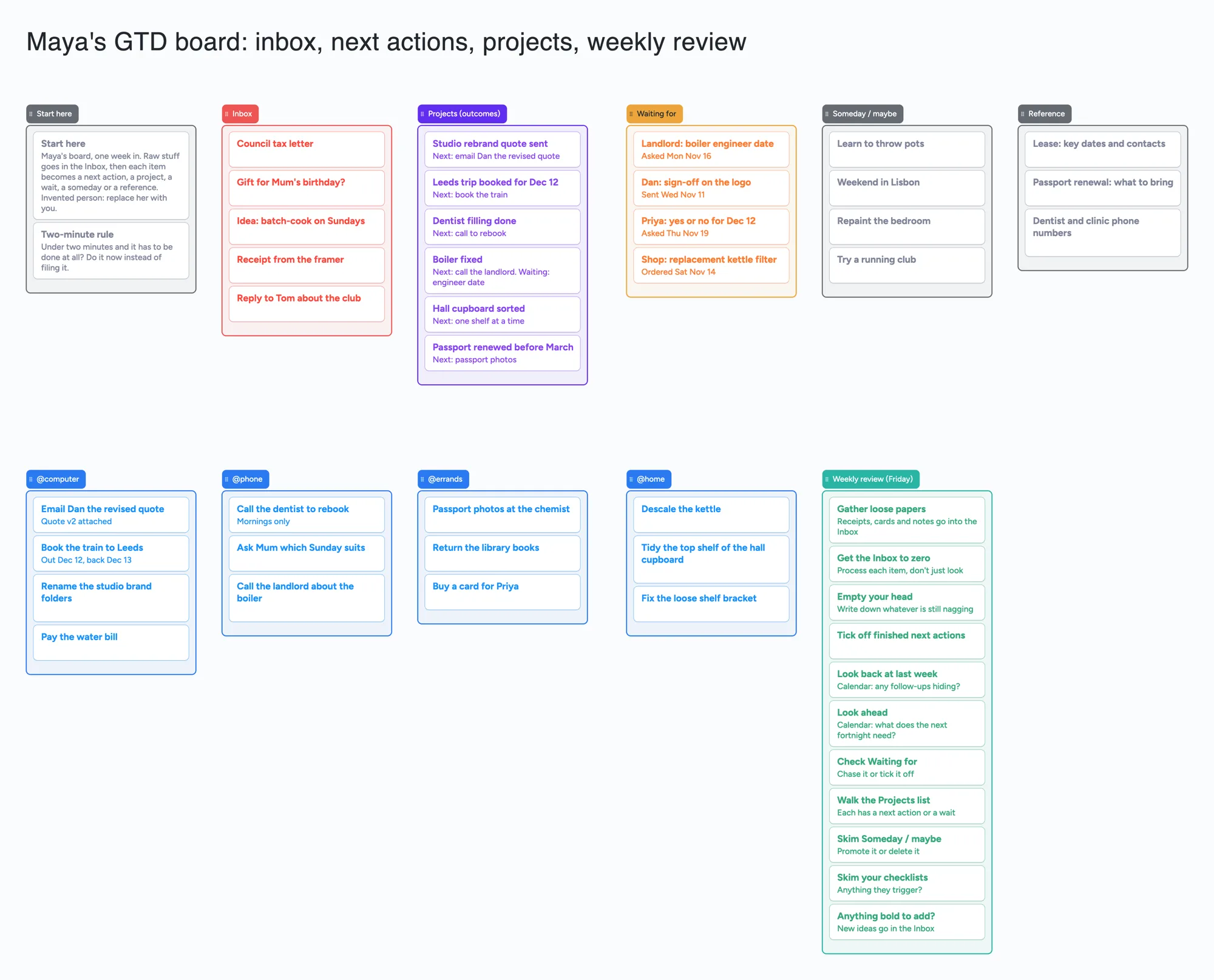
We make Instaboard, a free online board. This page gives you a Getting Things Done style board already laid out on it, filled in for one invented person, Maya: an Inbox, next actions split by context, a Projects list written as outcomes, Waiting for, Someday / maybe, Reference and the weekly review as a list of cards you walk through. Open it, swap Maya for you and, if you want, send the link to a partner or assistant. It is a map of the system, not a task manager: it sends no reminders, has no calendar alerts, can't filter by context and doesn't read your email. If you need those, a GTD app does the job better, and three are named below.
Opens in your browser. Anyone can view; a free sign-in lets you edit.
Updated
Read this first: what the board does and doesn't do
- What it is: every part of a GTD system as a list or a card, on one screen, so you can see the whole of it and drag a card from the Inbox to the list where it belongs. Maya's example uses 60 of your 150 free items.
- What it is not: no reminders, no due dates or calendar alerts, no recurring tasks, no filter by context, no link to email. A card is a line you move, nothing nudges you about it.
- Why a board at all: the one thing it adds over a dedicated app is a link. A partner, an assistant or a co-founder can open the same board and move cards, after a free sign-in to write.
- Pro lifts the limit: $5 a month billed yearly ($59.99 a year), or $7.99 monthly. The free plan keeps 5 boards, 150 items and 3 pictures per board.
- Trademark: GTD and Getting Things Done are registered trademarks of the David Allen Company. Instaboard is not affiliated with or endorsed by David Allen Company. We explain the method in our own words; the real thing is at gettingthingsdone.com.
GTD in two lines
Getting Things Done is a method for getting everything that has your attention out of your head and into a trusted system, then deciding for each thing what the very next action is. You keep the system current with a regular review, so that when you sit down to work you pick from a short list instead of from memory.
David Allen's own site describes five steps, which are the headings of the next section. This page follows them in order and says where each one lives on the board.
The five steps, and where each one lives on the board
| Step | In short (our words) | On the board |
|---|---|---|
| Capture | Collect what has your attention, whatever size, in one place | The red Inbox list. Five raw items in Maya's: a letter, a gift idea, a receipt, a message to answer, a half-formed idea |
| Clarify | Decide what each thing is: is it actionable, and what is the next action? If not, bin it, file it or hold it | You process the Inbox card by card. A two-minute job gets done on the spot (see the grey card in Start here) |
| Organize | Put it where it belongs | Next actions go in a blue context list, outcomes in Projects, things you're waiting on in Waiting for, maybes in Someday / maybe, keepers in Reference |
| Reflect | Review often enough to trust the lists | The green Weekly review list, eleven cards |
| Engage | Simply do the work | Pick a card from the context list that fits where you are and what you have. The board has no dates, so what you can do today is your call, not the board's |
Swipe the table sideways to see every column.
Steps summarised in our words from gettingthingsdone.com/what-is-gtd, read November 21, 2026 (the page shows no date). Not affiliated with or endorsed by David Allen Company.
Maya's week, worked through
The example is invented. Maya freelances, rents a flat and has six things on the go. Here is how a few of her cards got where they are.
- Capture. Five items sit in the Inbox on Friday morning: a council tax letter, a gift for her mum's birthday, a note to batch-cook on Sundays, a framer's receipt and a message from Tom about the club.
- Clarify, quickly. The message from Tom takes a minute to answer, so Maya answers it and deletes the card. That is the two-minute idea at work: if a job takes less than two minutes and has to be done at all, do it now rather than file it.
- A project, not a task. 'Boiler fixed' needs more than one step, so it is a card in Projects, written as the outcome you want. It names a next action, 'Call the landlord about the boiler', which sits in @phone, and a wait, 'Landlord: boiler engineer date, asked Mon Nov 16', which sits in Waiting for.
- Contexts are lists. Maya keeps four, @computer, @phone, @errands and @home. 'Passport photos at the chemist' is in @errands because she'll only do it on a trip out. David Allen's site lists suggested contexts such as Calls, Computer, Errands, Home and Office; use as few as you need.
- Someday / maybe. 'Learn to throw pots' is not a commitment, so it stays out of her projects and next actions. She'll look at it on Friday.
- Reflect. On Friday she walks the green list from the top: Inbox to zero, check Waiting for, check every project has a next action or a wait.
Every project card on the board ends with a 'Next:' line, so you can see at a glance that none is stalled. That line is a convention of this example, not a feature: there is no field for it.
The Friday review, card by card
David Allen's older Weekly Review checklist groups the review into three parts: Get Clear, Get Current and Get Creative. The eleven green cards follow that order, worded in our own way. His 2016 version of the checklist suggests early Friday afternoon as a good time, because it surfaces small actions you can finish while people are still at work; Maya reviews on Fridays too.
| Part | Cards on the board |
|---|---|
| Get clear | Gather loose papers · Get the Inbox to zero · Empty your head |
| Get current | Tick off finished next actions · Look back at last week · Look ahead · Check Waiting for · Walk the Projects list · Skim your checklists |
| Get creative | Skim Someday / maybe · Anything bold to add? |
Grouping from David Allen Company's Weekly Review checklist PDF (© 1990-2006, read November 21, 2026); the 2016 PDF (dated 05OCT2016) lists the same steps without the three headings. Our wording. His page suggests keeping a checklist of your own; this one is Maya's. The cards are plain cards with no tick boxes: drag each one to a list you add, such as Done, as you go.
A reminder to do the review is not something the board can send. Put it in the calendar app you already open on Friday.
Does a real GTD system fit in 150 items?
Each card and each list is 1 of your 150 free items, across all your boards. The board's title text box counts too. Arrows, sections and pen strokes don't. Here is the arithmetic for three sizes of system (our arithmetic, from the example's lists):
- Maya, as built: 11 lists + 48 cards + the title = 60. Six projects, 13 next actions, 4 waits, 5 inbox items.
- 20 projects with two next actions each: 20 + 40 project and action cards, plus 2 start cards, 8 inbox, 8 waiting, 12 someday, 10 reference and the 11 review cards = 111 cards, plus 11 lists and the title = 123.
- 40 projects with one next action each: 40 + 40 = 80, plus 51 other cards = 131 cards, plus 12 = 143. With two next actions each it is 171 cards and 183 items, over the limit.
David Allen's site says most people have somewhere between 10 and 100 current projects (his article on managing projects, read November 21, 2026). So a light system fits, a heavy one needs Pro, and it is also a sign to look at the apps below.
What a board can't do for GTD
- Remind you. No reminders, no push or email nudges. Nothing tells you a wait is a week old.
- Dates and calendar. No due dates and no alerts. Maya's 'asked Mon Nov 16' is text in a card, not a date field. The board has a calendar view, but it sends no alerts.
- Filter by context. A context is a list. You can't ask to see only what you can do with twenty minutes and a phone. You look at the list.
- Recurring items. A weekly review card doesn't come back by itself; the cards have no tick boxes, so you drag each one back to the start by hand.
- Link to email. Nothing flows from your inbox into the Inbox list.
- Order by project. A next action does not know which project it belongs to; the 'Next:' line is typed by you.
- Offline. Changes made offline are kept and sync when you're back online.
When a GTD app is the better home
If you want reminders, dates, filters and a quick-add from your phone, use an app built for it. Three, each read on November 21, 2026; prices change, so check the page before you buy.
| App | What its page says | Better than a board at | Where a board fits |
|---|---|---|---|
| Todoist | A free GTD setup template creates GTD projects and labels, including a weekly review project. Pricing page: Beginner $0 with 5 personal projects and task reminders; Pro $5 a month billed yearly ($60) or $7 monthly | Reminders, labels, recurring tasks, a quick-add on every device | A single picture of the whole system, shared by link |
| OmniFocus | Buy page: version 4 Standard $74.99 and Pro $149.99, one-time; or a subscription at $99.99 a year; a web companion at $4.99 a month or $49.99 a year. For Mac, iPhone, iPad, Apple Watch and Vision Pro | Contexts as filters, a built-in review, power for a large system | No Apple device needed, no price for the person you share with |
| Things | Support article: a one-time purchase per platform for Mac, iPad, iPhone and Vision, no subscription, sync free through Things Cloud, 15-day free trial; the article says it is not on Windows, Android or the web, and gives no price (the App Store does) | A polished, quick capture and daily list on Apple devices | Any browser, including Windows and Android, one link to share |
Swipe the table sideways to see every column.
From each vendor's own pages, read November 21, 2026. Todoist's template page and Things' support article show no date; OmniFocus's buy page shows none in the text we read. David Allen Company doesn't endorse any app; Instaboard isn't affiliated with any of these.
No ranking: they are different jobs. A common pairing is an app for the daily list and a shared board when you want to show or talk through the whole system with someone.
Set up your own, in order
- Open the board and replace Maya. Delete her cards as you go, so you never keep a list half-yours.
- Dump everything in the Inbox. Don't sort yet: one card per thing, a few words each.
- Process the Inbox top to bottom. Next action, project, wait, someday, reference or bin. Under two minutes? Do it.
- Cut the contexts to what you use. Rename @home or @errands to your own; add or delete lists.
- Make every project an outcome with a next action. If a project has none, add one or move it to Someday.
- Share it only if you want someone else on it. Set the share setting so anyone who joins can edit ('Anyone who joins can edit'); new boards start view-only, and each person signs in free to write. Give each person their own cards so two people never type in the same one.
- Copy it before you change it, if you want a clean original. Make a copy takes 1 of your 5 free boards.
Limits of the free plan for this board
- Items. Each card and each list is 1 of 150 free items across your account; the example is 60. Arrows, sections and pen strokes don't count.
- Boards. 5 on the free plan. Keep your GTD system on one board.
- Pictures. 3 per board. The example has none.
- Writing needs a free sign-in. Anyone with the link can read the board; to change it they sign in free, and the board then counts as 1 of their 5.
- Solo use. A GTD system is usually one person's. The board's advantage is sharing; if you won't share it, an app does the job better.
Start from the ready board
It opens in your browser in a few seconds, with nothing to install. Sign in for free when you want to save it and share it.
Questions
Is there a free GTD template?
Yes, several, in apps and documents. The ready board here is a GTD template on a shared board: Inbox, next actions by context, Projects, Waiting for, Someday / maybe, Reference and a weekly review, free within 5 boards and 150 items. Todoist also offers a free GTD setup template inside its app. The board is something you move cards on; it sends no reminders.
How do I set up GTD on a board?
Make a list for the Inbox, one for each context you use, and one each for Projects, Waiting for, Someday / maybe and Reference. Put everything in the Inbox, then process it card by card, moving each to the list where it belongs. Write projects as outcomes and give each a next action. Review the whole board once a week.
What goes in a GTD weekly review?
David Allen's checklist has three parts: get clear (gather loose papers, empty the Inbox, empty your head), get current (review your action lists, calendar, waiting for, projects and checklists) and get creative (look at Someday / maybe and add anything bold). The board's eleven cards follow that order in our wording.
Can I use Trello for GTD?
People do. Trello's Free plan lists up to 10 collaborators and 10 boards per Workspace, with assignees and due dates, which this board doesn't have. Its Timeline view is on Premium. A shared Instaboard board has no due dates or reminders either way, so it suits a map of the system rather than a date-driven one.
How many items does a GTD board use on the free plan?
Each card and each list is 1 item of the 150 across your account. The example is 11 lists, 48 cards and the title text box, 60 items. Forty projects with one next action each is 143; with two each it is 183, over the limit. That is our arithmetic. Arrows and sections are free.
Is this approved by David Allen?
No. GTD and Getting Things Done are registered trademarks of the David Allen Company. Instaboard is not affiliated with or endorsed by David Allen Company. We explain the method in our own words from gettingthingsdone.com; the weekly review grouping follows his published checklist.
Sources
- David Allen Company: What is GTD? (five steps; trademark notice in the footer; read November 21, 2026; page shows no date)
- David Allen Company: GTD Weekly Review checklist (PDF, © 1990-2006, Get Clear / Get Current / Get Creative; read November 21, 2026)
- David Allen Company: The Weekly Review (PDF dated 05OCT2016, © 2008; Friday-afternoon suggestion; read November 21, 2026)
- David Allen Company: The two-minute rule (read November 21, 2026; no date seen in the text we read)
- David Allen Company: Managing projects with GTD (10 to 100 current projects; read November 21, 2026; no date seen in the text we read)
- David Allen Company: why sorting your lists by contexts matters (suggested contexts; read November 21, 2026; no date seen in the text we read)
- Todoist: Getting Things Done setup template (free; read November 21, 2026; page shows no date)
- Todoist: pricing (Beginner $0, Pro $5 billed yearly or $7 monthly; read November 21, 2026)
- Omni Group: OmniFocus buy page (prices and platforms; read November 21, 2026)
- Cultured Code: Things support, purchase and platforms (read November 21, 2026; page shows no date)
- Trello: pricing (Free limits, Premium views; read November 21, 2026)
Related
An online course outline on one shared board: outcomes, then a list per module
An online course outline on one shared board: outcomes first, then a list per module with its lessons, activity, quiz and resource. Open it, swap in your course and share the link.
Plan a thesis on one board you can share with your advisor
An editable thesis planning board: a list per chapter, literature clusters, advisor feedback and the core argument on one shared board you send to your advisor.
A moving board: pack by room, number every box, share one list
Plan a move on one shared board: a list per room with a card for every numbered box, plus moving-day tasks. Free ready board; a moving app or a spreadsheet searches better.