For online tutors and teachers
Use your iPad as a whiteboard on Zoom (and let your student write too)
Run the call on your laptop for the camera, and write with Apple Pencil on your iPad. There are three ways to get that writing into a Zoom lesson, and two of them only go one way, so your student watches but can't write back. Or you can skip Zoom entirely and hold the call on the board you're both writing on. Here's how each one works, how to set it up without echo, and a ready lesson board to start from.
Updated
The short answer
- Join Zoom on your laptop for camera and sound. Don't join on the iPad, or disconnect its audio, or you'll get echo.
- Just showing your writing? Mirror the iPad into Zoom with AirPlay (Share > Other > iPhone/iPad via AirPlay).
- Want your student to write too? Open the same shared board on your iPad and send your student the link. Zoom Whiteboard can do this when you open it as Collaborating; a separate board works the same way outside Zoom.
- Or skip Zoom: Instaboard has a video call built into the board, so the call and the whiteboard are one link. Free calls run up to 60 minutes; free Zoom meetings stop at 40.
- No iPad? A $40–$70 drawing tablet plugged into your laptop does the job.
What a lesson on the board looks like
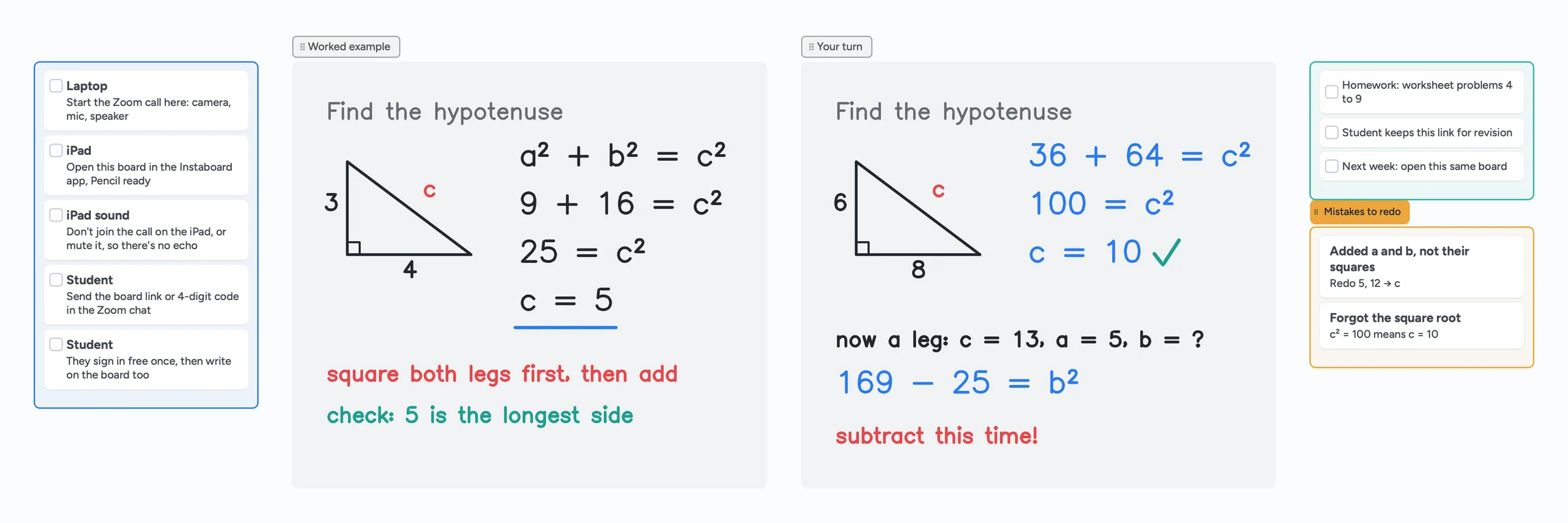
The call sits on top of the board, so you talk and write in the same place. You draw with Apple Pencil, point with the laser, and your student writes their answer on the same page in their own colour.
Ways to use an iPad as a whiteboard in a Zoom lesson
| How it works | Can your student write? | Good for | |
|---|---|---|---|
| 1. Mirror your iPad | Your iPad screen appears in the meeting through the Zoom desktop app (AirPlay, or a cable on a Mac). Write in any notes app. | No. They only watch. | Lectures and walkthroughs with the notes app you already use |
| 2. Zoom Whiteboard | Open a whiteboard in the meeting as Collaborating, and join it from the iPad too. | Yes, if they have a Zoom account and you open it as Collaborating | Students who already have Zoom accounts |
| 3. A shared board beside Zoom | Open the same board on your iPad and send the link in the Zoom chat. Zoom just carries the video. | Yes, on their own device | Worksheets, homework photos and a board that's still there next week |
| 4. Skip Zoom | Call on the board itself: video, sound and the whiteboard in one link. | Yes | One link for everything, and calls longer than Zoom's free 40 minutes |
Swipe the table sideways to see every column.
Zoom details from Zoom's support articles and Whiteboard page, checked October 27, 2026.
Why a screen share isn't enough
Mirroring sends a picture of your iPad, so it only goes one way. Tutors on r/TutorsHelpingTutors describe the switch to a shared board as the moment students stopped just watching: "both of us can actually work on the question."
The setup: laptop for the call, iPad for writing
- Start or join the Zoom meeting on your laptop. It handles your camera, microphone and speaker.
- Keep the iPad off the call's audio. If you do join the meeting on the iPad too, disconnect its audio (More > Disconnect Audio). Zoom notes that muting isn't enough, because the iPad's speaker still plays the call back into your microphone.
- Put the iPad where you write comfortably, flat on the desk or on a low stand, with Apple Pencil charged.
- Open your whiteboard on the iPad using one of the three ways below.
- Test once before your first lesson: write a line on the iPad and check how it looks from your student's side.
Way 1: mirror your iPad into Zoom
- Make sure the iPad and laptop are on the same Wi-Fi.
- In the Zoom desktop app, click Share, open the Other tab, and choose iPhone/iPad via AirPlay. On a Mac you can choose iPhone/iPad via Cable instead.
- On the iPad, open Control Center, tap Screen Mirroring, and pick the Zoom option.
- Open your notes app and write. Everyone sees your iPad screen.
If Share doesn't offer these options, the meeting host has desktop screen sharing turned off in their Zoom settings. Mirroring is simple and works with any app, but your student can't write back, and they see everything on your screen, including notifications.
Way 2: Zoom Whiteboard
Zoom has its own whiteboard. In the meeting, click Whiteboards, then create one or open an existing one. Open it as Collaborating so participants can edit; Presenting gives them view-only access.
- Free Zoom accounts get 3 editable whiteboards at a time, and Zoom says free boards are shared with other Zoom account holders. More boards take the Whiteboard Unlimited add-on, from $2.07 a month.
- Uploading a PDF worksheet only works in the Zoom desktop app, up to 20 MB, and an admin can turn it off.
- Free Zoom meetings end after 40 minutes, which cuts most lessons short.
Zoom Whiteboard is the better choice when your students already use Zoom, you don't want to send a second link, and three boards are enough.
Way 4: skip Zoom and call on the board
If the only reason you're on Zoom is the video, you may not need it. Instaboard has a video call built into the board, so your student opens one link and gets the call and the whiteboard together. No meeting link next to a board link, no screen share, nothing to mirror.
- Open the lesson board on your iPad (or laptop) and start a call from the board.
- Send your student the board link or the 4-digit join code before the lesson. They join the call from the board.
- Teach and write in the same place. You see each other's video while both of you write on the worksheet. Share your screen from a laptop or browser if you need to show something else.
| Free Zoom + a board | Instaboard call | |
|---|---|---|
| Links to send | Two: the meeting and the board | One |
| Free call length | 40 minutes | 60 minutes, with a warning 10 minutes before the end |
| Longer lessons | Zoom Pro | Instaboard Pro ($5 a month billed yearly): no time limit |
| Student needs | Zoom, plus a free board sign-in to write | Just the free Instaboard sign-in |
Swipe the table sideways to see every column.
Zoom limit from Zoom's support article on meeting time limits, checked October 27, 2026.
If you're in a two-device setup, join the Instaboard call on one device only (usually the laptop, for the camera) and write on the iPad, which shows the same board live.
When to keep Zoom
If your student or their school only uses Zoom, if you need to record lessons, or if the family is already on a long Zoom plan, keep Zoom for video and use the board next to it.
The same setup on Google Meet and Microsoft Teams
- Google Meet: join on your laptop and share the board link in the Meet chat. Meet no longer has Jamboard built in. Free Meet calls between two people can run up to 24 hours; calls with three or more people end at 60 minutes.
- Microsoft Teams: the same steps. Join on the laptop, keep the iPad off the call's audio, and paste the board link in the meeting chat.
- Mirroring on Meet or Teams: you can share your iPad screen from the iPad app instead, but it's still one-way.
No iPad?
- A screenless drawing tablet such as a Wacom Intuos or Huion H1060P (about $40–$70) plugs into your laptop. Tutors recommend at least 6×8 inches. You look at the laptop screen while you write on the tablet, which takes a few lessons to get used to.
- A pen laptop, like a Surface or another 2-in-1, works in the browser with its pen.
- An Android tablet with a stylus runs the Instaboard app too.
Your student doesn't need any of this. They can type, use a mouse or trackpad, or snap a photo of their paper work.
What to know before you start with Instaboard
- Your student needs a free sign-in to write. Anyone with the link can view; writing needs a free account with Google, Apple or email.
- Free covers 5 boards. Pen strokes don't count toward the 150-item limit. Each imported PDF becomes its own board. With several regular students, Pro is $5 a month billed yearly ($59.99 a year).
- No lesson recording. Use Zoom's recording if you need one.
- The eraser removes whole strokes. Undo is the quickest way to fix the last thing you wrote.
- Calls need a free sign-in for you and your student. Free calls end at 60 minutes; Pro calls have no limit.
- It isn't a Zoom app. It runs beside Zoom, in its own app or browser tab, or replaces it with its own call.
Start from the ready board
It opens in your browser in a few seconds, with nothing to install. Sign in for free when you want to save it and share it.
Questions
How do I use my iPad as a whiteboard on Zoom?
Join the meeting on your laptop. Then either mirror the iPad into the meeting (Share > Other > iPhone/iPad via AirPlay in the Zoom desktop app) and write in a notes app, or open a shared whiteboard on the iPad and send the link in the chat so your student can write too.
Can I join Zoom on my laptop and iPad at the same time?
Yes, but disconnect the iPad's audio (More > Disconnect Audio), or you'll get echo. Zoom notes that muting isn't enough, since the speaker still plays the call. If you only use the iPad for a shared board, it doesn't need to join the meeting at all.
Why can't my student write on my screen share?
A screen share is a video of your screen, so it only goes one way. For both of you to write, use a whiteboard you share by link: Zoom Whiteboard opened as Collaborating, or a separate board like Instaboard.
Is Zoom Whiteboard free?
Free Zoom accounts include Whiteboard Basic, with 3 editable whiteboards at a time, shared with other Zoom account holders. More boards take the Whiteboard Unlimited add-on, from $2.07 a month. Free Zoom meetings end after 40 minutes.
Can I tutor on an iPad without Zoom?
Yes. Instaboard has a video call built into the board, so you and your student talk and write in the same place from one link. Free calls run up to 60 minutes; Pro calls have no limit.
Does my student need an iPad too?
No. On a shared board your student can write with a mouse or trackpad, type, or photograph their paper work and drop it in.
Does this work with Google Meet?
Yes. Join Meet on your laptop, open the board on your iPad, and paste the link in the Meet chat. Meet doesn't have Jamboard built in anymore.
Sources
- Zoom: Sharing your iOS screen from the Zoom desktop app
- Zoom: Managing audio echo in a meeting
- Zoom: Sharing a whiteboard
- Zoom: Uploading documents and images to the whiteboard
- Zoom: Understanding time limits for Zoom Meetings
- Zoom Whiteboard (plans and FAQ)
- Google Meet: plan features and time limits
- r/TutorsHelpingTutors: Tutors who run Zoom lessons, what does your setup look like?
- r/TutorsHelpingTutors: Zoom tutoring with an iPad and a whiteboard
Related
An online whiteboard for tutoring that works the way you teach
A free online whiteboard for tutoring: pressure-sensitive pen, PDF worksheets, Desmos, equations and a video call on the board. Includes a ready lesson board, setup tips and honest price comparisons.
A Bitpaper alternative for tutors, now that free is join-only
Bitpaper's free plan can only join papers since April 2025, and a lapsed plan turns your papers read-only. What tutors use instead, where Bitpaper is still better, and how to move your lessons over.
Microsoft Whiteboard alternatives: what to use now that the apps are gone
The standalone Microsoft Whiteboard apps stopped on October 16, 2026. What changed, how to save your boards, and free alternatives for pen users, tutors and teachers, with real free-plan limits.