For online tutors and teachers
A pen tablet for online tutoring: what to buy and how to set it up
Writing math with a mouse is slow and messy. A pen tablet that plugs into your laptop costs about $40 to $60 and makes your writing look like writing. Here is which kind to get, how to set it up so pen pressure works in the browser, and how to teach on a board your student can write on too.
Updated
The short answer
- Buy a screenless pen tablet with a drawing area of about 6 × 8 inches or more. The Wacom Intuos, XP-Pen Deco 01 V3 and Huion H1060P are the ones tutors name most, from about $40 to $60.
- Install the maker's driver. On Windows, turn on Windows Ink in the driver's pen settings so the browser gets pen pressure.
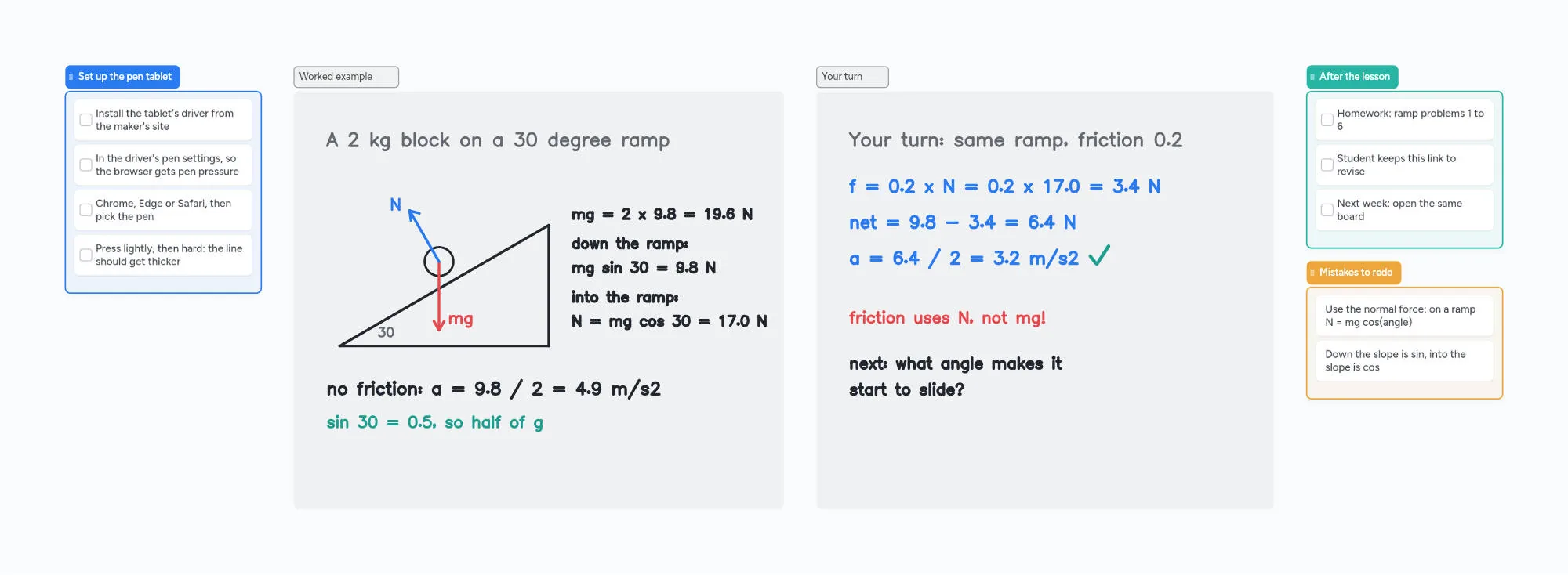
- Open the whiteboard in Chrome, Edge or Safari and pick the pen tool. Press lightly, then hard: the line should get thicker.
- Give your student a board they can write on, not just a screen share. On Instaboard they open a link; viewing needs no account, and writing needs a free sign-in.
What a lesson on the board looks like
The call sits on top of the board, so you talk and write in the same place. You write with the pen, point with the laser, and your student writes their answer on the same page in their own colour.
Which pen tablet to buy
For tutoring you don't need an artist's tablet. You need a pen that feels steady, a drawing area big enough to write a full line of working, and a driver that works on your laptop. Three kinds of setup work:
| What it is | Price | Good for | |
|---|---|---|---|
| Screenless pen tablet | A pad that plugs into your laptop. You write on the pad and watch the laptop screen. | About $40 to $60 | Most tutors: cheap, light, and you keep your eyes on the call |
| Pen display | A tablet with its own screen, so you see the ink under the pen. | About $200 and up | Tutors who can't get used to looking up at the screen |
| iPad with Apple Pencil | Write on the iPad while the laptop runs the camera. | If you already have one | See [using an iPad as a whiteboard on Zoom](/ipad-whiteboard-for-zoom) |
Swipe the table sideways to see every column.
Prices from the makers' US stores, checked October 31, 2026. They change often.
Screenless tablets tutors name most often:
- Wacom Intuos Small: $39.95, battery-free pen; Wacom also sells a Medium with a 10 inch area. Small is under the 6 × 8 inch tutors suggest, so pick Medium if you write a lot. One maths and science tutor on r/TutorsHelpingTutors has used an old Intuos for years and only replaced the nibs.
- XP-Pen Deco 01 V3: $47.99 on sale, a 10 × 6.25 inch drawing area, battery-free pen, works with Windows, Mac, Chromebook and Android.
- Huion H1060P: a 10 × 6.25 inch drawing area, battery-free pen with two buttons, works with Windows, Mac, Android and Linux. A physics and engineering tutor on the same thread has taught with it for five years.
Get at least 6 × 8 inches
Tutors recommend a drawing area of at least 6 × 8 inches. Smaller pads make you write tiny or keep scrolling. Writing while looking at the screen takes a few lessons to get used to.
Setting it up so pen pressure works
- Install the driver from the tablet maker's site (Wacom, XP-Pen or Huion), then plug the tablet in.
- On Windows, turn on Windows Ink in the driver's pen settings. XP-Pen and Huion both say pressure in other apps depends on it, and browsers read the pen through Windows Ink.
- Map the tablet to one screen if you use two monitors, so the pen doesn't stretch across both.
- Open your whiteboard in Chrome, Edge or Safari and choose the pen tool.
- Test pressure: press lightly, then hard. The line should get thicker. If it doesn't, check the Windows Ink setting and restart the driver.
If the pen scrolls, lags or has no pressure
These are almost always driver settings. Check that the driver is installed and running, and on Windows that Windows Ink is on in the driver's pen settings for your browser. Update Windows and the driver, then restart the driver. Try a short test board before your first lesson, not during it.
Teaching with it: a board your student can write on
A screen share only goes one way: your student watches, but can't write back. For a real lesson, use a whiteboard you both write on. With Instaboard:
- Open a board in your browser. The ready lesson board above is a good start.
- Send your student the link, or read out the 4-digit join code. Viewing needs no account; to write, they sign in for free with Google, Apple or email.
- Teach. You write with the pen and they see each stroke live. Use the laser pointer to show where to look, or have them follow your view.
- Their turn. They write on the same page in their own colour, with a mouse, trackpad, phone or their own pen.
- Pen pressure: lines get thicker as you press harder. Hold the pen still at the end of a stroke to straighten a line.
- Worksheets: paste a page or a photo onto the board, or import a PDF and every page becomes one you write on.
- Math tools: equation cards for typed formulas and a Desmos graphing calculator on the board.
- The call: a video call is built into the board, free for up to 60 minutes, so you don't need a separate meeting link. Keep Zoom or Meet if you prefer; just paste the board link in the chat.
What to know before you start with Instaboard
- Your student needs a free sign-in to write. Anyone with the link can view.
- Free covers 5 boards. Pen strokes don't count toward the 150-item limit. With several regular students, Pro is $5 a month billed yearly ($59.99 a year).
- The eraser removes whole strokes. Undo is the quickest way to fix the last thing you wrote.
- No lesson recording. Use Zoom's or Meet's recording if you need one.
- Free calls end at 60 minutes. Pro calls have no limit.
- Tablet shortcut keys are set up in the tablet's own driver, not in Instaboard.
Start from the ready board
It opens in your browser in a few seconds, with nothing to install. Sign in for free when you want to save it and share it.
Questions
What is the best pen tablet for online tutoring?
A screenless pen tablet with a drawing area of about 6 × 8 inches or more is enough for most tutors. The Wacom Intuos, XP-Pen Deco 01 V3 and Huion H1060P cost about $40 to $60 and are the ones tutors name most often.
Do I need a pen tablet with a screen?
No. Most tutors use a screenless tablet and look at the laptop screen while writing. It takes a few lessons to get used to. A pen display, which costs more, lets you see the ink under the pen.
Does pen pressure work in the browser?
Yes, in Chrome, Edge and Safari, once the tablet's driver is installed. On Windows, turn on Windows Ink in the driver's pen settings. On Instaboard, lines get thicker as you press harder.
Can my student write on the board too?
Yes. Send the board link or the 4-digit join code. They can view without an account and write after a free sign-in, using a mouse, trackpad, phone or their own pen.
Do I still need Zoom?
Not necessarily. Instaboard has a video call built into the board, free for up to 60 minutes. If your student uses Zoom or Google Meet, keep it for the call and paste the board link in the chat.
Is a pen tablet better than an iPad for tutoring?
A pen tablet is cheaper and plugs into the laptop you already teach from. An iPad with Apple Pencil lets you see the ink under the pen. Both work with a shared whiteboard; see our guide to using an iPad as a whiteboard on Zoom.
Sources
- Wacom eStore: Wacom Intuos Small
- XPPen store: Deco 01 V3
- Huion: Inspiroy H1060P
- XPPen: Deco 01 V3 user manual (Windows Ink and pen pressure)
- Huion support: when pen pressure isn't available in an application
- Wacom support: Windows Ink settings for the pen
- r/TutorsHelpingTutors: Best drawing tablet for online tutoring? With a screen or without?
Related
An online whiteboard for tutoring that works the way you teach
A free online whiteboard for tutoring: pressure-sensitive pen, PDF worksheets, Desmos, equations and a video call on the board. Includes a ready lesson board, setup tips and honest price comparisons.
Use your iPad as a whiteboard on Zoom (and let your student write too)
How to use an iPad and Apple Pencil as a whiteboard in a Zoom lesson: screen mirroring, Zoom Whiteboard, or a shared board your student writes on too. Or skip Zoom and call right on the board. Step by step, with the echo fix.
A whiteboard for Google Meet, now that Jamboard is gone
Google Meet lost its Jamboard whiteboard, and the add-ons often don't work on personal accounts. How to run a lesson with a shared whiteboard next to Meet, or skip Meet and call right on the board. With a ready lesson board.