For online tutors and teachers
Does Microsoft Teams have a whiteboard? Yes, but guests need an admin's settings
Yes. Teams has Microsoft Whiteboard in the meeting's Share tray. What trips people up is who can use it: Microsoft's pages say you can share it with attendees from your own organization by default, and people outside your organization can use it only if an administrator turned on the right settings, and only during the meeting. If your student is outside your organization, the quick fix is to open the lesson board below and paste its link in the Teams chat. Your student can watch with no account, and writes after a free sign-in once you set the board to "Anyone with the link can edit". Instaboard is not a Teams app, so Teams keeps the video. Steps and a checklist for when the whiteboard is missing are below.
Opens in your browser. Anyone can view; a free sign-in lets you edit.
Updated
The short answer
- Yes, Teams has a whiteboard. In a meeting, select Share, then Microsoft Whiteboard in the Whiteboard section (Microsoft Support).
- It follows your organization's settings. Attendees from your own organization can use it by default. People outside can use it only during the meeting, and only if an administrator allowed it. An admin can also hide it from meetings.
- If your student is outside your organization, a board link opened in the browser avoids the admin step. Paste the Instaboard board link in the Teams chat; viewing needs no account and writing takes a free sign-in.
- Or skip Teams: start the call on the board so your student opens one link. Free calls run up to 60 minutes, with a warning 10 minutes before the end; calls need a sign-in, there is no recording, and Pro has no limit.
What Teams has, and who can use it
Microsoft Whiteboard works inside a Teams meeting, so there is no need to switch apps or share your screen. In the meeting's share tray you choose Share, then Microsoft Whiteboard, and pick an existing board or start a new one. If a whiteboard is already linked to the meeting, Teams shares that one by default. Microsoft's own pages say what happens with people outside your organization:
| Who | What Microsoft's pages say (read November 17, 2026) |
|---|---|
| Someone in your organization | You can share a whiteboard with attendees from your own organization by default, and the board is also shared with any in-tenant users in the meeting. |
| Someone outside your organization | They can view and collaborate during the meeting only, and the button to share a whiteboard doesn't appear for them. If sharing is turned off for the tenant, they can't view or collaborate. |
| Joined from a link with no account (anonymous) | Needs a PowerShell setting (AllowAnonymousMeetingParticipantsToAccessWhiteboards) and the Teams meeting setting "Anonymous users can interact with apps in meetings", which Microsoft says is on by default. Changes take about 60 minutes to apply. |
| After the meeting | Attendees from outside your organization can't open the whiteboard once the meeting ends. |
| Teams channel meetings | Even with the setting on, Microsoft says anonymous users can't see the whiteboard share in a channel meeting. |
| A call between two organizations | Only the person who started the conversation or call can use the Whiteboard sharing button. Microsoft says it can't be changed afterwards. |
| A whiteboard tab in a channel or chat | External users and Teams guests are not supported. |
| Hiding it | A Teams meeting policy can hide Whiteboard in meetings for some users, and an admin can turn Whiteboard off for the whole organization. A meeting policy only hides the entry points. |
Microsoft Support (Share a whiteboard in Microsoft Teams; Use Whiteboard in a Teams meeting; Collaborate with external participants in a Teams meeting; all undated) and Microsoft Learn (Manage sharing for Microsoft Whiteboard; Manage access to Microsoft Whiteboard, last updated 2023-02-17). All read November 17, 2026. Admin settings change; ask your own admin what applies to you.
The standalone Whiteboard apps for Windows, iOS and Android retired on October 16, 2026; Teams meetings and the web stay for work and school accounts. Details and what else changed are on our Microsoft Whiteboard alternatives page.
How to open the whiteboard in a Teams meeting
- Join or start the meeting in Teams.
- Select Share in the meeting controls.
- In the Whiteboard section, select Microsoft Whiteboard. The board picker opens.
- Choose an existing board or start a new one. If a board is already linked to the meeting, Teams shares that one first; use Home at the top left to pick another.
If you don't see it, check these:
- Which account are you using? An Independent Advisor replying on Microsoft Q&A told an online tutor in October 2025 to sign in with a work or school account, not a personal one such as a gmail.com address. That is one person's answer, not a Microsoft statement.
- Does your plan include Whiteboard? The same advisor wrote that some plans, such as Teams Essentials, may not support it. Treat that as a question for your admin or Microsoft, not a fact.
- Is it turned off? An admin can turn Whiteboard off for the organization or hide it in meetings with a meeting policy.
- Are you the one who may share? In a call between two organizations, only the person who started the conversation gets the sharing button, and externals never see it.
We haven't tested the Teams whiteboard with students. If it's still not working, the shared-board setups below don't depend on anything in Teams.
Why a student or guest often can't use it
Three people describing it in their own words, each one person's report:
- An online tutor (Microsoft Q&A, October 15, 2025) couldn't find the whiteboard option when clicking Share on a laptop and was doing online tutoring.
- A poster on r/MicrosoftTeams (December 17, 2024) wrote that external participants still got an error in Teams meetings, although they had checked that the anonymous-access setting was on. The thread has no answer that fixes it.
- An online English teacher (Microsoft Q&A, June 20, 2024) wrote that the guests they chose couldn't share or collaborate on a whiteboard they made on Business Standard. A Microsoft Community responder replied that guest sharing in a Teams meeting is available in Business Standard, with a few requirements for sharing outside meetings, and the teacher wrote that they had sent questions to Microsoft's support team.
For a tutor, the answer lives with an administrator you may not have. A board your student opens by link doesn't depend on your tenant's settings.
Setup 1: a shared board next to Teams
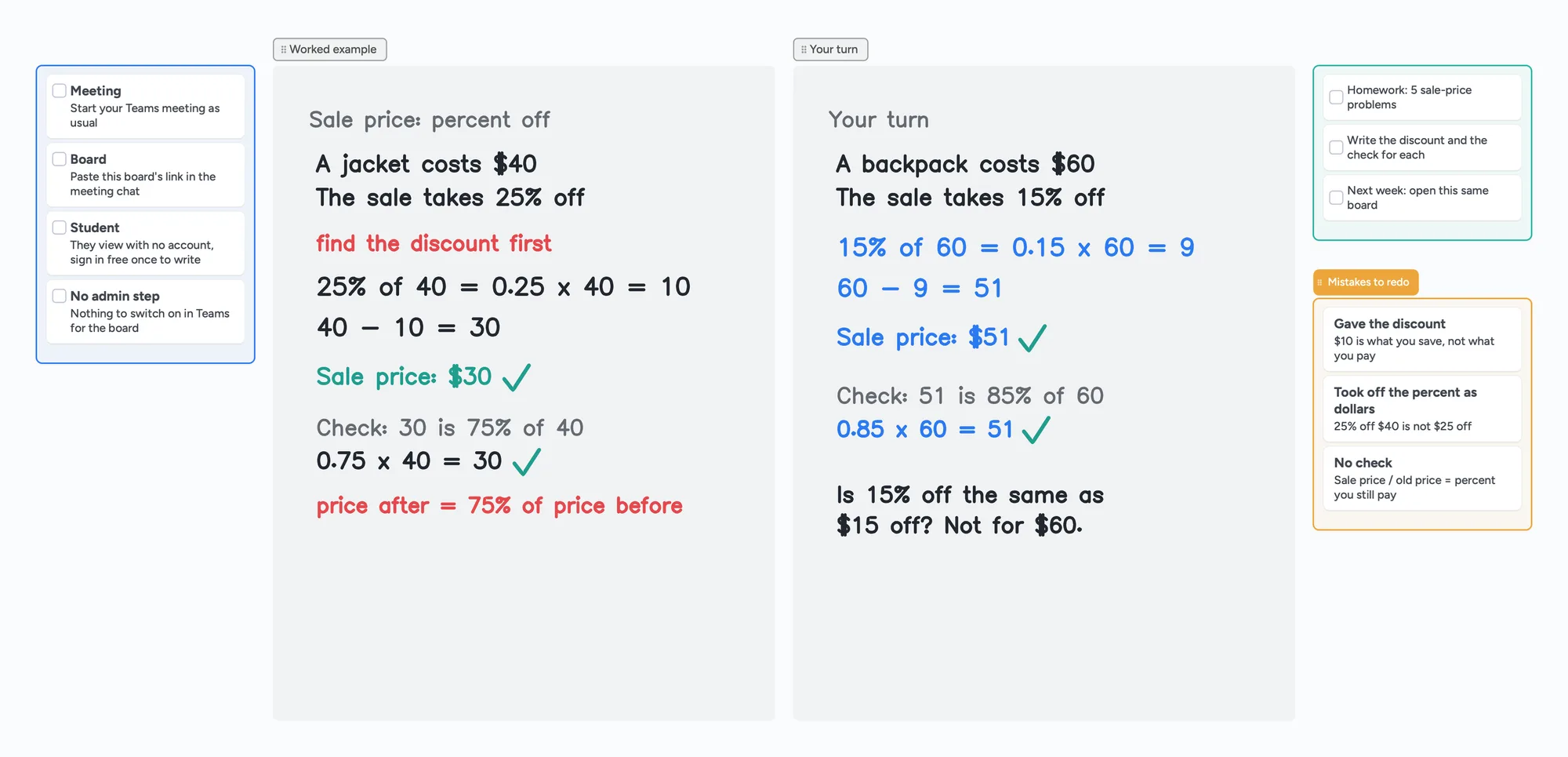
- Open the lesson board above and make it yours. One board per student works well: it stays between lessons.
- Set Share to "Anyone with the link can edit" (a new board starts view-only for people with the link), then copy the link.
- Start your Teams meeting as usual and paste the board's link in the meeting chat. Or give your student the 4-digit join code.
- Your student opens the link in a browser tab or the Instaboard app. They can view straight away, and sign in once (free, with Google, Apple or email) to write. Students must be 13 or older; under 18, check with a parent or school first.
- Arrange the windows. Put Teams and the board side by side, or keep the board full screen and Teams in a small window. You both have the board open, so you don't need to share your screen.
- Write together. You work the example in black, your student answers in their own colour, and you both see every stroke live.
Teaching on an iPad with Apple Pencil? Join Teams on your laptop for the camera, open the same board on the iPad to write, and keep the iPad out of the call's audio. Our iPad steps are written for Zoom, in use an iPad as a whiteboard in Zoom; we haven't tested them beside Teams.
Setup 2: skip Teams and call on the board
If Teams is only there for the video, you can drop it. Instaboard has a video call on the board, so your student opens one link and gets the call and the whiteboard together.
- Open the lesson board and start a call from the board.
- Send your student the board link or the 4-digit code before the lesson. They sign in once and join the call from the board.
- Teach and write in the same place. Free calls run up to 60 minutes, with a warning 10 minutes before the end. Calls need a sign-in, there is no recording, and Pro has no limit.
When to keep Teams
If your school or employer requires Teams, if you need Teams' recording or captions, or if your lessons run past an hour on the free plan, keep Teams for the video and use the board next to it. Microsoft's free Teams page says free group meetings run up to 60 minutes and that people can join a meeting link without a Teams account (read November 17, 2026); the Teams limits for tutors are laid out in Zoom or Google Meet for tutoring.
Where Teams' whiteboard is the better choice
- It is inside the meeting. No second window, no second link, no second sign-in for people in your organization.
- It follows your organization's rules. Boards are stored in OneDrive for Business and shared by your admin's settings, which is what a company or school usually wants.
- More to start from. Microsoft's Whiteboard page lists more than 60 free templates, and Copilot in Whiteboard; Instaboard has far fewer templates.
- It sits in Microsoft 365. If your team already works in Teams, Loop components and your files are next to it.
For a meeting of colleagues who are all in the same organization, use Teams' own whiteboard. Instaboard is for the case where someone outside your organization has to write too.
What Instaboard doesn't do
- It isn't a Teams app. It doesn't appear in Teams' Share tray. It opens next to Teams, in a browser tab or the app, not inside the Teams window.
- People sign in to write. Anyone with the link can view; writing needs a free sign-in with Google, Apple or email.
- Free calls end at 60 minutes, and the call needs a free sign-in too. Pro ($5 a month billed yearly, $59.99 a year, or $7.99 monthly) has no limit.
- No lesson recording, scheduling or payments.
- The eraser removes whole strokes. Undo is the quickest fix for the last thing you wrote.
- Free covers 5 boards and 150 items, with 3 images per board. Pen strokes don't count toward the 150.
If you are choosing a paid tutoring room instead, see our comparisons of Lessonspace and Pencil Spaces. New to teaching online? Read how to teach math online, an online whiteboard for math and online tutoring setup.
Start from the ready board
It opens in your browser in a few seconds, with nothing to install. Sign in for free when you want to save it and share it.
Questions
Does Microsoft Teams have a whiteboard?
Yes. In a Teams meeting, select Share and then Microsoft Whiteboard in the Whiteboard section. An administrator can turn it off or hide it in meetings.
Why can't I see the whiteboard in my Teams meeting?
Microsoft says an admin can turn Whiteboard off for the organization or hide it in meetings with a meeting policy. An Independent Advisor on Microsoft Q&A also suggested checking that you are signed in with a work or school account and that your plan includes it. Ask your admin which applies to you.
Can people outside my organization use the Teams whiteboard?
Only during the meeting, and only if an administrator allowed it. Microsoft says outside attendees can view and collaborate during the meeting but can't open the whiteboard after it ends, and the share button doesn't appear for them.
Can my student write on a whiteboard during a Teams call?
Yes, with a shared board. Paste the Instaboard board link in the Teams chat; your student opens it in a browser or the app, signs in once for free, and writes on the same page while you talk on Teams. It doesn't depend on your organization's Whiteboard settings.
Do I need an admin to use a board next to Teams?
No. The board opens in the browser or the app, outside Teams. Teams still needs whatever your account needs to start a meeting.
Can I tutor without Teams?
Yes. Start a video call right on the Instaboard board and send your student one link. Free calls run up to 60 minutes; Pro ($5 a month billed yearly) has no limit.
Is Instaboard free?
Yes. The free plan includes 5 boards, 150 cards and items across your account (pen strokes, arrows and sections don't count), 3 images and 1 file per board, unlimited collaborators and video calls up to an hour. Pro is $5 a month billed yearly ($59.99 a year), or $7.99 monthly, and the people you invite join free.
Sources
- Microsoft Support: Share a whiteboard in Microsoft Teams (read November 17, 2026)
- Microsoft Support: Use Whiteboard in a Teams meeting (read November 17, 2026)
- Microsoft Support: Collaborate with external participants in a Teams meeting (read November 17, 2026)
- Microsoft Learn: Manage sharing for Microsoft Whiteboard (read November 17, 2026)
- Microsoft Learn: Manage access to Microsoft Whiteboard for your organization (last updated 2023-02-17, read November 17, 2026)
- Microsoft Support: Getting started with Microsoft Whiteboard (read November 17, 2026)
- Microsoft: Microsoft Whiteboard overview (templates, Copilot; read November 17, 2026)
- Microsoft: Free Microsoft Teams (meeting length, joining by link; read November 17, 2026)
- Microsoft Q&A: How do I get the whiteboard up in a teams meeting? (October 15, 2025)
- r/MicrosoftTeams: External Users Can't Access Whiteboard in Teams Meetings Despite Enabled Setting (December 17, 2024)
- Microsoft Q&A: Sharing a whiteboard with an external guest user (June 20, 2024)
Related
Microsoft Whiteboard alternatives: what to use now that the apps are gone
The standalone Microsoft Whiteboard apps stopped on October 16, 2026. What changed, how to save your boards, and free alternatives for pen users, tutors and teachers, with real free-plan limits.
Zoom or Google Meet for tutoring: which free call fits a lesson?
Zoom, Google Meet or Microsoft Teams for online tutoring: free call length, recording, annotation, how to tutor on Meet and on Teams, from the vendors' own pages (read November 5 and 6, 2026), plus a ready board to use next to any call.
Does Google Meet have a whiteboard? Not since Jamboard ended
Google Meet has no built-in whiteboard since Jamboard ended. How to open an add-on, what to check if it's missing, and a board your student can write on.
An online whiteboard for tutoring that works the way you teach
A free whiteboard for online tutoring: paste the worksheet, write with a pen, and your student answers on the same board. Call on it or beside Zoom.
Use your iPad as a whiteboard on Zoom (and let your student write too)
Use an iPad as a Zoom whiteboard: mirror it, use Zoom Whiteboard, share a board your student writes on, or skip Zoom. Echo, lag and AirPlay fixes.
How to teach math online: your first lesson, step by step
How to tutor math online as a beginner: what you need, how to run a first lesson on a board your student writes on too, with Zoom, Google Meet or no video app at all, and what to do without a whiteboard.
Online tutoring setup: what you need before your first lesson
What you need to start tutoring online: sound, light, camera, internet, a way to write, and a board your student writes on too. A plain checklist with a five-minute test call and a ready board to open.
A whiteboard for Zoom and Teams breakout rooms: one board, one section per group
How to use one whiteboard in Zoom or Teams breakout rooms: one board, one section per group, and how to get the link into every room. What Zoom and Microsoft say.