For new online tutors
Online tutoring setup: what you need before your first lesson
You don't need much to tutor online, and tutors disagree about how much. Most of the list is free: a quiet spot, light on your face, a wired connection if you can. The one part that changes how a lesson feels is a page you and your student both write on. Here is a plain checklist, a five-minute test call, and a ready board with the checklist and a worksheet corner to try it on.
Updated
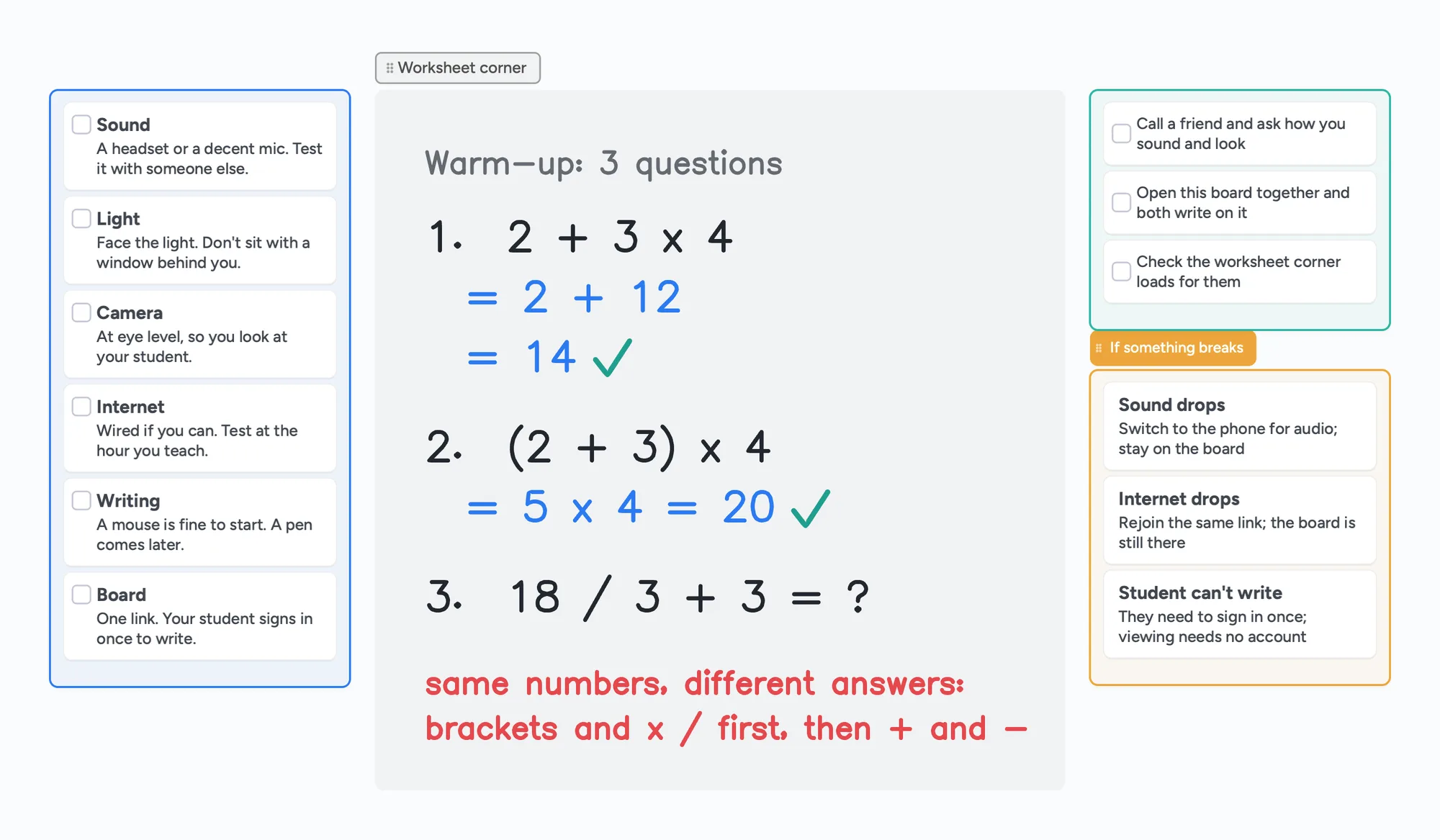
The short answer
- Sound matters most. Your student has to hear you clearly. A headset or a decent microphone and a quiet room come before anything else. Test it with someone who isn't on your network.
- Light on your face, camera at eye level. Face a window or lamp, not the other way round. Your laptop's own camera is enough to start.
- A steady connection beats a fancy one. Wired if you can, and test at the hour you actually teach.
- A page you both write on. Open one board from one link, and your student writes the next problem themselves. This is what a screen share can't do.
- Do a five-minute test call with a friend before lesson one, including the board.
The checklist, in order
| Item | What to do | Can wait? |
|---|---|---|
| Sound | Use a headset or a decent microphone, in a quiet room with the door closed. Ask someone how you sound. | No: do this first |
| Light | Put the light in front of you or beside you, not behind. A window in daylight is free. | No |
| Camera | Raise it to eye level so you look at your student. The built-in one is fine to start. | An external one can wait |
| Internet | Use a wired connection if you can. Test at the time of day you teach. | No |
| Writing | A mouse or a trackpad is fine for your first lessons. Later a pen tablet or an iPad makes handwriting easier. | Yes: a pen can wait |
| Board and call | One link for the board; the call on the board, Zoom or Google Meet. | No |
| Second screen | A second monitor or a second device for notes and materials, if you have one. | Yes |
Swipe the table sideways to see every column.
General advice from tutors in the r/TutorsHelpingTutors threads linked below (August 2024 and February 2025). No product recommendations are made here.
Tutors don't agree on the extras. In one February 2025 thread a tutor says Zoom alone is enough and you don't need an external camera or a lighting setup; others recommend a second monitor, good lighting in front of you and a decent microphone or headset. In another, a tutor says not to cheap out on a headset because a very cheap one was uncomfortable after about 45 minutes. Start with what you have and upgrade the one thing that bothers you.
Sound, light and camera
- Sound first. One tutor in the February 2025 thread says being able to hear you properly matters more than your face. Use a headset or microphone you can test, and close the door.
- Test your audio with someone else. The room sounds different to the person at the other end. Ask them if you echo or cut out.
- Light in front. Tutors in the same thread say to put bright light in front of you, not behind you. A window is free light, as long as it is in front.
- Camera at eye level. Stack the laptop on books if you need to, so you are looking at your student and not down at them.
- A plain background. A tidy wall, a curtain or a closed door is enough. Tutors in one thread prefer a real wall to a blurred or fake background, which they say can leave odd edges around your head and hands.
- Keep two devices off the same call's audio. If you join the call on a laptop and an iPad, disconnect the second device's audio, or you will hear echo. Zoom notes that muting isn't enough. See the Zoom iPad setup.
How you write: mouse, pen tablet or iPad
Writing math with a mouse is slow and messy, but it works for a first lesson. Type the steps, or write them large and slowly. If you want handwriting that looks like handwriting, there are two common routes:
- A pen tablet that plugs into your laptop. One tutor describes a tablet without a screen as better for your posture, because your hand stays at desk height while you look at the main screen; another prefers one with a screen built in. Which you pick is up to you. How to choose and set one up.
- An iPad and Apple Pencil as a second device while the laptop runs the call. Step by step, with the echo fix.
Your student doesn't need either. They can type, use a mouse or trackpad, or photograph their paper work and drop it on the board.
The board and the call
This is the part that changes how a lesson feels. A screen share only goes one way: your student watches you write. On a shared board they write the next line on the same page, and you see exactly where a step goes wrong.
| Setup | Links to send | Free call length | Where to read more |
|---|---|---|---|
| Call on the board | One | 60 minutes, with a warning 10 minutes before the end | [How to teach math online](/how-to-teach-math-online) |
| Zoom + a board | Two | 40 minutes on a free Zoom account for meetings with others | [iPad whiteboard on Zoom](/ipad-whiteboard-for-zoom) |
| Google Meet + a board | Two | Free personal calls: up to 24 hours for two people, 60 minutes for three or more | [Whiteboard for Google Meet](/whiteboard-for-google-meet) |
Swipe the table sideways to see every column.
Zoom limit from Zoom's support article on meeting time limits and Meet limits from a Google Meet Help thread (Product Expert answer, September 23, 2026), both checked November 2, 2026; they can change.
Your student opens the link in a browser or the app. Viewing needs no account; to write they sign in once for free with Google, Apple or email, so tell them before the first lesson. Calls on the board need a free sign-in too.
A five-minute test call before lesson one
- Call a friend or family member on the setup you plan to use, from the room and the hour you'll teach in.
- Ask how you sound and look. Are you clear, in the light, at eye level, without echo?
- Open the board together and both write on it. Check that their writing appears for you.
- Upload or paste a worksheet, so you know how your materials get onto the board before a student is waiting.
- Write down what failed and fix it once, rather than during the lesson.
If something breaks mid-lesson
If the sound drops, switch to a phone call for audio and stay on the board. If your internet drops, rejoin the same link; the board is still there. If your student can't write, they probably need to sign in once; viewing never does.
Do you need a tutoring platform?
Not to start. A call, a board and a way to get paid are enough for a few students. If you later want scheduling, billing, recording and a room for each student built in, a tutoring-room product may fit better. Cost per hour is the thing to compare:
- Lessonspace alternatives: monthly plans with included hours.
- Pencil Spaces alternatives: per-hour plans with a monthly minimum.
- Zoom Whiteboard alternatives: if your students already use Zoom.
- Free whiteboard for online tutoring: the overview with free-plan limits.
What to know before you start with Instaboard
- Your student needs a free sign-in to write. Anyone with the link can view.
- Free covers 5 boards. Pen strokes don't count toward the 150-item limit, and each imported PDF becomes its own board. With several regular students, Pro is $5 a month billed yearly ($59.99 a year).
- Free calls end at 60 minutes; Pro calls have no limit.
- No lesson recording, no class mode, no scheduling or billing. Use Zoom or Meet for recording, and a separate tool for payments.
- Equation cards only. There is no LaTeX editor.
- The eraser removes whole strokes. Undo is the quickest fix.
Start from the ready board
It opens in your browser in a few seconds, with nothing to install. Sign in for free when you want to save it and share it.
Questions
What equipment do I need to tutor online?
A computer, a headset or decent microphone, a quiet room, light in front of you and a steady internet connection. Your laptop's built-in camera is fine to start. For the lesson itself you need a call and a page you both write on.
Do I need a pen tablet or iPad to tutor online?
No. A mouse or trackpad works for your first lessons, though handwriting is slow. A pen tablet or an iPad with Apple Pencil is the usual upgrade for math and anything you draw.
What should I test before my first online lesson?
Do a five-minute call with a friend: sound, light, camera height, the board and a worksheet. Fix what fails before a student is waiting.
Do I need Zoom to tutor online?
No. Instaboard has a video call built into the board, free for up to 60 minutes, so the call and the board are one link. You can also keep Zoom or Google Meet and paste the board link in the chat.
Does my student need an account?
To write on an Instaboard board, they sign in once for free with Google, Apple or email. Anyone with the link can view without an account.
Do I need a tutoring platform to start?
Not for a few students. A call, a shared board and a way to get paid is enough. A tutoring platform adds scheduling, billing and recording; compare the cost per hour before you pay.
Sources
- r/TutorsHelpingTutors: Recommended equipment for remote tutoring setup (Feb 20, 2025)
- r/TutorsHelpingTutors: Online tutoring equipment and platforms (Aug 25, 2024)
- Zoom: Managing audio echo in a meeting
- Zoom: Understanding time limits for Zoom Meetings
- Google Meet Help: free call time limits (Product Expert answer, Sep 23, 2026)
Related
How to teach math online: your first lesson, step by step
How to tutor math online as a beginner: what you need, how to run a first lesson on a board your student writes on too, with Zoom, Google Meet or no video app at all, and what to do without a whiteboard.
Use your iPad as a whiteboard on Zoom (and let your student write too)
How to use an iPad and Apple Pencil as a whiteboard in a Zoom lesson: screen mirroring, Zoom Whiteboard, or a shared board your student writes on too. Or skip Zoom and call right on the board. Step by step, with the echo fix.
A whiteboard for Google Meet, now that Jamboard is gone
Google Meet lost its Jamboard whiteboard, and the add-ons often don't work on personal accounts. How to run a lesson with a shared whiteboard next to Meet, or skip Meet and call right on the board. With a ready lesson board.
A pen tablet for online tutoring: what to buy and how to set it up
Which pen tablet to buy for online tutoring (Wacom, XP-Pen, Huion, about $40 to $60), how to set it up with pen pressure in the browser, and a whiteboard your student can write on too.
An online whiteboard for math: write, graph and let your student write too
What a math tutor needs from an online whiteboard: handwriting, typed equations, graphs and worksheets, and which tools have each. Free limits compared, plus a ready slope lesson board.
A Lessonspace alternative for tutors who don't want to pay by the hour
Lessonspace has no free plan, only a trial: $9 a month covers 10 hours, then $1.95 an hour. What 10, 20 and 30 hours cost, what Lessonspace does better, and a free board where your student writes too.
A Pencil Spaces alternative for tutors who want a flat price
Pencil Spaces moved to per-hour plans on September 1, 2026: $0.40, $1 or $5 an hour plus a monthly minimum. What each costs at 10, 20 and 40 hours, where Pencil Spaces is better, and a flat-price board.
A Zoom Whiteboard alternative where your student writes too
Zoom's free whiteboard gives you 3 editable boards, sharing is built around Zoom accounts, and free calls stop at 40 minutes. What tutors use instead, where Zoom is still better, and a ready lesson board.
OneNote for online tutoring: how to share it with a student, and when a board is simpler
How tutors share a OneNote notebook with a student, what Microsoft says about links and permissions, where OneNote is the better tool, and a one-link alternative when the student needs to write on the same page.
A tutoring progress report template for parents, filled in so you can see how it reads
A monthly tutoring progress report for a parent: sessions held, one number that moved, a win, what is still hard and next month's plan. A filled example board you can send as one link.