For instructors of students 13 and older
Whiteboard in Canvas LMS: Lucid if you have it, a link to a board if you don't
If your school enabled Lucid (Whiteboard), use it: Lucid says Canvas educators and students get a free licence to the Lucid Education Suite, and Instructure says your Lucid account is upgraded to a free educational plan. This page is for the other case: your school hasn't turned it on, or you want a board that is still there after the course ends. Then a whiteboard in Canvas is a board made somewhere else, with its link in a module or a page. Here is how to do that with an Instaboard board, what Instructure's own help says about links, and what we have not tested. It suits classes of students 13 and older. It does not connect to Canvas: nothing is graded and Canvas does not see who wrote what.
Updated
The short answer
- First check Lucid. Instructure's setup guide says "If enabled by your institution" you can use the Lucid Education Suite, and Lucid (Whiteboard) then shows in Course Navigation. If you see it, use it.
- No Lucid? Make one board and choose "Anyone with the link can edit" in Share before you post the link. A new board starts as view-only for people with the link.
- Main step: in Modules, Add Item, External URL, paste the board's link and tick Load in a new tab. Without the tick, Canvas tries to show the page inside itself. We haven't tested a board that way, so tick it.
- Second option: a link in a Page, Announcement or Assignment through the Rich Content Editor. Instructure says saved external links open in a new tab.
- Students sign in free to write. Without signing in they can look but not add. This page is for students 13 and older.
First: does your course already have Lucid?
Instructure's own guide "How do I set up the Lucid Education Suite in my course?" (Last Updated Sep 25, 2026, read November 5, 2026) opens with "If enabled by your institution, you can access the Lucid Education Suite apps Lucidchart and Lucidspark". It says Lucid (Whiteboard) appears as a link in Course Navigation, you connect a Lucid account to your Canvas account, and Lucid upgrades it to a free educational plan. Lucid's own education page says "Through Canvas, educators and students now receive a free license to the Lucid Education Suite" (lucidforeducation.com/canvas-instructor, read November 5, 2026).
Two things from the same guide to know: if your Canvas is hosted outside the US, "contact your Canvas admin to enable Lucid", and students who say they are under 13 can't use it without permission from the institution. One school's own page (University of Pittsburgh, teaching.pitt.edu, read November 5, 2026) says Lucid (Whiteboard) is disabled by default there and tells instructors to enable it under Settings, Navigation. That is one school's setup, not a rule for every Canvas site.
If Lucid is there and you are happy with it, you don't need anything else. Keep reading if it isn't, if your students can't use it, or if you want a board that is still yours after the course closes.
Step 1: set up one board the class can write on
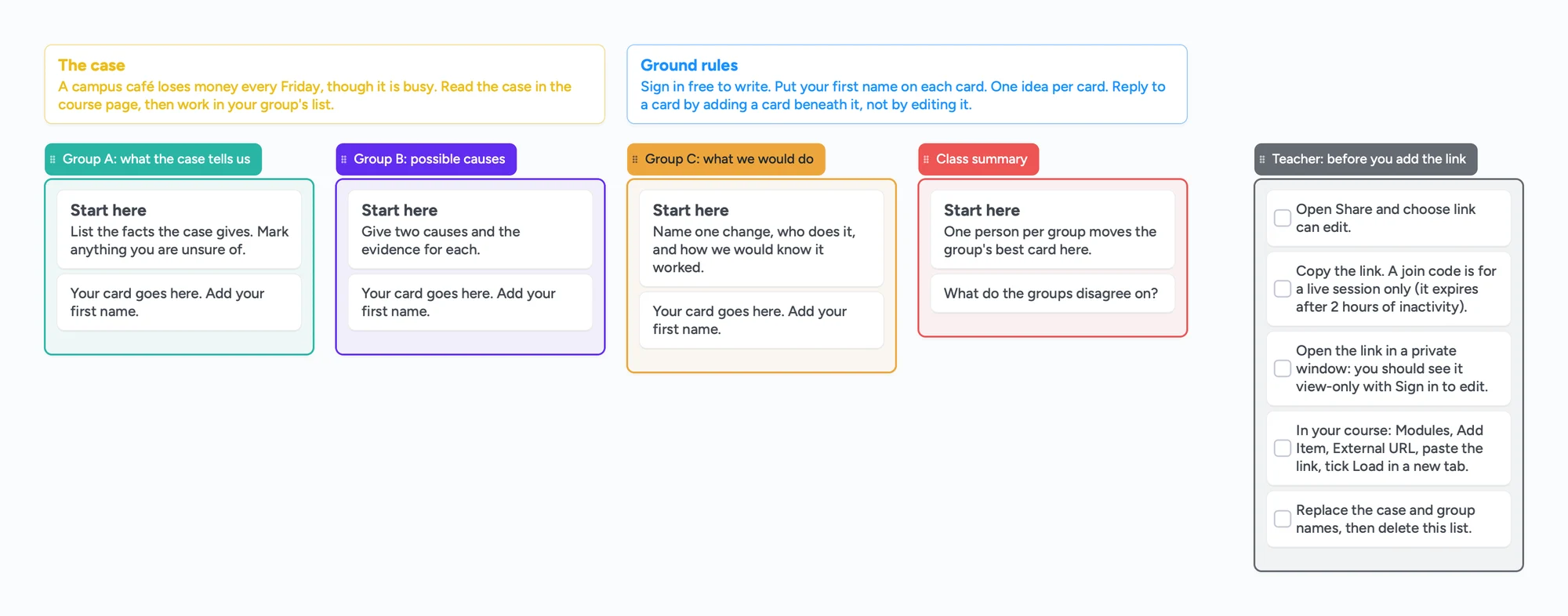
- Open the ready board above, or start a blank one. Change the case and the group names to yours.
- Open Share and choose "Anyone with the link can edit". A new board starts as "Anyone with the link can view", so a student who opens the link could look but not write.
- Copy the link. It starts with instaboard.app/b/.
- Test it the way a student sees it. Open the link in a private or incognito window. You should see the board with a "Sign in to edit" bar. That is the view a student gets before they sign in.
Each student who signs in can add cards, stickies and pen strokes to the same board. The free plan has no limit on collaborators. A board has no roster and records no per-student work, so ask students to put their first name on each card.
Step 2: add the link as a module item
These are Instructure's steps, from "How do I add an external URL as a module item?" (Last Updated Aug 20, 2026, read November 5, 2026):
- In Course Navigation, click Modules.
- Click the Add Item button and choose External URL in the drop-down.
- Paste the board's link in the URL field and give the item a page name such as "Case discussion board".
- Tick Load in a new tab. Instructure says that with it ticked, "Canvas will display the page to students outside of Canvas". Canvas remembers your choice for the next external URL.
- Click Add Item, then check the item in your module.
Why we say tick the box
Instructure says that without the tick the content is embedded in an iFrame, and "some sites have disabled embedding and require users to open the content in a new window". We haven't tested an Instaboard board shown inside a Canvas page, so we don't say it works. In a new tab the board opens full screen, which is also easier to write on.
Second option: a link in a Page, Announcement or Assignment
From "How do I create hyperlinks to external URLs in the Rich Content Editor?" (Last Updated Oct 6, 2026, read November 5, 2026): the Rich Content Editor is used in Announcements, Assignments, Discussions, Pages and Quizzes. Select the text, click the Link icon, choose External Link, paste the board's link and click Done, or press Ctrl+K (Cmd+K on a Mac). After you save, Instructure says external links open in a new browser tab when clicked.
A link in an Announcement or a Page works for a one-off class activity. A module item suits a board the class returns to each week.
What your IT team may care about
Our reading, not Instructure's: a link isn't an app install. Instructure's guide to External Apps (LTI tools) says admins add apps and can restrict them with an allow list, and that by default a school's allow list hides all apps ("By default, all apps are hidden", Edu App Center help, Last Updated Jul 8, 2026, read November 5, 2026). None of that applies to a plain link. But your school may have rules on outside sites and on students signing in to them, so check before you rely on it.
Running it live: use the code
For a session where everyone is in the room or on a call, a join code is quicker than a link. In Share, tap Get a join code. It makes a 4-digit code, and the dialog also shows a QR code you can put on a projector. Students enter it on the Instaboard home screen under "Join a board with a code". The app says the code expires after 2 hours of inactivity, so don't put a code in a module for homework; put the link. If your class is split into breakout rooms on a call, see one board for breakout rooms.
Instaboard also has built-in video calls. Free calls run up to 60 minutes per call, with a warning 10 minutes before the end, and everyone needs a free sign-in to join a call.
What students see
- Before signing in: the board, view-only, with a "Sign in to edit" bar. They can read what others have written.
- To write: sign in free with Google, Apple or email. Then they can add cards, draw and move things.
- Their own free boards: a board a student opens from your link takes one of their 5 free board slots. A student already at 5 can still open the link; the app says the board won't be added to their boards.
- Under 13: don't use this with younger students. Instaboard's terms say users are not minors.
Blackboard and Moodle
Same idea in other course systems: put the board's link in the course as a link or page item. We haven't read Blackboard's or Moodle's help for the steps, so this page doesn't give them.
When something else is the better choice
- Lucid is enabled for your course. It sits inside Canvas, is free through Canvas, and its assignments can be submitted back to Canvas. A link can't do that.
- You need turn-in, grading and a record per student. Use a Canvas assignment, a Collaboration (Google Docs, Google Drive or Microsoft Office files, per Instructure's "What are Collaborations?", Last Updated Sep 28, 2026, read November 5, 2026) or a Discussion.
- Students must write without signing in, or are under 13. Instaboard needs a free sign-in to write and is written for ages 13 and up.
- You already run live classes on Zoom. Zoom Whiteboard is built in; see Zoom Whiteboard alternatives if it doesn't fit.
On Google Classroom instead? See whiteboard for Google Classroom.
What Instaboard doesn't do for classes
- No class mode, no roster and no grading. There are no assignments, no attendance and no per-student view.
- No Canvas sign-in, sync or grade passback. Students sign in to Instaboard separately; Canvas does not see the board.
- Writing needs a free sign-in. Viewing doesn't.
- Not tested inside Canvas pages. We only say the new-tab link works the way Instructure describes it.
- No recording of calls.
- The free plan is 5 boards and 150 items per account (cards, lists, images, text boxes; pen strokes, sections and arrows don't count), with 3 images and 1 file per board. Pro is $5 a month billed yearly ($59.99), or $7.99 monthly; your students don't need it to write on a board you share.
Start from the ready board
It opens in your browser in a few seconds, with nothing to install. Sign in for free when you want to save it and share it.
Questions
Does Canvas LMS have a whiteboard?
Canvas has Lucid (Whiteboard) as a course navigation link if your institution enabled the Lucid Education Suite, per Instructure's setup guide (read November 5, 2026). Its Collaborations feature covers Google Docs, Google Drive and Microsoft Office files. If your school hasn't enabled Lucid, you can link to a board from another tool.
How do I add a whiteboard link to a Canvas module?
In Modules, click Add Item, choose External URL, paste the link, name it and tick Load in a new tab, then Add Item. In Instaboard, first set Share to "Anyone with the link can edit" so students can write.
Can I embed an Instaboard board inside a Canvas page?
We haven't tested it. Instructure says an External URL without "Load in a new tab" is shown in an iFrame and that some sites have disabled embedding. Tick the new-tab box so the board opens full screen.
Can students write on the board without an account?
No. Anyone with the link can view it, but writing needs a free sign-in with Google, Apple or email.
Do I need my school's IT team to approve it?
A plain link isn't an app install, which is our reading of Instructure's External Apps guide. Your school may still have rules on outside sites and student sign-ins, so check with them.
Is it safe for under-13s?
This page is for students 13 and older. Instaboard's terms say users are not minors and its privacy policy says it does not knowingly collect personal information from children under 13, so do not use it with younger students.
Is Instaboard free?
Yes. The free plan includes 5 boards, 150 cards and items across your account (pen strokes, arrows and sections don't count), 3 images and 1 file per board, unlimited collaborators and video calls up to an hour. Pro is $5 a month billed yearly ($59.99 a year), or $7.99 monthly, and the people you invite join free.
Sources
- Instructure Community: How do I set up the Lucid Education Suite in my course? (Sep 25, 2026; read in full Nov 5, 2026)
- Instructure Community: How do I add an external URL as a module item? (Aug 20, 2026; read in full Nov 5, 2026)
- Instructure Community: How do I create hyperlinks to external URLs in the Rich Content Editor? (Oct 6, 2026; read in full Nov 5, 2026)
- Instructure Community: What are External Apps (LTI Tools)? (Sep 30, 2026; read Nov 5, 2026)
- Instructure Community: How do I manage an allow list in the Edu App Center? (Jul 8, 2026; read in full Nov 5, 2026)
- Instructure Community: What are Collaborations? (Sep 28, 2026; read in full Nov 5, 2026)
- Lucid for Education: Instructor guide to Lucid in Canvas (read Nov 5, 2026)
- University of Pittsburgh Teaching Center: How to Use Lucid with Canvas (one school's page; read in full Nov 5, 2026)
Related
Whiteboard for Google Classroom: share one board with your class
Post one shared Instaboard board in Google Classroom or on a Google Sites page as a link. Set it so the class can write; students 13+ sign in free. No grading.
A whiteboard for Zoom and Teams breakout rooms: one board, one section per group
How to use one whiteboard in Zoom or Teams breakout rooms: one board, one section per group, and how to get the link into every room. What Zoom and Microsoft say.
Jamboard alternatives for teachers, and how to get your old Jams back
Free Jamboard alternatives for teachers: share one board with your class by link, plus how to find your old Jams as PDFs in Google Drive (type:Jam).