For online tutors and teachers
A whiteboard for Google Meet, now that Jamboard is gone
Google Meet used to open a Jamboard when you clicked Whiteboard. Jamboard stopped working in 2024, and Google handed whiteboarding to add-ons like FigJam, Lucidspark and Miro, which need everyone signed in and are often greyed out on personal accounts. If you tutor on Meet, the simplest fix is a whiteboard you open next to the call and share by link. Or put the call on the board itself. Here's how both work, with a ready lesson board to start from.
Updated
The short answer
- Meet has no built-in whiteboard since Jamboard ended. Whiteboard add-ons need everyone signed in to Google, and schools can't turn them on for students under 18.
- The setup that always works: keep Meet for video and paste a whiteboard link in the Meet chat. Your student writes on the same board.
- Or skip Meet: start the call on the board, so your student opens one link for both. Free calls run 60 minutes; Pro has no limit.
- Free 1:1 Meet calls can run up to 24 hours, so for long free lessons, keep Meet for video and use the board beside it.
What a lesson on the board looks like
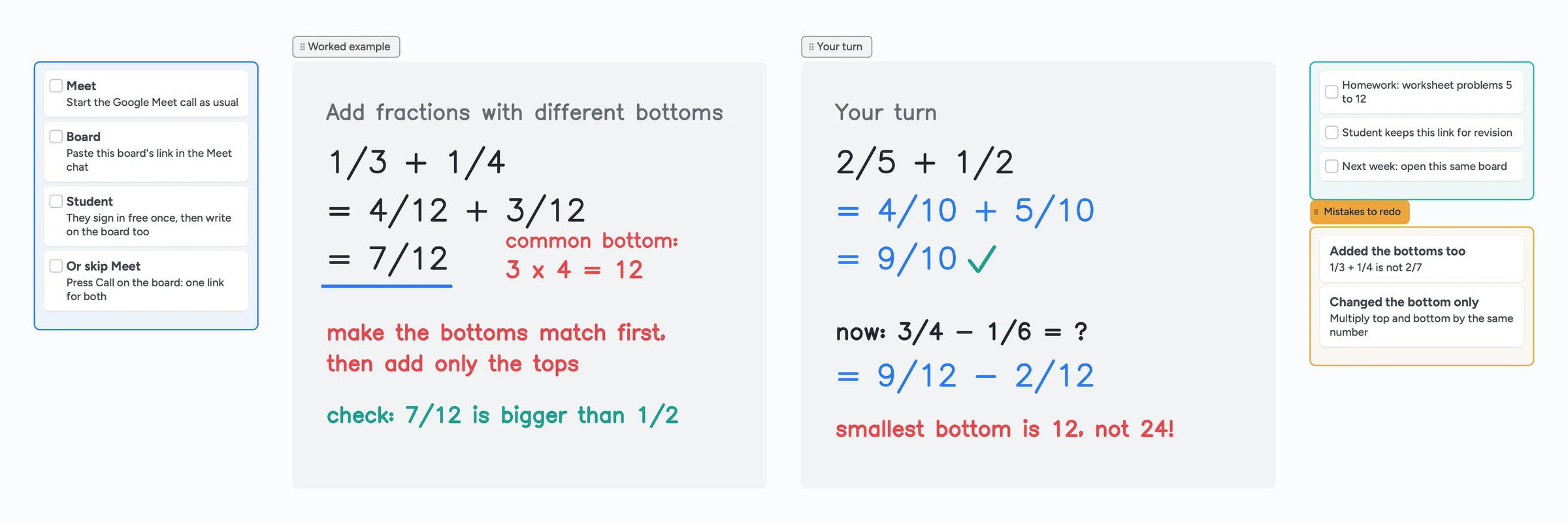
The call sits on top of the board, so you talk and write in the same place. You write with a pen, point with the laser, and your student writes their answer on the same page in their own colour.
What happened to the whiteboard in Google Meet
Meet's Whiteboard button opened a Jamboard. Google stopped Jamboard on October 1, 2024: you can no longer create or edit Jams, and old Jams were turned into PDFs in Google Drive (search Drive for type:Jam). In its place, Google said whiteboarding in Meet would come from partner add-ons, naming FigJam, Lucidspark and Miro.
Add-ons work for many offices, but they're awkward for tutoring. Google's own help page lists when you can't use them:
- You're not signed in to a Google Account, or the meeting host gave you a View only role.
- Your Workspace admin blocked the add-on. And in Google Workspace for Education, third-party apps can't be turned on for users under 18.
- Your device isn't supported. Not every add-on works on every platform; you'll see "Can't join the activity" or a greyed-out add-on.
- Each add-on has its own account and free limits on top of Meet (FigJam and Miro free plans keep 3 editable boards).
"Unavailable" on a personal account
In April 2026 a Meet user on a personal Google account asked why the Collaborative Whiteboard add-on showed as unavailable; 11 people marked the same problem. If you hit this, a separate board shared by link is the quickest way around it.
Two setups that work for a Meet lesson
| Board next to Meet | Call on the board (skip Meet) | |
|---|---|---|
| Links to send | Two: the Meet link and the board link | One |
| Free call length | Meet: 1:1 up to 24 hours, 3+ people 60 minutes | 60 minutes, with a warning 10 minutes before the end; Pro has no limit |
| Student needs | Google account for Meet, plus a free board sign-in to write | Just the free Instaboard sign-in |
| Best when | The school or family already uses Meet, or lessons run over an hour | You want one link and the call next to the work |
Swipe the table sideways to see every column.
Meet time limits as stated by Google Meet Product Experts in the Meet Help Community (September 2026); Google's requirements page says you need a Google account to use Meet. Checked October 28, 2026.
Setup 1: a shared board next to Meet
- Open the lesson board above and make it yours. One board per student works well: it stays between lessons.
- Start the Meet call as usual, and paste the board's link in the Meet chat. Or give your student the 4-digit join code.
- Your student opens the link in a browser tab, or the Instaboard app on a tablet. They can view straight away, and sign in once (free, with Google, Apple or email) to write.
- Arrange the windows. On a laptop, put Meet and the board side by side, or keep the board full screen and Meet in a small window. You don't need to screen-share the board: you both have it open.
- Write together. You work the example in black, your student answers in their own colour, and you both see every stroke live.
Teaching on an iPad with Apple Pencil? Join Meet on your laptop for the camera, open the same board on the iPad to write, and keep the iPad out of the call's audio so there's no echo. Step by step: use your iPad as a whiteboard (the same setup works with Meet).
Setup 2: skip Meet and call on the board
If Meet is only there for the video, you can drop it. Instaboard has a video call on the board, so your student opens one link and gets the call and the whiteboard together.
- Open the lesson board and start a call from the board.
- Send your student the board link or the 4-digit code before the lesson. They sign in once and join the call from the board.
- Teach and write in the same place. You see each other's video while you both write. Share your screen from a laptop or browser if you need to show something else.
When to keep Meet
If the student's school only allows Meet, if your lessons run past an hour and you're on the free plan, or if you rely on Meet's recording or captions, keep Meet for video and use the board next to it.
What's on the board for a lesson
- A real pen: pressure-sensitive, works with Apple Pencil, stylus and touch; hold still to straighten a line; a laser pointer to point without drawing.
- Your worksheets: import a PDF and every page becomes a page you both write on.
- Math tools: equation cards, a Desmos calculator and a grid background.
- Lesson structure: checklists for the plan and homework, and a "mistakes to redo" list, the way the ready board above is laid out.
- Follow view: your student can follow your screen so they see what you're pointing at.
For a full walkthrough of a lesson and how the free plan compares with Bitpaper, Lessonspace and Pencil Spaces, see our tutoring whiteboard guide.
What Instaboard doesn't do
- It isn't a Meet add-on. It opens next to Meet, in a browser tab or the app, not inside the Meet window.
- Students sign in to write. Anyone with the link can view; writing needs a free sign-in with Google, Apple or email.
- Free calls end at 60 minutes, and the call needs a free sign-in too. Pro has no limit.
- No lesson recording, scheduling or payments.
- The eraser removes whole strokes. Undo is the quickest fix for the last thing you wrote.
- Free covers 5 boards, and each imported PDF becomes one of them.
Start from the ready board
It opens in your browser in a few seconds, with nothing to install. Sign in for free when you want to save it and share it.
Questions
Does Google Meet still have a whiteboard?
Not a built-in one. Jamboard, which Meet's whiteboard used, stopped on October 1, 2024. Google now points to add-ons such as FigJam, Lucidspark and Miro, which need everyone signed in to Google and may be blocked by school admins.
Why is the whiteboard add-on unavailable in my Meet?
Google lists several reasons: you're not signed in, you have a View only role, your admin blocked it, you're under the age of consent, or the add-on doesn't support your device. Schools can't enable third-party add-ons for students under 18. A board you share by link avoids all of these.
Can my student write on the whiteboard during a Meet call?
Yes, with a shared board. Paste the board link in the Meet chat; your student opens it in a browser or the app, signs in once for free, and writes on the same page while you talk on Meet.
Do I have to screen-share the whiteboard in Meet?
No. Screen sharing only goes one way. If you both open the same board link, you both see and write on it live, and Meet only carries the video.
Can I tutor without Google Meet?
Yes. Start a video call right on the Instaboard board and send your student one link. Free calls run up to 60 minutes; Pro ($5 a month billed yearly) has no limit.
Is Instaboard free?
Yes. The free plan includes 5 boards, 150 cards and items across your account (pen strokes, arrows and sections don't count), 3 images and 1 file per board, unlimited collaborators and video calls up to an hour. Pro is $5 a month billed yearly ($59.99 a year), or $7.99 monthly, and the people you invite join free.
Sources
- Google: Jamboard device end of life information
- Google Workspace Updates: The next phase of digital whiteboarding (September 28, 2023)
- Google Meet Help: Use add-ons with Google Meet
- Google Meet Help: Requirements for Google Meet
- Google Meet Community: Collaborative whiteboard add-on unavailable (April 15, 2026)
- Google Meet Community: Time limits on free accounts (September 2026)
Related
An online whiteboard for tutoring that works the way you teach
A free online whiteboard for tutoring: pressure-sensitive pen, PDF worksheets, Desmos, equations and a video call on the board. Includes a ready lesson board, setup tips and honest price comparisons.
Use your iPad as a whiteboard on Zoom (and let your student write too)
How to use an iPad and Apple Pencil as a whiteboard in a Zoom lesson: screen mirroring, Zoom Whiteboard, or a shared board your student writes on too. Or skip Zoom and call right on the board. Step by step, with the echo fix.
Jamboard alternatives for teachers, and how to get your old Jams back
Google Jamboard shut down on December 31, 2024, and your Jams are now PDFs in Google Drive. How to find them, keep using them, and the best Jamboard alternatives for teachers, with real free-plan limits.